
Bringing Your Tech to Life DSIR Resource – Recovery Guide
Digital Security Incident Response & Recovery Guide
A customer guide to understanding what may have happened, how we investigate, and how you can
recover and protect yourself.
Unfamiliar with a technical term?
Throughout this guide, certain technical words and
phrases link directly to their definitions in our
Digital Security Glossary.
Select a linked term to learn what it means, then
return to the guide to continue reading.
The Glossary also includes optional links to Wikipedia
for readers who would like a more detailed explanation.
Chapter 1
Welcome
A Message From Bringing Your Tech to Life
If you are reading this guide, there is a good chance that you recently experienced a digital
security incident—or you are concerned that something may have happened.
Perhaps your bank detected suspicious activity and temporarily restricted access to your online
banking. Maybe you received a phone call from someone claiming to represent Microsoft, Apple,
Amazon, PayPal, or your financial institution. You may have encountered a convincing security
warning on your computer, clicked a suspicious link, responded to an unexpected text message,
allowed someone to access your device remotely, or discovered activity in an online account that
you do not recognize.
Whatever brought you here, the experience may have left you feeling frightened, embarrassed,
confused, or uncertain about what to trust.
First, know this:
You are not alone.
Digital security incidents affect people of every age, profession, and level of technical
experience. Criminals continually change their tactics and often create messages, websites, phone
calls, and warnings that appear convincing and legitimate.
Falling for a well-designed scam does not mean that you are careless or unintelligent. It means
that someone deliberately created a situation intended to earn your trust, create fear, and
pressure you into acting before you had time to recognize what was happening.
What matters now is understanding the situation, taking appropriate steps to protect yourself,
and learning how to recognize similar warning signs in the future.
Why You Received This Guide
This guide was created to help you understand what may have happened, how Bringing Your Tech to
Life investigates digital security incidents, and what steps may be necessary to protect your
devices, accounts, identity, and finances.
Many people use the phrase “I think I’ve been hacked” when something unusual happens. It is an
understandable way to describe the situation, but it can refer to many different kinds of
incidents.
A digital security incident may involve:
A virus, malware, ransomware, or unwanted software
Unauthorized remote-access software
A stolen or reused password
An unfamiliar device signed into an account
A fraudulent phone call, email, text message, or website
Unauthorized banking or credit-card activity
Personal information exposed in a data breach
Identity-theft concerns
A criminal persuading someone to provide information or take an unsafe action
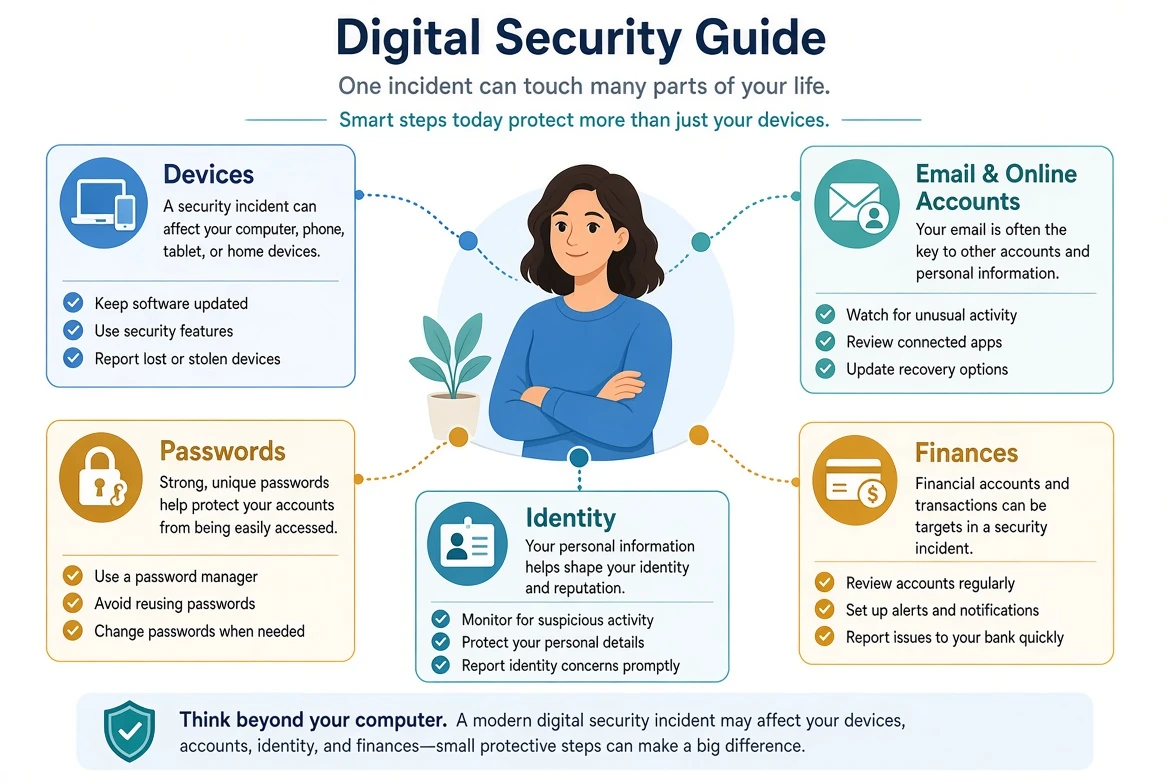
Sometimes we find malicious software or evidence of unauthorized access on a device. In other
cases, the device is clean, but an email or online account has been compromised. Sometimes a
password was exposed years earlier in an unrelated data breach and is only now being used against
another account.
There are also incidents in which no device or account was technically compromised. Instead, a
criminal used fear, urgency, authority, or trust to persuade someone to provide information, send
money, install software, or approve access.
For these reasons, a proper investigation cannot begin with the assumption that every incident is
simply a computer virus.
About Bringing Your Tech to Life
Bringing Your Tech to Life has served individuals, families, and small businesses since 2006.
Over the years, we have helped customers through many frightening and confusing situations
involving malware, remote-access scams, compromised accounts, fraudulent transactions,
identity-theft concerns, deceptive security warnings, and other digital threats.
Those experiences have taught us that customers need more than technical work performed on a
device. They also need someone who will listen carefully, explain what was found in plain
language, answer questions honestly, and help them understand what should happen next.
Our role is not to make you feel embarrassed about what happened or overwhelm you with technical
terminology. Our role is to help you make sense of the situation and move forward with greater
security and confidence.
Our Security Philosophy
Technology should make life easier—not create fear.
Unfortunately, scammers often use urgency, confusion, and intimidation to pressure people into
making quick decisions. They may tell you that your money is in danger, your identity has been
stolen, your computer is infected, or your account will be closed unless you act immediately.
One of the most valuable things anyone can do during a possible security incident is slow the
situation down.
Our guiding principle is: Slow Down. Verify. Then Act.
We take the time to listen, gather the available facts, reconstruct what happened, evaluate the
devices and accounts that may be involved, explain our findings, and recommend practical next
steps based on the situation.
Our goal is not simply to return a repaired device.
Our goal is to help restore your confidence.
What Makes Our Process Different
Every security incident is different. That is why we approach each case as an investigation
instead of assuming that the problem is limited to one device or one piece of malicious software.
Depending on the situation, an investigation may involve:
Reconstructing the sequence of events
Preserving available evidence
Examining computers, smartphones, or tablets
Looking for malware or remote-access software
Reviewing browsers, extensions, startup items, and installed programs
Evaluating email and online-account security
Identifying exposed or reused passwords
Reviewing connected devices, active sessions, and recovery information
Considering possible financial or identity-related risks
Documenting findings, actions taken, and recommended next steps
Not every investigation will involve every step. The scope depends on what happened, which
devices or accounts may be affected, what evidence remains available, and what services have been
authorized.
It is also important to understand that no security investigation can always prove everything a
criminal saw, copied, or attempted to access. Some services retain detailed activity records,
while others provide very little history. Evidence may also be deleted, overwritten, unavailable,
or never recorded.
When certainty is not possible, we will distinguish between what was confirmed, what the
available evidence suggests, what appears unlikely, and what cannot be determined.
How to Use This Guide
This is a general educational guide. It does not need to be rewritten for each customer or
incident.
It explains:
How modern scams and digital security incidents happen
How Bringing Your Tech to Life investigates devices and accounts
How the recovery process generally works
How to improve password and account security
How to respond to financial fraud and identity-theft concerns
Which habits can reduce the likelihood of another incident
How to understand the documents provided after your service
Your individual findings will be recorded separately in your Service Report and any accompanying
worksheets, recommendations, or follow-up checklists. Those documents will describe what was
examined, what was discovered, what actions were completed, what limitations may apply, and what
steps remain for you to complete.
You do not need to read this entire guide at once. Begin with the sections most relevant to your
situation, use your Service Report to identify your priorities, and return to the remaining
chapters when you are ready.
We encourage you to keep this guide for future reference. The information can help you protect
not only yourself, but also your family, employees, friends, and others who may turn to you when
something does not seem right.
A Partnership in Your Security
Effective security is not achieved by software alone.
Antivirus software, security updates, password managers, passkeys, and two-factor authentication
are all valuable tools. However, lasting security also depends on good habits, informed
decisions, and a willingness to pause and ask questions when something feels unusual.
Our role is to provide professional guidance, careful investigation, clear documentation, and
practical recommendations.
Your role is to use what you learn, complete any remaining recovery steps, and continue
practicing the habits that help protect your digital life.
Together, we can make technology something you use with confidence—not something you fear.
CHAPTER TWO
Chapter 2
Understanding Modern Digital Security Incidents
“I Think I’ve Been Hacked…”
It is one of the most common statements we hear:
“I think my computer has a virus.”
“Someone hacked my bank account.”
“My email was compromised.”
“Microsoft called me.”
“My bank locked my online banking.”
“Someone is using my information.”
Although these situations are often grouped together under the word “hacked,” they may have very
different causes.
Sometimes malicious software has been installed on a device. Sometimes a criminal has obtained a
password, taken control of an email account, or gained access to an active online session. In
other situations, no technical compromise occurred at all. A criminal simply convinced someone to
disclose information, install software, approve a sign-in, or send money.
Understanding what kind of incident occurred is important because the correct response depends on
how access was gained, what may have been exposed, and which devices or accounts were involved.
What “Hacked” Can Actually Mean
“Hacked” is a convenient word, but it does not tell us exactly what happened.
A person who believes they were hacked may actually have experienced:
A fraudulent phone call
A phishing email or text message
A fake website or login page
A deceptive security warning
Unauthorized remote access to a device
A stolen or reused password
An email or social media account takeover
An active online session being stolen
Malware, spyware, or ransomware
Unauthorized financial activity
Personal information exposed in a data breach
Identity theft or attempted identity theft
A legitimate security alert that was misunderstood
These incidents can also overlap.
For example, a fraudulent email may lead to a fake login page that captures a password. That
password may then be used to access an email account. The email account may contain banking
messages, password-reset links, tax documents, saved contacts, and information that helps the
criminal target additional accounts.
What began as one deceptive email can become a much larger incident.
This is why the first question is not simply, “Does the computer have a virus?”
The better question is:
“What happened, and what could it have affected?”
Why Criminals Target People
Modern computers, smartphones, websites, and financial systems contain many security protections.
Defeating those protections directly can require time, technical skill, and specialized tools.
Convincing a person to open the door is often easier.
A criminal may persuade someone to:
Click a link
Open an attachment
Visit a fake website
Enter a password
Read a verification code aloud
Approve a sign-in notification
Install remote-access software
Disable security protections
Send money or purchase gift cards
Provide personal or financial information
This does not mean that victims are foolish or careless. These schemes are deliberately designed
to create a believable situation and provoke an emotional response.
Criminals may already know the person’s name, telephone number, email address, financial
institution, employer, relatives, or recent purchases. Some of this information may come from
public records, social media, marketing databases, previous data breaches, stolen accounts, or
other sources.
Knowing accurate information does not prove that the caller or sender is legitimate. It may
simply make the deception more convincing.
Social Engineering
Social engineering is the use of deception and psychological pressure to influence someone’s
behavior.
Rather than attacking a computer first, the criminal attacks the person’s ability to calmly
evaluate the situation.
Modern voice-cloning tools can make an unexpected caller sound like a relative, employer, or
other trusted person. A familiar voice is not proof of identity. End the call and contact the
person using a number you already know, or use a private family verification phrase that has not
been posted online.
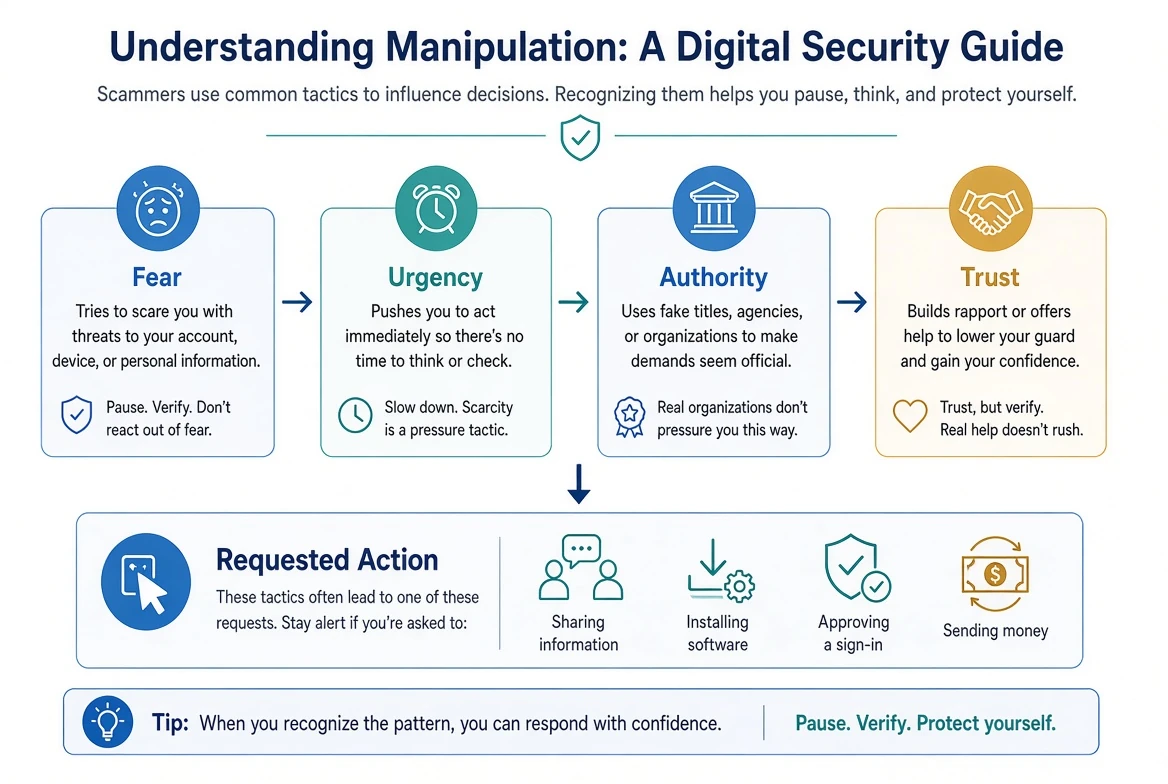
Many scams rely on four elements:
Fear
The criminal introduces a threat or alarming problem:
“Your bank account has been compromised.”
“Your computer is infected.”
“Your identity has been stolen.”
“There is a warrant for your arrest.”
“A purchase was made using your account.”
“Your family member is in trouble.”
Fear can cause someone to react before verifying whether the claim is true.
Urgency
The criminal insists that action must be taken immediately:
“Act now.”
“Do not hang up.”
“Your account will be closed.”
“Your money is not safe.”
“The police are on the way.”
“This must be resolved today.”
The less time a person has to think, the less likely they are to notice inconsistencies, contact
someone they trust, or independently verify the story.
Authority
The criminal pretends to represent an organization or person the victim already trusts.
Common impersonations include:
Technology companies such as Microsoft, Apple, or Google
Retailers such as Amazon, Walmart, or Target
Payment services such as PayPal, Zelle, Cash App, or Venmo
Banks, credit unions, and credit-card companies
Internet, electric, water, and other utility providers
Government agencies, law-enforcement agencies, or courts
Delivery services such as USPS, UPS, or FedEx
Streaming and subscription services
Employers, coworkers, friends, or family members
Professional logos, familiar telephone numbers, realistic websites, official-sounding language,
and even AI-generated voices may be used to reinforce this false authority.
Trust
Once the criminal has established fear, urgency, and apparent authority, they offer to help
resolve the problem.
They may ask the victim to:
Provide personal information
Confirm an account number
Read a verification code
Sign in to an account
Install a program
Allow remote access to a device
Move money to a “safe” account
Purchase gift cards
Send cryptocurrency
Keep the situation secret
At that point, the victim may believe they are cooperating with someone who is protecting them
when they are actually following the criminal’s instructions.
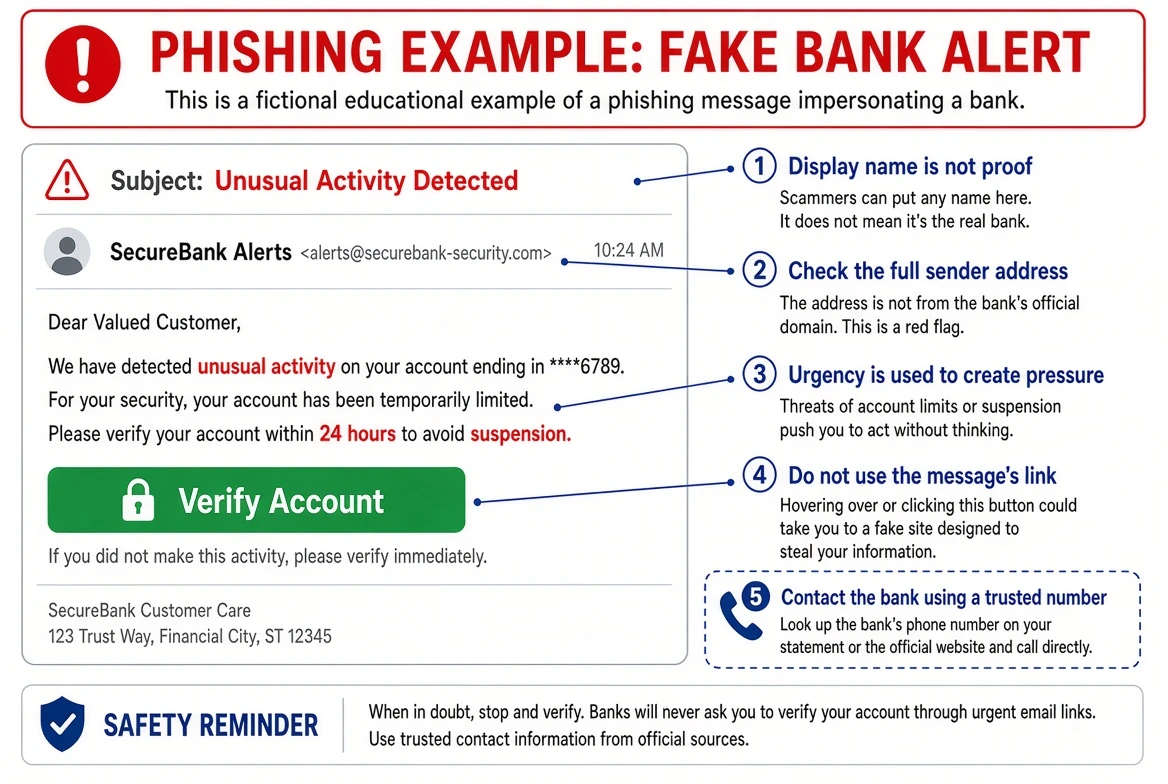
Phishing Emails, Texts, Calls, and Websites
Phishing is an attempt to trick someone into revealing information, opening a harmful file,
visiting a fraudulent website, or taking another unsafe action.
Phishing can arrive through several channels:
Email
Text message
Telephone call
Social media message
Online advertisement
Search result
QR code
Fake website
Calendar invitation
Browser notification
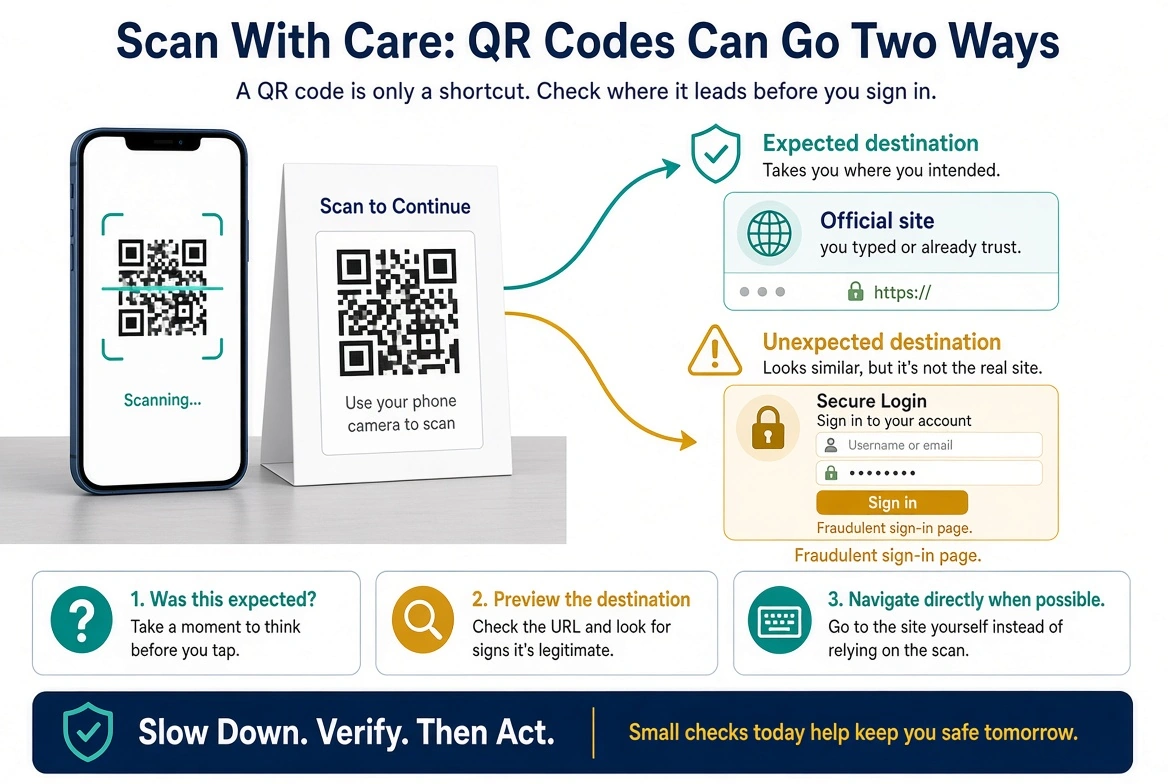
Treat a QR code as a concealed link. Before opening it, inspect the displayed address for
misspellings or an unexpected domain. Do not scan a code from an unexpected message, package,
payment request, parking notice, or sign when you cannot verify who placed it. If the request may
be legitimate, independently open the organization’s official application or type its known
website address instead.
A phishing message may claim that:
A payment failed
A package could not be delivered
An account has been locked
A subscription is about to renew
Suspicious activity was detected
A refund is waiting
A document has been shared
A password is about to expire
Someone needs immediate assistance
Some phishing attempts contain spelling mistakes, unusual formatting, or obviously suspicious
requests. Others are polished, personalized, and nearly identical to legitimate communications.
The visible name or logo is not proof of who sent the message. Email display names can be
misleading, caller ID can be spoofed, and links can be made to appear as though they lead to a
trusted website.
Do not use the contact information, telephone number, or link supplied in a suspicious message to
verify the message itself.
Instead, independently contact the organization using information you already trust, such as:
The number printed on the back of your bank or credit card
A saved telephone number you have used before
The organization’s official mobile application
A website address you type yourself
A recent paper statement
An established contact within the organization
Real-World Example: The Call From the Bank
A customer received a telephone call that appeared on caller ID to come from a local bank branch.
The caller knew the customer’s name and mentioned a recent purchase the customer had actually
made. The caller then claimed that additional fraudulent activity had been detected and
instructed the customer to transfer money to a “safe account.”
The information sounded accurate, and the caller ID appeared legitimate. However, the customer
ended the call and contacted the bank using the number printed on the back of the debit card.
The bank confirmed that the call had not come from its fraud department.
The telephone number displayed on caller ID had been spoofed, and the accurate personal
information was used to make the story believable.
The lesson: Caller ID shows information presented to your phone. It does not prove who is
calling.
Fake Security Warnings and Scareware
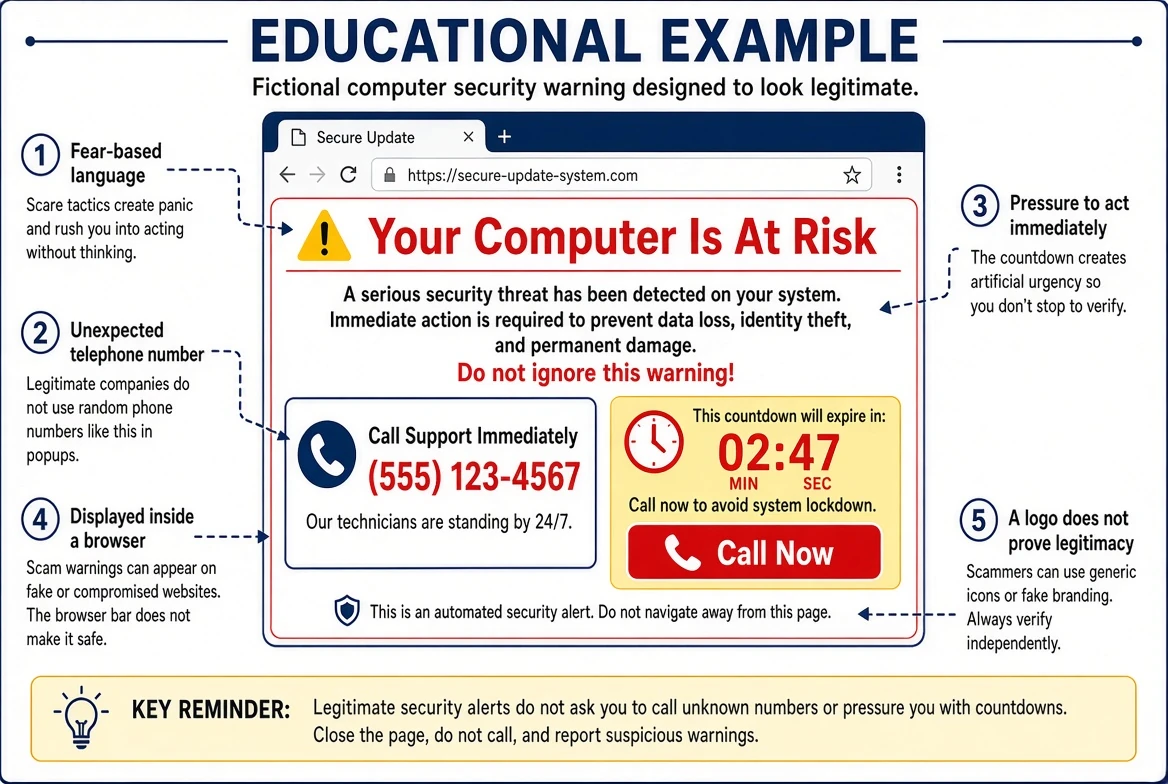
A frightening warning on a computer or smartphone does not automatically mean the device is
infected.
Some websites display full-screen messages claiming that:
The device has multiple viruses
Personal information is being stolen
The computer has been blocked
A subscription has expired
The user must call Microsoft or Apple immediately
Closing the page will cause permanent damage
A payment is required to restore security
These warnings may use flashing colors, sirens, spoken messages, countdown timers, repeated
pop-up windows, or official-looking logos.
Their purpose is often to frighten the user into calling a fraudulent support number, downloading
software, purchasing an unnecessary service, or granting remote access.
A website can display a message claiming that your computer is infected without actually
examining the computer. In many cases, the warning is simply content displayed inside the
browser.
Legitimate technology companies do not place unsolicited telephone numbers in browser pop-ups and
instruct users to call for immediate virus removal.
If you encounter a suspicious security warning:
Do not call the displayed number
Do not click buttons inside the warning
Do not download or install anything
Do not provide payment information
Do not allow remote access
Take a photograph of the screen if it is safe to do so
Close the browser or shut down the device if necessary
Contact someone you trust using independently verified information
Remote-Access Scams
Remote-access software allows one computer to be viewed or controlled from another location.
These programs have legitimate uses. Businesses, information-technology providers, and support
technicians use them to assist customers and manage devices. The danger arises when a criminal
convinces someone to install the software or provide access.
During a remote-access scam, the criminal may be able to:
View the screen
Move the mouse and type
Open files and programs
Watch the victim sign in to accounts
Install additional software
Change security settings
Transfer files
Hide activity from view
Attempt to access email or financial accounts
The criminal may claim to be removing a virus, processing a refund, correcting a banking problem,
securing an account, or stopping an unauthorized transaction.
No unexpected caller should be given remote access to a device, even if the caller knows personal
information or appears to be calling from a familiar number.
If unauthorized remote access may have occurred, disconnect the device from the internet when it
is safe to do so and avoid using it to change passwords until the situation has been evaluated.
Password changes should be made from a device reasonably believed to be secure.
Password and Session Theft
A criminal does not always need malware or remote control of a computer to access an online
account.
Passwords may be exposed through:
Phishing websites
Data breaches
Password reuse
Malicious software
Shared devices
Insecure storage
A person revealing or typing the password while being observed
Password reuse is especially dangerous. If the same password is used for several accounts, the
compromise of one website may place every account using that password at risk.
Criminals may automatically test exposed email address and password combinations against other
services. This is known as credential stuffing.
An account may also be accessed through a stolen session.
When you sign in to a website, the service may create a temporary digital record—often called a
session cookie or token—that tells the website you have already authenticated. This is what
allows you to move between pages without entering your password repeatedly.
If an active session is stolen, a criminal may sometimes enter the account without retyping the
password and, in some circumstances, without completing two-factor authentication again.
Changing the password remains important, but recovery may also require:
Signing out other devices and sessions
Removing unfamiliar connected applications
Reviewing account recovery information
Revoking app passwords or access tokens
Examining email forwarding and filtering rules
Reviewing recent security activity
These steps are discussed in greater detail later in this guide.
Malware and Ransomware
Malware is a broad term for software designed to cause harm, steal information, monitor activity,
disrupt a device, or provide unauthorized access.
Examples may include:
Viruses
Trojans
Spyware
Keyloggers
Remote-access tools installed without authorization
Malicious browser extensions
Ransomware
Ransomware is malware that encrypts files, restricts access to a system, or otherwise holds data
hostage while demanding payment.
Malware can still play an important role in digital security incidents, but it is only one
possibility. An unusual pop-up, fraudulent charge, or compromised account does not by itself
prove that malware is installed.
Likewise, completing an antivirus scan does not automatically confirm that every account is
secure or reveal everything that may have happened.
Device security and account security must be considered separately—and then evaluated together.
Why a Clean Device Does Not Always Mean You Are Safe
A device can be free of detectable malware while an online account remains compromised.
For example:
An email account may be forwarding messages to an unfamiliar address
A criminal may remain signed in through an active session
An unknown recovery email address or telephone number may have been added
A reused password may still provide access to another account
A fraudulent payment may have been authorized without infecting the device
Personal information may have been exposed in an unrelated data breach
A criminal may have copied information during an earlier remote-access session
A clean scan is valuable information, but it answers only one question:
“Did the security tools detect malicious software on this device?”
It does not necessarily answer:
Was an account accessed?
Was a password exposed?
Was personal information viewed or copied?
Is an unknown device still signed in?
Were email rules or recovery settings changed?
Is financial or identity-related follow-up necessary?
This is why Bringing Your Tech to Life evaluates the broader situation instead of relying on the
result of a single malware scan.
Interrupting a Scam
Many scams can be interrupted before additional harm occurs, even after the conversation or
incident has already begun.
Warning signs include:
Unexpected contact about an urgent problem
Instructions not to hang up or speak with anyone else
Requests for secrecy
Pressure to install software or allow remote access
Requests for verification codes or sign-in approvals
Demands for gift cards, cryptocurrency, wire transfers, or movement of money
Instructions to ignore warnings from a bank, browser, or security program
Anger or resistance when you attempt to verify the situation independently
When something does not feel right:
Slow down.
Do not rely on the information supplied by the person contacting you.
End the call or conversation if necessary.
Contact the organization using a telephone number, application, website, statement, or other
source that you already trust.
Ask a family member, friend, financial institution, or trusted technology professional for a
second opinion.
The BYT2L Principle
Slow Down. Verify. Then Act.
Criminals benefit when people feel isolated, frightened, and rushed. Security improves when we
create time to think, verify the story independently, and involve someone else.
Stopping to ask questions is not rude.
Ending an unexpected call is not disrespectful.
Refusing remote access is not uncooperative.
Contacting an organization through a trusted number is not an overreaction.
Those actions are reasonable security habits.
A few minutes spent verifying a message or telephone call may prevent financial loss, account
compromise, and weeks or months of recovery.
CHAPTER THREE
Chapter 3
The BYT2L Method
A Security Incident Is More Than a Repair
When a computer will not start, a screen is broken, or a printer stops working, the problem is
often limited to a specific device.
A digital security incident is different.
The visible problem may be only one part of a much larger situation. A suspicious charge could be
connected to a compromised email account. A fraudulent telephone call may have led to remote
access. A reused password could place several unrelated accounts at risk. A device may contain no
detectable malware even though someone has gained access to information stored online.
For this reason, Bringing Your Tech to Life approaches digital security incidents as
investigations—not simply as ordinary computer repairs.
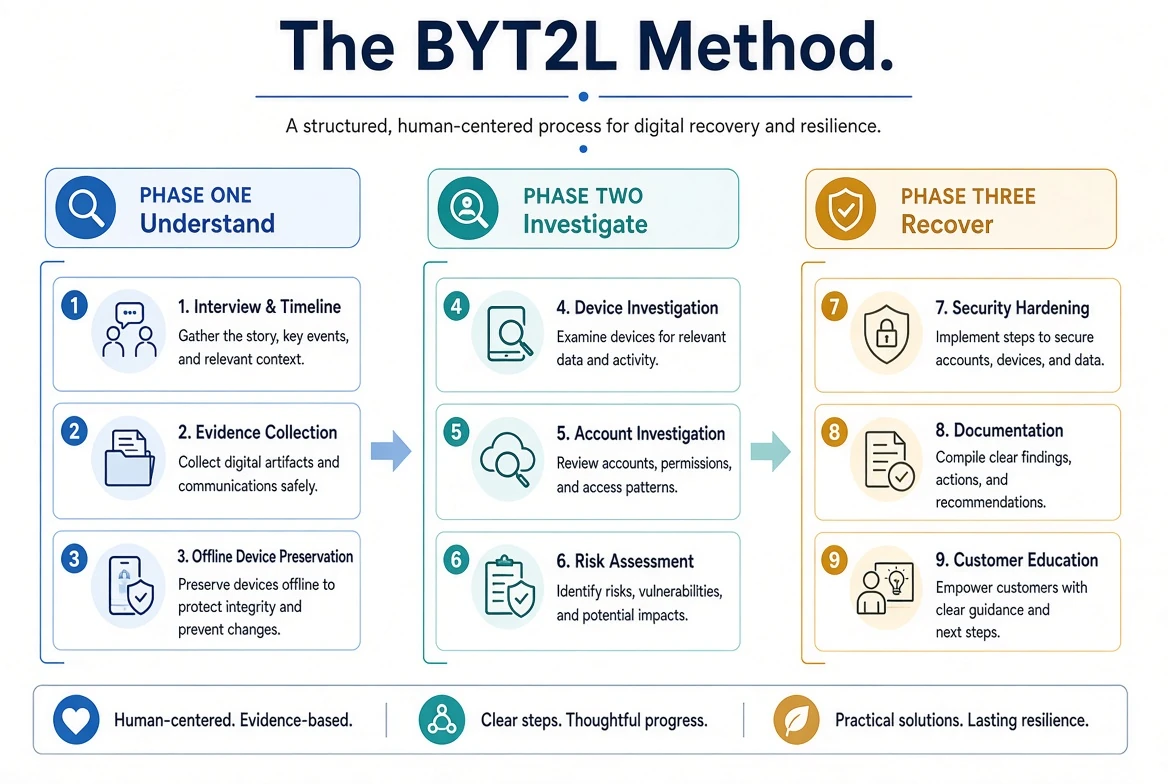
The BYT2L Method is our structured process for understanding what happened, examining the devices
and accounts that may be involved, assessing the potential risks, and helping the customer move
forward.
Not every incident requires every step to the same degree. The scope of the investigation depends
on:
What happened
Which devices and accounts may be involved
What information may have been exposed
What evidence remains available
Which services the customer has authorized
Whether financial institutions, law enforcement, employers, or other organizations are involved
The process may also change as new information is discovered.
Step 1 – Interview and Timeline Reconstruction
Every investigation begins with a conversation.
Before examining a device or account, we need to understand what the customer experienced. Small
details that initially seem unimportant may help explain how the incident began, what the
criminal attempted to accomplish, and which areas require attention.
We may ask questions such as:
When did the incident begin?
How did the first contact occur?
Was it a telephone call, email, text message, website, advertisement, or pop-up?
What did the person or message claim had happened?
What instructions were provided?
Was any software downloaded or installed?
Was remote access allowed?
Were any passwords, verification codes, or personal details provided?
Were any accounts accessed while another person could view the screen?
Was money sent, transferred, withdrawn, or used to purchase gift cards or cryptocurrency?
Which devices were being used?
What happened after the initial incident?
Were any passwords or security settings already changed?
Have any banks, businesses, or government agencies been contacted?
We use this information to reconstruct the sequence of events as accurately as possible.
People experiencing a stressful event may not remember every detail immediately or in the correct
order. That is normal. The purpose of the interview is not to interrogate or blame the customer.
It is to collect the information needed to make informed decisions.
Additional details may emerge later as messages, call histories, account activity, installed
programs, or other evidence are reviewed.
A clear timeline helps us distinguish between:
What happened before the incident
What occurred while the criminal may have had access
What the customer did afterward
Which changes were made by the customer, a legitimate organization, or an unknown person
Which devices and accounts may require further investigation
The better we understand the sequence, the better we can focus the investigation.
Step 2 – Evidence Collection
Digital evidence can disappear quickly.
Messages may be deleted. Browser history can change. Call logs may be cleared. Security alerts
can expire. Account activity may only remain available for a limited time. A customer may also
unintentionally remove useful information while attempting to clean the device or secure an
account.
When appropriate, we may collect or document:
Photographs or screenshots of warnings and error messages
Suspicious emails, text messages, or social media messages
Sender addresses, telephone numbers, and website addresses
Call histories and approximate call durations
Downloaded files
Recently installed programs
Browser history and extensions
Account security alerts
Login history and connected devices
Email forwarding or filtering rules
Bank or credit-card notifications
Transaction dates, amounts, and recipient information
Notes from conversations with financial institutions or other organizations
Customers should avoid deleting suspicious messages, uninstalling software, clearing browser
history, or repeatedly attempting to “clean” a device before the available evidence has been
considered.
Preserving evidence does not mean that every item is dangerous or that it will prove exactly what
occurred. It means retaining information that may help us understand the incident.
When an email, text message, or other record contains sensitive information, we document only
what is reasonably necessary for the investigation and handle it according to the authorized
scope of service.
Step 3 – Offline Device Preservation
If a device may be actively compromised, connecting it to the internet could allow software or an
unauthorized person to continue communicating with it.
For that reason, we may initially keep a device disconnected from:
Wi-Fi
Ethernet or wired networks
Bluetooth connections
Shared network storage
Cloud synchronization services
Other devices on the customer’s network
Keeping a device offline may help reduce the possibility of additional remote activity, automatic
synchronization, file transfers, or changes occurring before the device can be examined.
However, disconnecting a device is not the same as proving that it is infected. It is a
precaution based on the circumstances reported by the customer.
The appropriate response depends on the situation. In some cases, disconnecting the device from
the internet is sufficient. In others, shutting it down may be appropriate. Certain
investigations may require preserving the device in its existing state long enough to document
what is running.
Customers should follow the instructions provided for their particular situation rather than
assuming that every incident requires the same response.
Our standard security assessment is intended to support practical incident response and recovery.
It is not automatically a formal forensic examination suitable for criminal prosecution,
litigation, or regulatory proceedings. If formal forensic preservation may be required, that need
should be identified before ordinary repair or cleanup work changes the device.
Step 4 – Device Investigation
Once the available information has been gathered and the device has been appropriately isolated,
we examine the areas most relevant to the reported incident.
Depending on the device and authorized scope, this may include reviewing:
Installed programs and applications
Remote-access software
Recently downloaded files
Startup items and scheduled tasks
Running processes and services
Browser extensions and settings
Security-software status and exclusions
User accounts and administrative access
Operating-system security settings
Recent system activity
Signs of malware or unauthorized changes
We may also use more than one security tool because no single scan can identify every possible
threat or explain every type of incident.
A security scan is only one part of the investigation. Automated tools can help identify known
malware, suspicious files, or unwanted software, but they cannot independently explain the
customer’s conversation with a scammer, determine why money was transferred, or confirm whether
an online account remains secure.
The device investigation is covered in greater detail in Chapter 4.
Step 5 – Account Investigation
Many modern incidents continue outside the device.
If a criminal obtained access to an email address, password, verification code, recovery method,
or active session, removing software from the computer may not remove the criminal from the
account.
When authorized and relevant, account investigation may include reviewing:
Recent login activity
Connected devices and active sessions
Recovery email addresses and telephone numbers
Password changes
Two-factor authentication settings
App passwords
Authorized applications and third-party access
Email forwarding addresses
Mail filters and rules
Delegated account access
Security notifications
Recent transactions or account changes
Email accounts receive particular attention because they are often used to reset passwords and
recover access to other services.
An account investigation may involve Google, Microsoft, Apple, social media services, shopping
accounts, payment services, financial institutions, or other online platforms. Each provider
offers different security records and controls, so the information available will vary.
We will not access or change an account without the customer’s authorization and necessary
cooperation.
Email and online-account investigations are discussed further in Chapters 5 and 6.
Step 6 – Risk Assessment
Finding a suspicious program or unfamiliar login is important, but customers also need to
understand what that finding may mean.
The risk assessment considers the broader situation, including:
The type of incident
The criminal’s apparent objective
How long access may have existed
Which devices were used
Which accounts were accessed or discussed
Whether passwords were entered or disclosed
Whether verification codes or sign-in requests were approved
Whether remote access occurred
What personal or financial information may have been available
Whether money was sent or unauthorized transactions occurred
Whether the same password was used elsewhere
What evidence supports or limits our conclusions
Risk is not always all-or-nothing.
An incident may present different levels of concern for different areas. For example:
Device risk may be low because no malicious software was detected.
Email risk may be high because an unknown forwarding rule was found.
Password risk may be elevated because the same password was used on several websites.
Financial risk may require immediate attention because banking information was viewed during
remote access.Identity risk may remain uncertain because personal records were available but copying cannot
be confirmed.
When possible, we separate:
Confirmed findings
Likely or supported concerns
Precautionary recommendations
Items that could not be determined
This helps the customer understand why a recommendation is being made without presenting
assumptions as proven facts.
Step 7 – Security Hardening
Once the immediate investigation is complete, the next goal is to reduce the opportunity for
continued or future unauthorized access.
Depending on the incident and authorized services, security hardening may include:
Removing malicious or unauthorized software
Removing unnecessary remote-access programs
Correcting unsafe security settings
Installing operating-system and application updates
Reviewing browser extensions
Ending unfamiliar account sessions
Removing unknown connected devices
Correcting account-recovery information
Removing unauthorized forwarding rules or delegated access
Changing compromised or reused passwords
Enabling or strengthening two-factor authentication
Preserving recovery codes
Reviewing authorized applications
Improving device sign-in security
Recommending safer account and password practices
Some security changes may be completed by Bringing Your Tech to Life. Others may require the
customer to participate, contact an account provider, visit a financial institution, verify their
identity, or complete additional steps after the service.
Security hardening is not a promise that no future incident can occur. Its purpose is to address
the risks identified during the investigation and make unauthorized access more difficult.
Step 8 – Documentation
A customer should not leave a security service with only a verbal explanation and a repaired
device.
Documentation helps distinguish what was reported, what was examined, what was found, what
actions were taken, and what remains to be completed.
Depending on the service, the customer may receive:
An incident summary
A timeline of important events
A list of devices or accounts examined
Investigation findings
Actions completed
Identified risks
Recommended next steps
Account-security information
Password documentation, when authorized
A follow-up checklist
Information for a financial institution or another organization, when appropriate
Sensitive information may be handled differently in printed and digital documents. For example, a
printed password record may contain information that is intentionally removed or concealed in a
digital copy.
Documentation does not guarantee that every action taken by a criminal can be reconstructed. It
provides a clear record of the available information, the work performed, and the conclusions
reasonably supported by the investigation.
Your individual findings will appear in your Service Report and related documents—not in this
general guide.
Step 9 – Customer Education
The final step is helping the customer understand the incident.
Security recommendations are most useful when the customer understands why they matter and how to
apply them.
We explain:
What we found
What we did not find
What could not be determined
What actions were completed
What still needs to be done
Which warning signs were present
How similar incidents may be recognized
Which habits can reduce future risk
When additional help may be necessary
Customers are encouraged to ask questions. If a recommendation is unclear, we would rather
explain it again than have someone leave uncertain about what to do.
Our purpose is not to make customers afraid of technology. It is to give them enough
understanding to use it more safely and confidently.
What the BYT2L Method Provides
The BYT2L Method creates a consistent framework for approaching very different types of
incidents.
It helps us move from:
Confusion to a clearer timeline
Assumptions to evidence-based findings
A single-device focus to a broader view of accounts and identity
Immediate danger to an organized recovery plan
Fear to practical understanding
The outcome will not be identical in every case. Some investigations confirm malicious activity.
Some reveal account-security problems rather than device infections. Others find no evidence of
compromise but identify reasonable precautions that should still be taken.
Whatever the outcome, our goal remains the same:
To help you understand what happened, protect what matters, and move forward with greater
confidence.
CHAPTER FOUR
Chapter 4
Device Security Assessment
Looking Beyond a Single Scan
When customers bring us a computer, smartphone, or tablet after a suspected security incident,
one of the first questions they often ask is:
“Does my device have a virus?”
That is an important question, but it is not the only question a device assessment should answer.
A device may contain malware, unwanted software, unauthorized remote-access tools, unsafe browser
extensions, altered security settings, unfamiliar user accounts, or other changes that deserve
attention. At the same time, a device may appear clean even though an email account, password,
financial account, or active online session has been compromised.
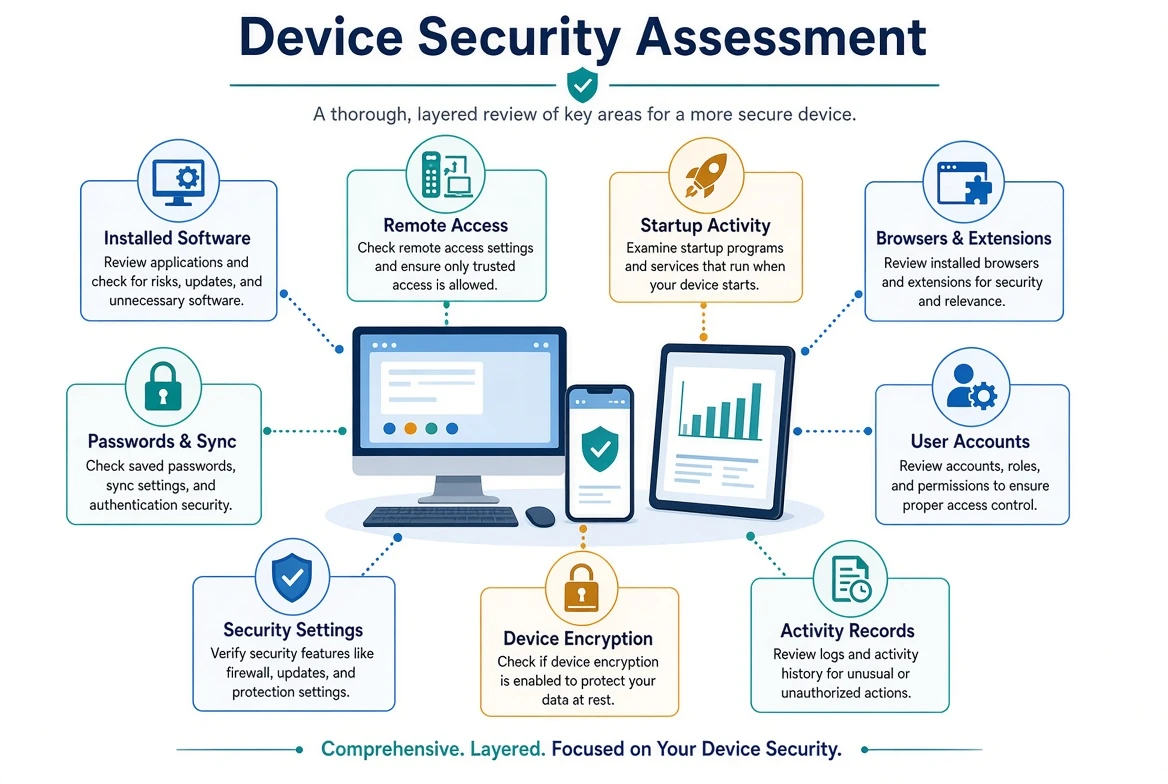
For this reason, our device security assessment examines multiple areas instead of relying on the
result of one scan.
The purpose is to look for evidence that may help us understand:
Whether potentially harmful or unwanted software is present
Whether remote-access software has been installed or used
Whether programs are starting automatically
Whether security settings have been changed
Whether browser extensions or settings create additional risk
Whether browser data was imported, exported, or synchronized
Whether passwords or other sensitive information may have been exposed
Whether unfamiliar accounts or administrative access exist
Whether device encryption is enabled and recoverable
Whether the operating system and important applications are supported and updated
Whether the device shows activity that may relate to the reported incident
Whether additional account or identity-related investigation is appropriate
The specific examination depends on the device, operating system, reported incident, available
evidence, and authorized scope of service.
What We Examine
A device security assessment is made up of several related reviews.
Depending on the situation, we may examine:
Installed programs and applications
Recently installed or updated software
Downloaded files
Remote-access programs
Running processes and background services
Startup items and scheduled tasks
User accounts and administrator privileges
Browser profiles, settings, extensions, notifications, and recent history
Security software and configuration
Security exclusions or disabled protections
Operating-system settings and updates
Network, proxy, VPN, and remote-management settings
Application permissions
Available security and activity records
Signs of potentially unwanted software
Signs of unauthorized changes or persistence
Saved passwords, passkeys, payment information, and autofill settings
Browser synchronization and data-import settings
Firewall and network settings
Disk or device encryption
Recovery-key availability
Plainly stored passwords or other sensitive information
No single item proves that a device has been compromised.
A legitimate remote-support program may have been installed by an authorized technician. A
browser extension may have been added intentionally. A scheduled task may belong to a trusted
application. An unfamiliar process may be a normal part of the operating system.
Context matters.
We compare what is found on the device with the customer’s timeline, reported activity, installed
software, account history, and other available evidence.
Why We May Keep a Device Offline
A device involved in a possible security incident may initially be kept disconnected from the
internet and other networks.
This may help prevent:
Continued remote access
Communication between suspicious software and an outside system
Additional downloads or software changes
Automatic synchronization with cloud services
Changes to files or account information
Unnecessary exposure of other devices on the network
Loss or alteration of useful evidence
An offline assessment may use security tools and definitions prepared in advance rather than
downloading tools directly to the device being examined.
Keeping a device offline is a precaution. It does not prove that the device is infected or under
active control.
In some situations, internet access may later be necessary to:
Verify software publishers or digital signatures
Install security and operating-system updates
Review online-account activity
Confirm whether a program is legitimate
Update security tools
Download an official removal utility
Test whether a security concern has been resolved
When internet access is needed, it should be introduced deliberately and at an appropriate point
in the investigation.
Customers should avoid reconnecting a device or using it to access sensitive accounts until they
have been advised that it is reasonable to do so.
Malware and Potentially Unwanted Software
Malware is software designed to cause harm, steal information, monitor activity, disrupt a
device, or provide unauthorized access.
Potentially unwanted software may not meet the strict definition of malware, but it can still
create security, privacy, or performance concerns.
Examples may include:
Viruses and trojans
Spyware and keyloggers
Unauthorized remote-access tools
Malicious or deceptive browser extensions
Adware
Browser hijackers
Bundled software
Fake security or cleanup programs
Programs that display excessive or deceptive advertisements
Applications installed through misleading prompts
Potentially unwanted programs are sometimes installed alongside software the customer intended to
install. The option to decline may have been hidden, preselected, or described in confusing
language.
Other programs may use alarming messages to convince the customer that the device contains
serious problems and that payment is required to fix them.
During the assessment, we may use several methods to look for unwanted or malicious software.
These can include manual review, security scans, reputation checks, configuration review, and
comparison with the customer’s timeline.
Using more than one security tool may improve coverage, but no tool detects every threat.
A scan result must also be interpreted carefully. A detected item could be:
Confirmed malware
A potentially unwanted program
A legitimate administrative tool used without authorization
A leftover file that is no longer active
A browser setting or extension
A false positive requiring additional review
Finding and removing a suspicious file is important, but it does not automatically explain how it
arrived, what it accessed, or whether an online account remains compromised.
Remote-Access Software
Remote-access software allows someone at another location to view or control a device.
These programs have many legitimate uses. Businesses use them to support employees, technicians
use them to assist customers, and individuals may use them to reach their own computers while
away.
The software itself is not always malicious.
The important questions are:
Who installed it?
Why was it installed?
Was the customer expecting remote assistance?
Did the customer knowingly approve access?
Was unattended access enabled?
Does the program start automatically?
Is the software still installed?
Are there indications that additional changes were made during the session?
Criminals frequently instruct victims to install legitimate remote-access programs. Once
connected, the criminal may attempt to view files, observe passwords, access email or banking
websites, alter security settings, transfer files, or install additional software.
Removing the remote-access program is an important step, but it may not be the only step
required.
If accounts were accessed during the session, passwords, active sessions, recovery settings, and
recent account activity may also need to be reviewed.
If personal or financial records were visible or available, additional identity or financial
precautions may be appropriate even when there is no proof that the information was copied.
A remote-access incident must therefore be evaluated as both a device concern and a possible
account or information-exposure concern.
Startup Items and Scheduled Tasks
Many programs are designed to start automatically when a device is turned on or when a user signs
in.
This is normal for items such as:
Security software
Hardware utilities
Cloud-storage applications
Printer software
Backup programs
Update services
Accessibility tools
Communication applications
Malicious or unwanted software may also attempt to start automatically so that it remains active
after the device is restarted.
Depending on the operating system, automatic activity may be controlled through:
Startup applications
Login items
Background services
Scheduled tasks
Launch agents or system services
Browser startup settings
Device-management profiles
Accessibility or administrative permissions
We review unfamiliar or suspicious entries in context. An item should not be removed solely
because its name is unfamiliar. Many legitimate system components have technical names that
customers may never have seen.
The goal is to identify entries that do not belong, were added near the time of the incident,
point to suspicious locations, or otherwise require further investigation.
Browser and Extension Review
Web browsers contain more information and functionality than many people realize.
A browser may store or manage:
Browsing history
Download history
Saved usernames and passwords
Passkeys
Payment information
Cookies and active sessions
Autofill information
Website permissions
Search-engine settings
Notification permissions
Extensions and add-ons
Synchronization with an online account
Browser extensions can provide useful features, but they may also be overly intrusive,
misleading, or malicious.
Depending on the permissions granted, an extension may be able to:
Read or change information on websites
View browsing activity
Change search results
Display advertisements
Manage downloads
Access copied information
Interact with account sessions
Redirect the user to other websites
Extract or misuse session cookies
We may review which extensions are installed, when they were added, what permissions they
request, whether they are still supported, and whether they relate to the reported incident.
We may also examine:
Unexpected search engines or home pages
Suspicious site-notification permissions
Unfamiliar downloads
Saved credentials
Browser synchronization
Signs that a browser profile is connected to an unfamiliar account
Whether security warnings were generated by a website rather than the operating system
Browser review is particularly important after phishing, fake support warnings, remote-access
incidents, unwanted advertising, or suspected password and session theft.
Customers should understand that clearing browser history or cookies before an investigation may
remove useful evidence. Those actions may be appropriate later, but they should be performed
deliberately.
Saved Credentials, Browser Synchronization, and Imports
Modern browsers and operating systems can synchronize passwords, passkeys, bookmarks, history,
payment information, extensions, and other data across devices.
Common examples include:
Microsoft Edge synchronization through a Microsoft account
Google Password Manager and Chrome synchronization through a Google account
iCloud Passwords and Keychain through an Apple Account
Firefox Sync through a Mozilla account
Third-party password managers and browser extensions
Synchronization is not automatically unsafe. It can make passwords easier to manage and can help
customers use strong, unique credentials across devices.
However, synchronization changes the security boundary.
Instead of information remaining only on one device, it may become available through the
controlling account and other authorized devices. If that account, an approved device, an active
session, or a browser profile is compromised, synchronized information may require additional
investigation.
We may review:
Which browser profiles exist
Which accounts are connected to each browser
Whether password synchronization is enabled
Which categories of browser data are synchronized
Which devices are authorized to receive that information
Whether an unfamiliar account or device was added
Whether browser information was imported or exported
Whether import-at-launch or similar settings are enabled
Whether the customer intended the synchronization or import behavior
Whether recovery information and two-factor authentication are secure
Browser imports deserve particular attention.
Browsers may offer to import:
Passwords
Bookmarks
Browsing history
Payment information
Autofill information
Extensions
Cookies or other browser data
Microsoft Edge can import information from other browsers, and some import behavior can be
configured to occur again when the browser launches. Safari may offer to keep information
imported from Chrome or Firefox when it is first opened after those browsers have been used.
Other browsers provide their own import tools.
These features are intended to make switching browsers easier, but they may also duplicate
sensitive information in places the customer does not expect.
During a remote-access investigation, we review every installed browser—not only the browser the
customer normally uses.
We look for:
Browsers installed near the time of the incident
Unfamiliar Chromium-based or other third-party browsers
New or unfamiliar browser profiles
Unexpected imports of passwords or other data
Browsers signed in to unfamiliar synchronization accounts
Changes to the default browser
Password-export or import files
Browser profiles created for temporary or unauthorized access
The presence of Chromium or another unfamiliar browser does not automatically prove malicious
activity. Chromium is a legitimate open-source browser project used as the foundation for many
browsers.
We consider when the browser was installed, where it came from, which profiles and accounts it
contains, whether data was imported, and how its installation relates to the customer’s timeline.
A criminal controlling a device remotely may attempt to install another browser or create another
browser profile to import credentials, access synchronized information, or separate suspicious
activity from the customer’s normal browser history.
That possibility should be investigated rather than assumed.
Sensitive Information Stored on the Device
Sometimes the most valuable information on a device is not hidden.
A document, spreadsheet, note, photograph, or exported file may contain:
Usernames and passwords
Security questions and answers
Account numbers
Banking information
Tax information
Social Security numbers
Copies of identification
Credit-card information
Personal or business records
We may look for plainly identified or incident-relevant files in locations such as:
The Desktop
Documents
Downloads
Notes applications
Cloud-synchronized folders
Email drafts or attachments
Removable drives
Browser download history
Concerning filenames may include:
PASSWORDS
Logins
Account Information
Bank Accounts
Security Questions
Recovery Codes
Password Export
passwords.csv
A filename is not proof of what a file contains, and we do not need to open every personal file
indiscriminately.
With the customer’s authorization, we identify plainly stored or incident-relevant files that
could expose credentials or other sensitive information.
Password-export files deserve special attention. Browsers and password managers commonly export
credentials into CSV files. These files are typically readable as ordinary text and may remain in
Downloads, on the Desktop, in cloud storage, or on a removable drive after the import or export
is complete.
Simply renaming a file does not encrypt or protect its contents.
If a criminal had remote access while an unprotected password list or sensitive document was
available, it may not be possible to prove whether the file was opened, copied, photographed, or
transferred. Its presence may nevertheless influence the risk assessment and password-recovery
recommendations.
Customers who maintain password or account records should use a method appropriate for their
needs, technical ability, and recovery plan. This may include a reputable password manager, a
properly protected digital record, or another carefully managed system.
The safest system is not helpful if the customer cannot reliably use or recover it. Security and
recoverability must be considered together.
Disk Encryption and Recovery Keys
Disk encryption helps protect stored information when a device is lost, stolen, powered off, or
accessed by someone who does not have the proper sign-in credentials.
Common examples include:
BitLocker or Device Encryption on Windows
FileVault on macOS
Data Protection on iPhone and iPad
File-based encryption on modern Android devices
Encryption is particularly important for:
Laptops and tablets that leave the home or office
Devices containing customer or employee information
Devices containing financial, medical, tax, or identity records
Business devices
Devices used while traveling
Phones that contain access to email, banking, authentication applications, or password managers
A desktop that remains at home may face less loss or travel risk than a laptop, but encryption
can still provide protection if the computer is stolen, its drive is removed, or the device is
discarded improperly.
Whether encryption should be enabled is a discussion based on:
How the device is used
Where it travels
What information it contains
Who else may have physical access
Whether the device supports encryption properly
Whether a reliable backup exists
Whether the recovery key can be safely preserved
Before enabling encryption, the recovery method must be understood.
A recovery key may be required after:
A hardware or firmware change
Certain repair procedures
A startup problem
A security-related event
Replacement of system components
Loss of normal sign-in access
If the recovery key is lost, the information on the device may become permanently inaccessible.
Encryption does not replace backups.
Encryption also does not protect information from someone who is already controlling an unlocked
device. If a criminal has remote access while the customer is signed in, files may be available
even though the drive is encrypted.
For phones and tablets, a strong passcode or screen lock is essential. Modern mobile devices
normally encrypt stored information, but the protection is only as useful as the authentication
controlling access to it.
Operating System and Software Review
Security depends partly on whether the operating system and installed applications continue to
receive updates.
Updates may correct:
Security vulnerabilities
Software defects
Browser weaknesses
Compatibility problems
Reliability issues
Known methods of unauthorized access
A device that no longer receives security updates may face increased risk even when no current
infection is found.
During an assessment, we may consider:
Operating-system version
Available security updates
Supported status of the device
Installed application versions
Security-software condition
Firewall status
Disk-encryption status and recovery readiness
Screen-lock and sign-in protections
User and administrator accounts
Remote-management settings
Security exclusions
Unfamiliar system changes
A missing update does not prove that a device was compromised. Likewise, installing updates does
not explain an incident that has already occurred.
Updates are an important preventive measure, but they are only one part of a broader security
strategy.
Windows Considerations
A Windows assessment may include reviewing:
Accounts and Sign-In
Local and Microsoft-connected user accounts
Administrator privileges
PIN, password, Windows Hello, and screen-lock settings
Unfamiliar users or changes to account permissions
Devices connected to the Microsoft account
Browsers, Passwords, and Synchronization
All installed browsers and browser profiles
Microsoft Edge synchronization settings
Saved passwords, passkeys, payment information, and autofill data
Browser-data import settings
Import-at-launch or similar behavior
Browsers installed near the time of the incident
Unfamiliar synchronization accounts
Password export or import files
Changes to the default browser
Security and Network Protection
Windows Security or other security software
Virus and threat-protection settings
Security exclusions
Windows Firewall or a third-party firewall
Unexpected firewall rules or allowed applications
Proxy, VPN, DNS, and network settings
Remote Desktop and remote-management settings
Encryption and Recovery
BitLocker or Device Encryption status
Which drives are encrypted
Where the recovery key is stored
Whether the customer can retrieve the recovery key
Whether backups exist before encryption changes are made
Software, Permissions, and System Activity
Installed applications
Recently downloaded or installed files
Startup applications
Scheduled tasks
Services and running processes
Remote-access programs
Browser extensions
Windows updates
Available system and security records
Plainly stored password or account documents
Application privacy permissions
Camera, microphone, location, and notification access
Applications permitted to run in the background
Security exclusions deserve particular attention. An exclusion instructs security software not to
examine a particular file, folder, process, or location. Exclusions can be legitimate, but
criminals and unwanted programs may add them to prevent detection.
The presence of an exclusion does not automatically prove unauthorized access. We consider what
was excluded, when the setting may have changed, which software requires it, and whether the
customer recognizes the reason for it.
Microsoft account and Edge synchronization settings also deserve careful review. Synchronization
is not automatically a security problem, but it may allow passwords and other browser data to
become available on additional authorized devices.
If a Microsoft account, browser profile, active session, or trusted device may have been
compromised, the investigation should consider what information was synchronized and where else
it may have become available.
macOS Considerations
A macOS assessment may include reviewing:
Accounts and Sign-In
Local user and administrator accounts
Apple Account information
Devices connected to the Apple Account
Password, Touch ID, and screen-lock settings
Unfamiliar users or changes to account permissions
Browsers, Passwords, and Synchronization
Safari and all installed third-party browsers
Browser profiles and connected accounts
iCloud Passwords and Keychain synchronization
Saved passwords, passkeys, payment information, and autofill data
Browser information imported from Chrome, Firefox, or another browser
Browsers installed near the time of the incident
Unfamiliar synchronization accounts
Password export or import files
Changes to the default browser
Security and Network Protection
macOS Firewall status and configuration
Unexpected applications allowed to accept incoming connections
VPN, proxy, DNS, and network settings
Remote Login
Screen Sharing
File Sharing
Remote-management settings
Configuration and device-management profiles
Encryption and Recovery
FileVault status
FileVault recovery method
Whether the recovery method remains accessible
Whether backups exist before encryption changes are made
Software, Permissions, and System Activity
Installed applications
Login items and background items
Launch agents and system services
System extensions
Browser extensions
Privacy and Security permissions
Accessibility access
Input Monitoring
Screen Recording
Full Disk Access
App Management and Automation permissions
macOS and application updates
Available system and security records
Plainly stored password or account documents
macOS includes a built-in firewall, but it may not be enabled. We review its status, allowed
connections, sharing services, and whether its configuration is appropriate for how the Mac is
used.
Mac computers are not immune to scams, unwanted software, compromised accounts, or malicious
applications.
A criminal may use legitimate remote-access software on a Mac just as they would on a Windows
computer. A deceptive application may also request Accessibility, Screen Recording, Full Disk
Access, or other powerful permissions.
Those permissions can be legitimate for trusted software, but they should be reviewed when the
customer does not recognize the application or does not understand why the permission was
granted.
Safari can import browser information, including passwords, from other browsers. This can be
convenient when a customer intentionally changes browsers, but unexpected imports or newly
installed browsers deserve attention during a remote-access investigation.
Android Considerations
A modern Android assessment may include reviewing:
Accounts and Sign-In
Google accounts connected to the device
Devices connected to the Google account
PIN, password, pattern, fingerprint, and screen-lock settings
Unfamiliar accounts or user profiles
Account-recovery information
Browsers, Passwords, and Synchronization
Chrome and all installed third-party browsers
Browser profiles and connected accounts
Google Password Manager and Chrome synchronization
Saved passwords, passkeys, payment information, and autofill data
Browsers installed near the time of the incident
Unfamiliar synchronization accounts
Password export or import files
Changes to the default browser
Security and Network Protection
Google Play Protect status
VPN, proxy, private DNS, and network settings
Device administrator applications
Accessibility permissions
Notification access
Permission to install unknown applications
Applications installed from outside the official store
Device-management or work profiles
Encryption and Recovery
Device-encryption status on older or unusual devices
Strength of the PIN, password, or screen lock
Encryption and handling of removable storage, when present
Google account recovery options
Availability of current backups
Software, Permissions, and System Activity
Installed applications
Recently installed or updated applications
Application permissions
Applications allowed to display over other apps
Background activity and battery-use information
Browser notifications
Operating-system and security updates
Manufacturer support status
Available security activity
Plainly stored password or account documents
Android devices vary by manufacturer, model, mobile carrier, and operating-system version.
Security settings may appear in different locations, and the length of update support varies
between devices.
Accessibility access, device-administrator privileges, notification access, and permission to
install unknown applications deserve careful review because they can provide applications with
significant control or visibility.
An unfamiliar application is not automatically malicious, but applications with powerful
permissions should have a clear and trusted purpose.
Modern Android devices use file-based encryption, but a strong screen lock remains essential.
Google Password Manager can make saved passwords and passkeys available across Android devices
and Chrome browsers connected to the same Google account. This can improve convenience and
password management, but it also makes the security of the Google account, approved devices, and
active sessions especially important.
iPhone and iPad Considerations
An iPhone or iPad assessment may include reviewing:
Accounts and Sign-In
Apple Account information
Devices connected to the Apple Account
Sign-in and security activity
Two-factor authentication settings
Account-recovery information
Device passcode, Face ID, or Touch ID settings
Unfamiliar devices or account changes
Browsers, Passwords, and Synchronization
Safari and all installed third-party browsers
Browser profiles and connected accounts
iCloud Passwords and Keychain synchronization
Saved passwords, passkeys, payment information, and autofill data
Browser data imported from another browser
Unfamiliar synchronization accounts
Password export or import files
Changes to the default browser
Security and Network Protection
VPN settings
Configuration and device-management profiles
Application permissions
Local Network access
Bluetooth access
Microphone, camera, photos, contacts, and location permissions
Call forwarding and text-message forwarding when relevant
Cellular-account concerns when relevant
Encryption and Recovery
Device passcode and Data Protection
Strength of the passcode
Apple Account recovery options
Trusted devices and trusted telephone numbers
Availability of current backups
Software, Permissions, and System Activity
Installed applications
Recently installed applications
Excessive or unexpected application permissions
Browser settings and website data
Browser notifications
Calendar subscriptions or invitations
iOS or iPadOS updates
Device support status
Plainly stored password or account documents in Files, Notes, Photos, or cloud storage
iPhones and iPads encrypt stored data, but a strong device passcode remains essential. A simple
or easily guessed passcode weakens the protection provided by the device.
Traditional malware is less common on fully updated, non-modified iPhones and iPads than on some
other platforms, but that does not make the user immune to digital security incidents.
Many incidents involving an iPhone or iPad are connected to:
Phishing
Stolen Apple Account credentials
Reused passwords
Fraudulent telephone calls or text messages
Unauthorized account sessions
Malicious calendar invitations or browser notifications
Configuration profiles
Excessive application permissions
Financial or identity-related scams
iCloud Passwords and Keychain can synchronize passwords and passkeys across approved Apple
devices. This information is strongly protected, but an investigation should still consider
whether the Apple Account, a trusted device, or an active session may have been compromised.
A clean iPhone or iPad does not prove that the Apple Account, email account, cellular account, or
another online service is secure.
Device Names and Identification
Clear device names make unfamiliar account activity easier to recognize.
A generic name such as “iPhone,” “Windows PC,” “Laptop,” or “DESKTOP-HPK4218” may make it
difficult to determine whether a device shown in account history belongs to the customer.
More descriptive names might include:
John’s iPhone 16 Person’s name and device model
JS iPhone 16 Person’s initials and device model
Jane’s Office iMac Person’s name and device location
Smith Family iPad Family name and device description
BYT2L-Front-Desk Company and device location
BYT2L-DELL-SNXYZ Company, device brand, and serial-number identifier
Customers who prefer not to display a full name through features such as AirDrop or a mobile
hotspot may use initials or another recognizable description.
A descriptive device name does not provide security by itself, but it can make unauthorized or
unfamiliar devices easier to identify during future account reviews.
What an Investigation Can—and Cannot—Prove
A device assessment can provide valuable information, but it has limitations.
Depending on the available evidence, we may be able to confirm:
That specific software was installed
That a remote-access program was present
That a suspicious extension or application existed
That a security setting or exclusion was changed
That malware or unwanted software was detected
That an unfamiliar user account or startup item existed
That a particular file was downloaded
That an operating system or application was unsupported or outdated
That another browser or browser profile was created
That browser information was imported or exported
That a plainly stored password file existed
We may also find no evidence of those conditions.
However, the absence of evidence is not always proof that nothing happened.
Evidence may be unavailable because:
A program was removed
Files or history were deleted
Logs were overwritten
The device was reset
Security software removed an item before the assessment
The activity occurred entirely inside an online account
The criminal used legitimate tools that did not create an obvious alert
The relevant service does not retain detailed history
The incident occurred too long ago
Information was viewed without leaving a reliable record
A device examination may not be able to prove:
Every file that was viewed
Whether information was photographed or copied manually
Everything said during a telephone call
Every action performed during a remote session
Whether a password was observed but not immediately used
Whether personal information will be misused later
Whether an account was accessed when the provider retains no useful history
Whether synchronized information was accessed on another device
When evidence is limited, we distinguish between:
What was confirmed
What the evidence suggests
What appears unlikely
What remains possible
What cannot be determined
This distinction is important. Customers deserve clear explanations based on available
evidence—not guesses presented as facts.
A Clean Scan Is Not the End of the Investigation
A clean malware scan is reassuring, but it does not necessarily close the case.
The device may be clean while:
An email account remains compromised
A criminal remains signed in to an online account
A password is still being reused
Account-recovery information has been changed
An unauthorized forwarding rule remains active
Personal information has already been exposed
Financial follow-up is still required
Synchronized passwords may be available on an unfamiliar device
The device assessment is one part of a larger investigation.
Our goal is not simply to declare a device “clean.” Our goal is to help determine whether it is
reasonable to return to normal use, identify what additional steps may be necessary, and clearly
explain what the available evidence can—and cannot—tell us.
CHAPTER FIVE
Chapter 5
Email Security Investigation
Why Email Deserves Special Attention
An email account is more than a place to send and receive messages.
For many people, it is the central connection between their devices, financial institutions,
shopping accounts, social media, cloud storage, subscriptions, government services, and other
parts of their digital life.
When someone forgets a password, the recovery link is often sent by email. When an account
detects an unfamiliar sign-in, the warning may arrive by email. Receipts, financial statements,
tax documents, personal conversations, photographs, travel plans, and business records may all
pass through the same inbox.
This makes an email account valuable to a criminal.
Access to email may allow someone to:
Read personal or business conversations
Search for financial or identity-related information
Find usernames for other accounts
Request password resets
Receive account-recovery links
Intercept security notifications
Impersonate the account owner
Contact friends, relatives, customers, or coworkers
Change recovery information on other accounts
Hide evidence by deleting or redirecting messages
Learn enough about the customer to create more convincing scams
A compromised email account can therefore affect many accounts even when the customer’s computer
contains no detectable malware.
For this reason, email security is often one of the highest priorities during an incident
investigation.
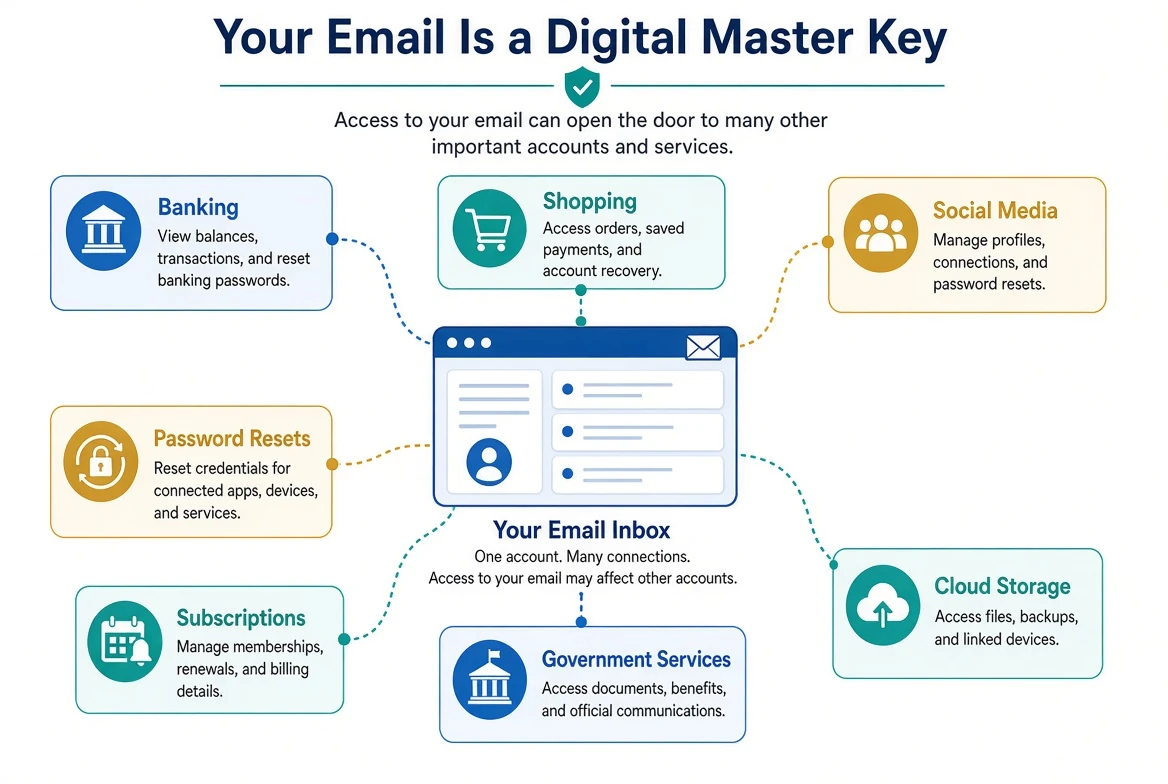
Beginning From a Trusted Device
A password should not be changed from a device that may still be under unauthorized control.
If a criminal can view the screen, record keystrokes, control the browser, or access an active
session, a newly created password may be exposed immediately.
Before securing an email account, we consider:
Which device was used during the incident
Whether remote access occurred
Whether malware or an information-stealing program was found
Whether an unfamiliar browser or browser profile was installed
Whether the customer entered a password while another person could view the screen
Whether the browser may contain a stolen or unauthorized session
Whether another reasonably trusted device is available
When possible, important email-security changes should be completed from a device reasonably
believed to be secure.
This may be:
A different personal device that was not involved in the incident
A trusted family member’s device
A device that has already been assessed
A device prepared specifically for account recovery
Using a trusted device does not guarantee that the account itself is secure. It reduces the
likelihood that the recovery process is being observed or intercepted through the original
device.
Confirming the Email Account and Provider
Before reviewing an email account, we must identify which service actually manages it.
An email address may use a familiar domain while being managed through another provider. A
business may use its own domain but receive email through Google Workspace, Microsoft 365, an
internet provider, a web-hosting company, or another service.
We may document:
The complete email address
The email provider
Whether the account is personal, business, school, or organizational
Which devices and applications access the account
Which browser profiles are connected
Whether the address is used to recover other accounts
Whether aliases or additional addresses are attached
Whether other people are authorized to access the mailbox
Whether the customer still controls the domain or subscription supporting the account
Correctly identifying the provider matters because each service offers different security
settings, activity history, recovery methods, and administrative controls.
Some customers also have several email accounts but do not know which one controls their most
important online services. Part of the investigation may involve identifying the primary account
and determining whether an older or rarely used address still creates security risk.
Login History and Connected Devices
Many email providers retain information about recent sign-ins, devices, applications, and account
activity.
Depending on the provider, we may review:
Recent sign-in dates and times
Approximate locations
Internet Protocol addresses
Device names and device types
Browsers and applications used
Security alerts
Failed sign-in attempts
Password changes
Two-factor authentication activity
Recently added devices
Applications authorized to access the account
An unfamiliar location or device deserves attention, but it is not automatically proof of
criminal access.
Location information may be affected by:
Mobile carriers
Internet service providers
VPN services
Corporate networks
Travel
Cloud services
Inaccurate geographic estimates
A customer may also see generic device descriptions such as “Windows,” “Android,” “iPhone,” or
“Unknown Browser.” These descriptions may not provide enough information by themselves to
identify the device.
We compare the available activity with:
The customer’s known devices
The incident timeline
Travel and work locations
Browser use
Password-change history
Security notifications
Other evidence gathered during the investigation
When an unfamiliar session or device cannot be explained, it may need to be signed out or
removed.
Changing the password does not always end every active session or revoke every connected
application. Session review should be treated as a separate recovery step.
Forwarding, Filters, and Mail Rules
A criminal who gains access to email may create a rule that continues working after the initial
sign-in.
Rules can automatically:
Forward messages to another address
Move messages into a folder
Mark messages as read
Delete messages
Archive messages
Hide security alerts
Redirect financial messages
Organize messages containing selected words
Send copies of incoming messages elsewhere
For example, a rule might look for messages containing words such as:
Bank
Fraud
Password
Verification
Invoice
Payment
Security
Microsoft
Google
Apple
PayPal
The rule could then forward, archive, or delete those messages before the customer notices them.
An inbox may appear normal while selected messages are quietly being redirected.
Depending on the provider, we may review:
Automatic forwarding addresses
Inbox rules
Filters
Blocked senders
Safe-sender lists
Spam settings
Automatic replies
Folder and label behavior
Deleted and archived messages
Trash and spam folders
Recently created folders or labels
Not every rule is suspicious. Customers may use rules to organize newsletters, receipts, work
messages, or other routine email.
The important questions are:
Does the customer recognize the rule?
Does the destination address belong to the customer?
When was the rule created?
What types of messages does it affect?
Could it hide account or financial warnings?
Does it relate to the incident timeline?
Removing an unauthorized forwarding rule is important, but the account’s password, sessions,
recovery information, and connected applications must also be reviewed.
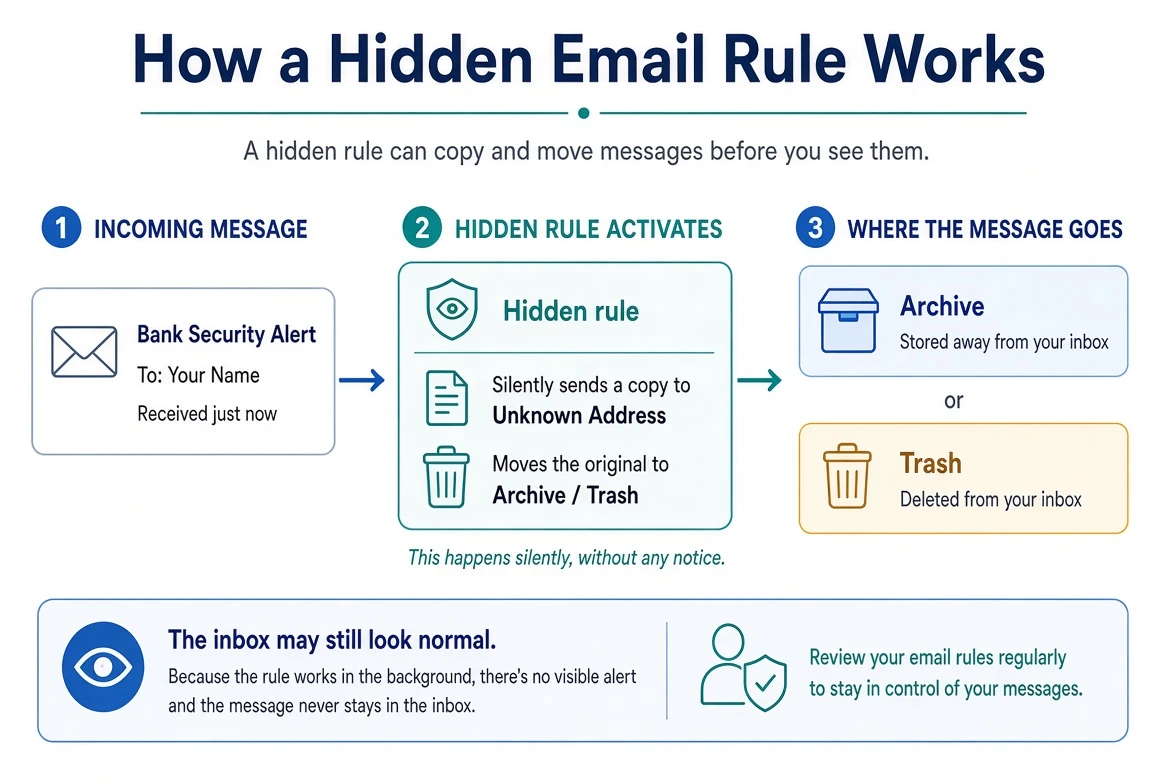
Delegated Access
Some email services allow one person to give another person access to a mailbox without sharing
the main password.
This feature may be called:
Delegated access
Mailbox delegation
Shared mailbox access
Account access
Send-as permission
Send-on-behalf permission
Delegation can be legitimate.
A business owner may authorize an assistant to manage email. A family member may help an older
relative. Employees may share access to a department mailbox. An organization may allow several
people to respond from the same address.
However, unauthorized delegated access may allow another person to:
Read messages
Send messages
Reply to conversations
Search the mailbox
Access contacts
Impersonate the account owner
Continue accessing the mailbox without knowing the new password
Depending on the provider, changing the main password may not automatically remove delegated
access.
We may review:
People or accounts with mailbox access
Shared mailboxes
Send-as permissions
Send-on-behalf permissions
Family or organizational sharing
Recently changed permissions
Any unfamiliar access should be investigated and removed when unauthorized.
Business accounts may require assistance from the organization’s administrator because some
permissions cannot be fully reviewed or changed by the individual mailbox user.
Recovery Email Addresses and Phone Numbers
Recovery information helps a customer regain access when a password is forgotten or suspicious
activity is detected.
It may include:
A recovery email address
A mobile telephone number
A trusted device
A recovery contact
Security questions
A recovery key
An organizational administrator
A criminal may attempt to add or replace recovery information so that they can regain access
later.
We review whether:
The recovery email address belongs to the customer
The telephone number is current
Any unfamiliar recovery method has been added
An old telephone number is still attached
A former employee or family member remains listed
The customer can access the recovery account
The recovery account has a strong, unique password
Two-factor authentication is enabled when available
Recovery codes have been preserved appropriately
A recovery email account can become the weak link protecting a more important account.
For example, a carefully protected primary email account may still be recoverable through an
older address that uses a reused password and has no two-factor authentication.
Recovery accounts should therefore receive appropriate security attention of their own.
App Passwords and Connected Applications
Some applications and services can access email without using the account’s ordinary sign-in
process every time.
This may occur through:
Connected applications
Authorized third-party services
App passwords
Access tokens
Email clients
Calendar applications
Contact-management applications
Backup or archiving services
Customer-management systems
Mobile applications
A connected application may have permission to:
Read email
Send email
Access contacts
Access calendars
Download attachments
Organize or delete messages
Maintain access until permission is revoked
Modern services often use an authorization process that allows the application to receive access
without learning the customer’s main password.
This can be safer than giving the application the password, but it creates another access path
that must be reviewed during an investigation.
Changing the account password may not automatically revoke every application authorization or
access token.
We may review:
Connected applications
Authorized websites and services
Recently granted permissions
Applications the customer no longer uses
Unfamiliar publishers
Permissions that appear excessive
App passwords
Access granted near the time of the incident
App passwords deserve special attention.
An app password is typically a separate password generated for an older application or device
that cannot use the account’s normal two-factor authentication process. It may continue working
until it is revoked.
An unfamiliar or unnecessary app password should be removed.
Revoking access may cause a legitimate email application or device to stop working. We document
recognized services and consider the effect before removing access.
POP, IMAP, and Email Applications
Email can be accessed through a website, mobile application, desktop program, or another mail
service.
POP and IMAP are common methods used by email applications to retrieve messages.
POP
POP commonly downloads messages from the email provider to a device or application. Depending on
its configuration, it may remove downloaded messages from the server or leave copies behind.
IMAP
IMAP synchronizes the mailbox between the provider and connected applications. Changes made in
one location—such as reading, moving, or deleting a message—may appear in other connected
devices.
Neither method is automatically unsafe. Both have legitimate uses.
However, an investigation may need to determine:
Whether POP or IMAP access is enabled
Which applications or devices use it
Whether the customer recognizes those applications
Whether an older device still has access
Whether messages are being downloaded elsewhere
Whether downloaded messages remain stored on another device
Whether the application uses the main password or an app password
Whether enabling or changing these settings relates to the incident
An email account may also be configured to retrieve messages from another mailbox or allow
another service to send messages using the customer’s address.
We may review:
Connected email clients
“Check mail from other accounts” settings
Send-mail-as addresses
Reply-to addresses
Aliases
SMTP or outgoing-mail settings
Devices storing offline copies of messages
Disabling POP, IMAP, or a connected client without understanding its purpose may interrupt
legitimate email access. These settings should be reviewed in context.
Sent, Deleted, Archived, and Draft Messages
An email investigation should not be limited to the inbox.
A criminal may:
Send messages and then delete them
Create drafts containing stolen information
Use drafts to communicate
Move messages into an archive
Empty the trash
Mark messages as read
Hide messages in unfamiliar folders
Change conversation organization
Send phishing messages to the customer’s contacts
We may review:
Sent messages
Deleted messages
Archived messages
Drafts
Spam or junk folders
Recently created folders or labels
Messages marked as read unexpectedly
Replies the customer does not recognize
Password-reset or verification messages
Warnings that another account was changed
Messages sent to contacts without the customer’s knowledge
The absence of suspicious messages does not prove that none were sent or received. Messages may
have been permanently deleted, downloaded through another service, or removed after use.
However, reviewing these areas may reveal activity that was not visible in the main inbox.
Email Account Recovery
Recovering an email account may require more than changing the password.
Depending on the incident, recovery may include:
Using a reasonably trusted device
Changing the password
Choosing a unique password not used elsewhere
Signing out unfamiliar devices and sessions
Removing unauthorized forwarding
Deleting malicious filters or rules
Removing unauthorized delegated access
Correcting recovery information
Revoking app passwords
Removing unfamiliar connected applications
Reviewing two-factor authentication
Generating new recovery codes
Reviewing sent and deleted messages
Checking contacts for fraudulent messages
Securing the recovery email account
Reviewing other accounts that use the email address for recovery
The order of these steps matters.
For example, changing the password before removing a criminal’s recovery method may allow the
criminal to regain access. Changing the password from a compromised device may expose the new
password. Securing the primary email account without securing its recovery address may leave an
indirect path back into the account.
The correct recovery sequence depends on the provider, available access, and incident
circumstances.
If the customer has been locked out, the provider’s official account-recovery process may be
required. Bringing Your Tech to Life cannot override the provider’s identity-verification
requirements or guarantee that an account will be recovered.
Password Reuse
Password reuse turns one compromised password into a risk for many accounts.
If the email password was also used for banking, shopping, social media, cloud storage,
utilities, or another email address, each account using that password may require attention.
Criminals may automatically test exposed email addresses and passwords against many services.
This is known as credential stuffing.
The password does not need to have been stolen from the email provider itself. It may have been
exposed through:
A historical data breach
A phishing website
Malware
An information-stealing browser extension
A remote-access session
An unprotected password document
A password export file
Another compromised account using the same password
We may ask the customer to identify:
Whether the email password was unique
Which other accounts used the same or a similar password
Whether variations of the password were used
Whether the password was saved in a browser
Whether it was synchronized to other devices
Whether it appeared in an unprotected document or spreadsheet
Whether it was entered while another person could observe the screen
Customers do not need to remember and change every password simultaneously without a plan.
Recovery should prioritize:
The primary email account
Recovery email accounts
Financial accounts
Apple, Google, and Microsoft accounts
Cellular-provider accounts
Government and tax accounts
Shopping or payment services with saved payment methods
Any account known to use the exposed password
Password recovery and prioritization are discussed further in Chapter 8.
Business Email Compromise
Business email compromise occurs when a criminal uses a business email account—or convincingly
impersonates one—to redirect money, steal information, or deceive employees, customers, or
vendors.
The criminal may:
Study previous conversations
Monitor invoices and payment schedules
Impersonate an owner, employee, vendor, or customer
Change banking or payment instructions
Request gift cards or wire transfers
Send fraudulent invoices
Redirect payroll or direct deposits
Ask for tax or employee information
Create rules that hide replies and financial warnings
Use legitimate conversation history to make a message believable
A message may appear unusually convincing because the criminal is replying within a real email
conversation.
Business incidents may require additional review of:
Mailbox rules
Delegated access
Administrative accounts
Shared mailboxes
Domain settings
Sign-in records
Recently created users
Payment changes
Messages sent to customers or vendors
Other employee accounts
Financial and legal notification requirements
Employees should independently verify changes to payment instructions using a trusted telephone
number or an established contact method—not by replying to the email requesting the change.
A compromised business mailbox may affect more than the mailbox owner. Customers, vendors,
employees, and other organizations may also need to be notified.
What an Email Investigation Can—and Cannot—Prove
Email providers do not all retain the same information.
Depending on the provider and available history, we may be able to confirm:
That an unfamiliar device or session accessed the account
That forwarding was enabled
That a mail rule or filter existed
That recovery information was changed
That delegated access was granted
That an unfamiliar application was authorized
That an app password existed
That messages were sent, moved, or deleted
That a password or security setting changed
However, an email investigation may not be able to prove:
Every message that was read
Whether an attachment was downloaded
Whether information was copied or photographed
Everything accessed through an active session
Activity that occurred outside the provider’s retained history
Who physically controlled a particular device
Whether deleted messages once existed
Whether exposed information will be misused later
Locations and device descriptions may also be approximate or misleading.
When certainty is not possible, we distinguish between:
Confirmed findings
Findings supported by available evidence
Unexplained activity
Precautionary concerns
Items that could not be determined
Securing Email Protects More Than the Inbox
An email investigation is not complete merely because the customer can sign in again.
The account should be reviewed for continued access, altered settings, hidden forwarding,
recovery changes, connected applications, password reuse, and effects on other accounts.
The goal is not simply to restore email service.
The goal is to restore control of an account that may hold the keys to much of the customer’s
digital life.
CHAPTER SIX
Chapter 6
Online Account Investigation
Looking Beyond the Device and Email Account
Modern digital life is built around connected accounts.
A Google, Apple, or Microsoft account may control more than email. It may also connect computers,
smartphones, cloud storage, saved passwords, photographs, contacts, subscriptions, payment
methods, device backups, and account-recovery options.
Other accounts may control shopping, social media, cellular service, utilities, financial
services, government benefits, healthcare portals, or business operations.
A criminal who gains access to one important account may use it to reach others.
For example, someone with access to an email account may request a password reset for a shopping
account. A compromised Microsoft, Google, or Apple account may expose synchronized browser
information or identify other connected devices. A stolen social media account may be used to
impersonate the customer and target friends or relatives.
For this reason, an online-account investigation looks beyond whether the customer can still sign
in.
We may need to determine:
Which accounts may be involved
How those accounts are connected
Which devices and sessions have access
Whether recovery information was changed
Whether unfamiliar applications were authorized
Whether passwords were reused
Whether payment or personal information was available
Whether the account was used to affect other people or services
Which actions are necessary to restore control
Not every incident requires every account to be examined. The scope depends on what happened,
what information may have been exposed, and which services the customer has authorized us to
review.
Identifying the Accounts That Matter
Many customers have more online accounts than they realize.
Some are used every day. Others may have been created years ago and forgotten. An older account
may still contain personal information, use a reused password, or serve as the recovery address
for a more important account.
We may begin by identifying accounts connected to:
Email addresses
Telephone numbers
Computers, smartphones, and tablets
Browsers and password managers
Financial institutions
Shopping and payment services
Social media
Cloud storage
Cellular and utility providers
Government and tax services
Healthcare portals
Business systems
Subscriptions and memberships
We also consider the role each account plays.
An account may function as:
A primary email account
A recovery account
A device-management account
A password-synchronization account
A cloud-storage account
A payment account
An identity provider used to sign in elsewhere
A business administrator account
A rarely used or abandoned account
The most important account is not always the one where the first suspicious activity was
discovered.
An email, Apple, Google, or Microsoft account may deserve higher priority because it can control
recovery, synchronization, or access to many other services.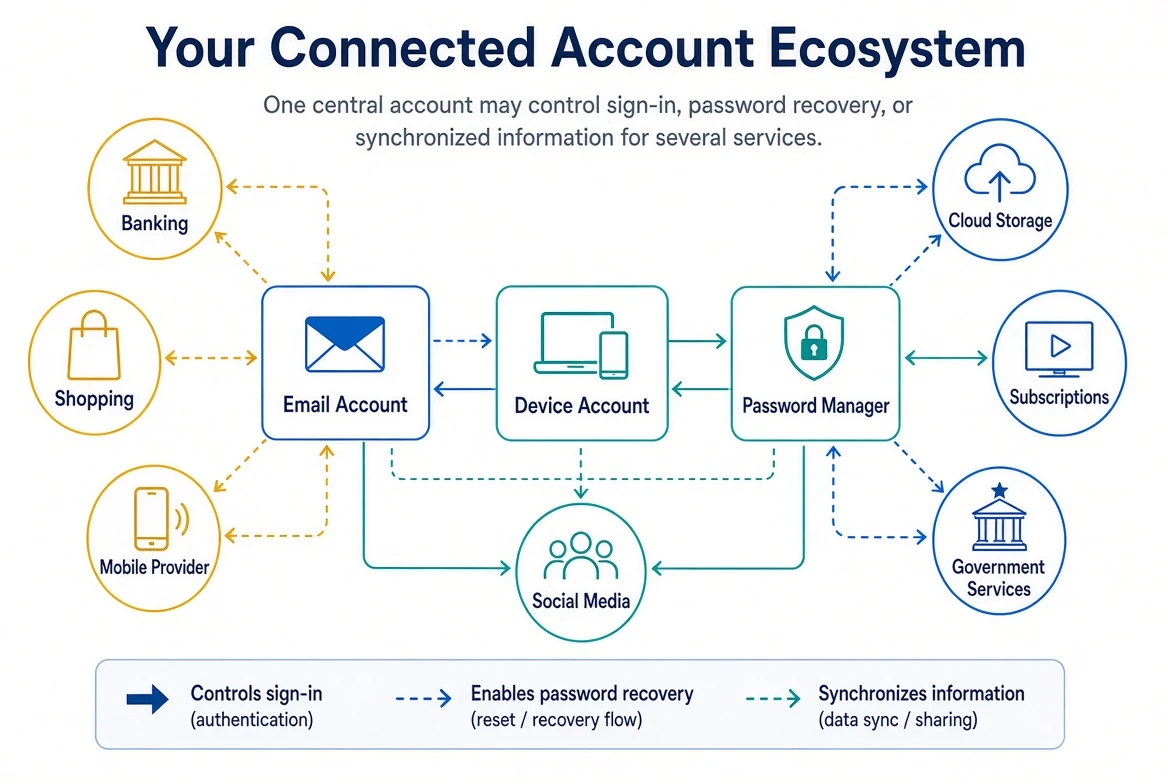
Beginning From a Trusted Device
Important account-security changes should be performed from a device reasonably believed to be
secure.
If a device remains under unauthorized control, a criminal may be able to observe:
A newly created password
Security questions and answers
Verification messages
Account settings
Financial information
Other accounts the customer visits
Before signing in to an important account, we consider:
Whether the device was involved in the incident
Whether remote access occurred
Whether malware or unwanted software was found
Whether an unfamiliar browser or profile was installed
Whether active browser sessions may have been stolen
Whether another trusted device is available
Whether the account can be safely reviewed without changing evidence prematurely
Using a trusted device reduces device-related risk during recovery, but it does not prove that
the account itself is secure.
Connected Devices and Active Sessions
Signing in to an account often creates a session that allows the device or application to remain
connected.
Depending on the service, a session may remain active for days, weeks, months, or longer. The
customer may not be asked to enter the password again unless the session expires or a sensitive
action requires additional verification.
An account may show:
Computers
Smartphones
Tablets
Web browsers
Streaming devices
Gaming systems
Smart televisions
Email applications
Connected vehicles
Smart-home devices
Other authorized sessions
We may review:
Device names
Device types
Approximate locations
Sign-in dates and times
Last activity
Browsers or applications used
Whether the customer recognizes each device
Whether the device is still owned or used
Whether an unfamiliar session remains active
Generic names can make identification difficult. A device may appear only as “Windows,” “iPhone,”
“Android,” or “Unknown Browser.”
An unfamiliar device is not automatically proof of unauthorized access. It may be:
A replacement phone
An older computer
A work device
A family member’s device
A browser the customer rarely uses
A streaming or smart-home device
A legitimate service with an unfamiliar description
A device shown in an approximate or unexpected location
We compare the account record with the customer’s devices, travel, work locations, browser use,
and incident timeline.
When a device or session cannot be explained, it may need to be signed out or removed.
Changing a password does not always end every existing session. Reviewing and ending unfamiliar
sessions should be treated as a separate security step.
Login and Security History
Many services retain information about security-related activity.
Depending on the provider, we may review:
Successful sign-ins
Failed sign-in attempts
Approximate locations
Internet Protocol addresses
Devices and browsers
Password changes
Recovery-information changes
Two-factor authentication activity
New passkeys
Security-key registrations
Recently authorized applications
Payment or profile changes
Security alerts
Account-recovery attempts
This information can help reconstruct what happened, but it must be interpreted carefully.
Approximate locations may be misleading because of:
Mobile carriers
Internet service providers
VPN services
Business networks
Travel
Cloud infrastructure
Inaccurate geographic estimates
A sign-in near the customer’s location is not automatically legitimate. A sign-in from another
state is not automatically fraudulent.
We consider the complete combination of time, device, browser, location, activity, and customer
recollection.
Security records may also be incomplete. Some providers retain detailed information for months,
while others show only a small number of recent events.
Recovery Information
Recovery information allows a customer to regain access after forgetting a password, losing a
device, or triggering a security alert.
It may include:
Recovery email addresses
Recovery telephone numbers
Trusted devices
Recovery contacts
Security questions
Backup codes
Recovery keys
Passkeys
Organizational administrators
A criminal may attempt to add, replace, or remove recovery methods.
This can create continued access even after the customer changes the password.
We may review:
Whether every recovery email address belongs to the customer
Whether telephone numbers are current
Whether an unfamiliar recovery method was added
Whether an old telephone number remains attached
Whether a former employee, family member, or service provider remains listed
Whether the customer still controls the recovery account
Whether the recovery account uses a unique password
Whether two-factor authentication is enabled
Whether recovery codes and keys are safely preserved
Whether an unfamiliar passkey or security key was registered
Recovery methods should be both secure and usable.
Removing every recovery option may make an account harder for a criminal to recover, but it may
also leave the customer unable to regain access later.
The goal is to remove unauthorized methods while preserving safe, current, and documented
recovery options for the customer.
Mobile Carrier Account Security
A mobile telephone number may be connected to email, financial, social-media, shopping, cloud,
and government accounts. It may also receive password-reset and two-factor authentication codes.
Because of this, control of a telephone number can become a key to many other accounts. A
compromised carrier account, unauthorized SIM change, or number transfer may allow a criminal to
intercept calls and messages without infecting the customer’s phone.
Common forms of mobile-carrier account abuse include:
Unauthorized access to the carrier account
A SIM swap or unauthorized eSIM activation
An unauthorized transfer of the telephone number to another carrier
Changes to the account PIN, password, recovery information, or authorized users
Fraudulent device purchases or financing charged to the account
Warning signs may include:
An unexpected loss of cellular service or an “SOS only” message
Calls or text messages suddenly failing while other nearby phones work normally
A carrier notice about a password, PIN, SIM, eSIM, device, or account change the customer did
not requestAn unexpected number-transfer or port-out notification
Unrequested verification codes
A carrier password or PIN that no longer works
An unfamiliar device, line, user, charge, or order on the account
These signs can also result from a service outage, damaged phone, or ordinary account change.
However, an unexplained loss of service during a suspected security incident should be treated
urgently.
During an investigation, we may review:
Whether the carrier account uses a unique password
Whether two-factor authentication is enabled
Whether the account PIN or passcode is strong and still controlled by the customer
Whether recovery email addresses and telephone numbers are current
Whether every authorized user and telephone line is recognized
Whether recent SIM, eSIM, device, or number-transfer activity is legitimate
Whether Number Lock, SIM Protection, Account Lock, or another transfer-protection feature is
available and enabledWhether unfamiliar purchases, financing agreements, or billing changes appear
Recommended protections may include:
Use a unique carrier-account password
Enable the strongest two-factor authentication method the carrier supports
Create a strong account PIN or passcode that is not based on a birthday, address, or telephone
numberEnable available SIM-change and number-transfer protections
Remove former employees, family members, and other users who no longer need access
Keep recovery information accurate and secure
Never disclose a carrier PIN, transfer PIN, or verification code in response to an unexpected
call, text message, or emailPrefer an authentication application, passkey, or security key over text-message codes when an
important account supports a practical alternative
Customers with greater exposure—such as business owners, public-facing professionals, or people
who have experienced repeated identity theft—may ask the carrier what enhanced verification is
available. Some carriers may offer additional account notes, locks, or identity checks, but the
customer should confirm what the provider can actually enforce before relying on it.
If a SIM swap or unauthorized number transfer is suspected:
Contact the carrier through its official support channel, preferably from another telephone
Explain that the number may have been transferred or assigned to another SIM or eSIM without
permissionAsk the carrier to restore control of the number and secure the account
Do not voluntarily cancel or replace the affected number until the carrier and account-recovery
plan have been establishedChange the carrier password and PIN from a trusted device
Verify every line, device, SIM or eSIM, authorized user, forwarding feature, and recent order
Request a fraud case number or other written reference
Document the date, time, representative, telephone number called, and actions taken
Secure the primary email account and notify affected financial institutions
Review important accounts that use the telephone number for password recovery or text-message
authentication
After control is restored, any account that relied on the telephone number should be reviewed for
password resets, unfamiliar sign-ins, changed recovery information, and unauthorized
transactions.
Carrier features and terminology vary. Appendix E provides official mobile-carrier security and
support resources.
Two-Factor Authentication, Passkeys, and Security Keys
Two-factor authentication adds a second type of verification to a password-based sign-in.
Passkeys are different because they can replace passwords entirely.
Physical security keys may be used as an additional authentication factor or as part of passwordless sign-in, depending on the service.
Depending on the account, available sign-in, verification, and recovery methods may include:
A text-message code
An authentication application
A security prompt on a trusted device
A physical security key
A passkey
A biometric confirmation
A printed or stored recovery code
Two-factor authentication can significantly improve account security, but its settings must still
be reviewed after an incident.
We may examine:
Which methods are enabled
Which telephone numbers receive codes
Which devices receive approval prompts
Whether unfamiliar authentication methods were added
Whether backup codes were generated
Whether a new passkey or security key was registered
Whether the customer recognizes all trusted devices
Whether the customer approved an unexpected prompt
Whether any verification code was shared
A criminal may repeatedly trigger sign-in prompts in hopes that the customer will approve one
simply to make the notifications stop. This is sometimes called an authentication-prompt or
multifactor-fatigue attack.
Customers should never approve a sign-in they did not initiate.
A verification code should be treated like a temporary password. It should not be read to an
unexpected caller, sent by text, or entered into a website reached through a suspicious link.
Passkeys and security keys can provide strong protection, but they must still be reviewed during
an investigation. An unfamiliar passkey or security key could provide another way to access the
account.
Two-factor authentication and passkeys are discussed further in Chapter 8.
Authorized Applications and Third-Party Access
Many websites allow other applications and services to connect to an account.
Examples include:
Email applications
Calendar services
Social media tools
Cloud-storage applications
Photo-printing services
Tax software
Financial applications
Shopping assistants
Fitness applications
Games
Business-management tools
Backup services
A connected application may receive permission to:
View profile information
Read or send email
Access contacts
View or modify calendars
Access cloud files
Upload photographs
Manage purchases
View financial information
Post to social media
Remain connected until access is revoked
This authorization may continue even after the customer stops using the application.
Changing the main account password may not automatically remove every connected application or
access token.
We may review:
Connected applications and websites
Permissions granted to each application
When access was authorized
Whether the customer recognizes the service
Whether the application is still used
Whether the permissions appear appropriate
Whether access was granted near the time of the incident
Whether the publisher or service is still trustworthy
An unfamiliar application should be investigated before it is removed. Some legitimate services
use names that customers do not recognize.
Removing access may also cause a legitimate application or device to stop working. We consider
the purpose and effect before revoking authorization.
“Sign In With” Services and Linked Identities
Some accounts allow customers to sign in using another account instead of creating a separate
password.
Common options include:
Sign in with Google
Sign in with Apple
Sign in with Microsoft
Sign in with Facebook
An employer or school account
Another single sign-on provider
This can reduce the number of passwords a customer must manage. It also creates a dependency on
the account providing the sign-in.
If the controlling account is compromised, the criminal may be able to access services linked
through it.
During an investigation, we may consider:
Which account provides the sign-in
Which services are linked
Whether the customer recognizes the connection
What information is shared
Whether an unfamiliar application was authorized
Whether the connection remains necessary
Whether the linked service has another recovery method
Removing a linked sign-in without preparation may lock the customer out of the connected service.
Before disconnecting it, we determine whether the customer needs to create a separate password or
add another recovery method.
Payment Methods and Transaction Activity
Many online accounts store payment information.
This may include:
Credit cards
Debit cards
Bank accounts
Digital wallets
Gift-card balances
Store credit
Rewards points
Subscription billing
Shipping addresses
Purchase history
A criminal may use a compromised account to:
Make purchases
Change a shipping address
purchase digital products
Use rewards or gift-card balances
Add a new payment method
Remove transaction notifications
Create or change subscriptions
Access receipts containing personal information
Test whether a stolen card still works
We may review:
Recent purchases
Pending transactions
Refunds
Shipping addresses
Payment methods
Subscription changes
Digital orders
Gift-card or reward activity
Account credits
Purchase notifications
An unfamiliar transaction should be reported promptly through the service’s official process and,
when appropriate, to the financial institution that issued the payment method.
Removing a saved card from one account does not cancel the card or address fraudulent activity
that has already occurred.
Financial protection and identity-related follow-up are discussed further in Chapter 10.
Social Media and Communication Accounts
A compromised social media or communication account may be used to target other people.
A criminal may:
Impersonate the customer
Contact friends or relatives
Request money
Promote fraudulent investments
Send malicious links
Change the profile name or photograph
Add an unfamiliar email address or telephone number
Remove the customer’s recovery options
Read private conversations
Use previous messages to create believable scams
Create advertisements
Access connected business pages
Change page administrators
We may review:
Login and security activity
Connected devices
Recovery information
Authorized applications
Recent posts and messages
Deleted or archived activity
Page and group administrators
Advertising accounts
Payment methods
Privacy settings
Blocked accounts
Account warnings or restrictions
If fraudulent messages were sent, the customer may need to warn contacts through another trusted
communication method.
Business pages and advertising accounts deserve special attention because an unauthorized
administrator may retain access even after the customer’s personal password is changed.
Shopping and Payment-Service Accounts
Shopping accounts often contain more than purchase history.
They may store:
Names
Email addresses
Telephone numbers
Billing and shipping addresses
Payment methods
Gift-card balances
Order history
Membership information
Household profiles
Saved passwords
Subscription settings
Payment-service accounts may also connect directly to bank accounts, cards, merchants, or other
users.
We may review:
Recent orders
Archived or hidden orders
Digital purchases
Shipping addresses
Payment methods
Connected bank accounts
Automatic payments
Subscriptions
Authorized merchants
Person-to-person transfers
Refunds and disputes
Connected devices and sessions
Recovery information
Criminals may hide an order, change its delivery address, purchase digital items, use stored
balances, or connect another payment method.
The customer should use the service’s official application or independently entered website
address rather than links contained in unexpected transaction messages.
Cloud Storage, Photographs, and Backups
Cloud services may contain:
Documents
Photographs and videos
Device backups
Scanned identification
Tax records
Business files
Password documents
Recovery codes
Contact lists
Shared folders
Deleted files
A compromised cloud account may expose information even when the local device is clean.
We may review:
Connected devices
Recent activity
Shared files and folders
Public links
Recently deleted items
Applications with access
Synchronization settings
Backup devices
Storage changes
Unfamiliar uploads or downloads
Shared links deserve attention. A file may remain accessible to someone who has the link even
after the account password is changed.
The investigation may need to determine whether:
The link is still active
Access is public or restricted
An unfamiliar person was added
Editing permission was granted
The file contains sensitive information
The link should be disabled
Cloud activity records may not reveal whether every file was viewed, downloaded, photographed, or
copied.
Subscription and Utility Accounts
Subscription and utility accounts may appear less important than banking or email, but they can
still contain valuable information.
They may reveal:
Home address
Telephone number
Payment method
Service location
Billing history
Usage information
Family-member names
Account numbers
Security questions
Move or cancellation requests
Examples include:
Internet service
Electricity
Water and sewer
Cellular service
Streaming services
Software subscriptions
Home-security services
Insurance portals
Membership accounts
Cellular-provider accounts deserve particular attention because a criminal may attempt to
transfer a telephone number to another SIM card or device.
Control of the telephone number may allow the criminal to receive calls or text-message
verification codes.
We may review:
Account PINs
Authorized users
Connected devices
Recent plan or SIM changes
Number-transfer protections
Recovery information
Payment methods
Service addresses
Recent support contacts
An unexpected loss of cellular service can be a warning sign and should be reported promptly to
the mobile provider using independently verified contact information.
Financial Accounts
Financial accounts require careful handling.
Bringing Your Tech to Life may help the customer identify security concerns, organize
information, secure related devices and email accounts, and prepare questions for the financial
institution.
However, the financial institution controls its own systems, transaction records, fraud
procedures, and access decisions.
Depending on the situation, the customer may need to:
Contact the bank or credit-card company
Visit a branch
Freeze or restrict an account
Replace a card
Change online-banking credentials
Review authorized users
Report unauthorized transactions
Dispute transfers or charges
Request new account numbers
Review person-to-person payment services
Preserve transaction records
Follow the institution’s fraud instructions
We may review account-related items visible to the customer, such as:
Recognized devices
Security alerts
Contact information
External accounts
Payment recipients
Scheduled transfers
Automatic payments
Alerts and notification settings
We do not override a financial institution’s security controls or determine whether a transaction
qualifies for reimbursement.
The customer should follow the institution’s official fraud process.
Government, Tax, and Benefit Accounts
Government accounts may contain highly sensitive identity information.
These may include accounts related to:
Federal or state taxes
Social Security
Medicare or Medicaid
Unemployment benefits
Veterans’ services
Motor vehicles
Professional licenses
Student aid
Local government services
A criminal may attempt to:
Change contact information
Redirect a refund or benefit
Submit a fraudulent claim
Access tax documents
Obtain identity information
Create an account before the customer does
Change direct-deposit information
We may help the customer identify relevant accounts and secure the devices, email addresses,
telephone numbers, and passwords connected to them.
However, identity verification and correction of government records must be completed through the
appropriate agency.
Customers should use official government websites entered directly into the browser rather than
links supplied through unexpected messages or advertisements.
Unused and Forgotten Accounts
An account does not stop creating risk simply because the customer no longer uses it.
An older account may still contain:
Personal messages
Photographs
Saved payment methods
Addresses
Documents
Reused passwords
Recovery information
Contacts
Connections to other services
The email address or telephone number associated with the account may also belong to someone else
now.
We may recommend:
Recovering the account
Changing a reused password
Removing saved payment information
Updating recovery methods
Downloading information the customer wants to keep
Disconnecting linked applications
Closing the account when appropriate
Account deletion should be approached carefully.
Before closing an account, consider whether it:
Controls another service
Stores important records
Contains purchases or licenses
Receives password-reset messages
Is needed for tax or legal documentation
Manages a device
Provides access to subscriptions or cloud storage
Closing the wrong account prematurely may make recovery more difficult.
Public Web and Data-Broker Exposure Review
As part of an incident investigation, Bringing Your Tech to Life may review information that is
publicly discoverable through search engines, people-search sites, and data brokers. The purpose
is to understand what a scammer could have learned about the customer and whether that
information may have supported the incident.
A review may include:
Search results for the customer’s name together with a city, state, telephone number, or email
addressPeople-search and data-broker listings
Current and former addresses, telephone numbers, email addresses, relatives, associates, and
prior locationsDetails that could support impersonation, targeted phishing, password recovery, SIM swapping,
stalking, or financial fraudAvailable opt-out, suppression, or search-result-removal procedures
Publicly available information does not by itself prove that an account was breached or that a
device was infected. It may have been gathered from public records, commercial databases, prior
breaches, online activity, or several sources combined.
Any third-party scan that requires the customer’s personal information should be performed with
the customer’s knowledge and consent. When an account is required, the customer should normally
create and control it.
Findings that are specific to the customer—including URLs, screenshots, removal status, and
follow-up dates—belong in the customer’s Service Report or a separate exposure worksheet, not in
this general guide.
Removal or suppression may reduce unnecessary exposure, but it cannot guarantee that every copy
will be found or that the information will not reappear.
Account Recovery and Security Hardening
Securing an online account may require more than changing its password.
Depending on the incident, recovery may include:
Using a reasonably trusted device
Changing the password
Choosing a password not used elsewhere
Ending unfamiliar sessions
Removing unknown devices
Correcting recovery information
Reviewing two-factor authentication
Removing unfamiliar passkeys or security keys
Generating new recovery codes
Revoking app passwords
Removing unauthorized applications
Reviewing linked sign-in services
Examining payment methods and transactions
Reviewing recent account changes
Securing the primary and recovery email accounts
Contacting the provider through its official recovery process
The order of these actions matters.
For example, changing a password before removing an unauthorized recovery method may allow the
criminal to regain access. Removing a linked identity provider before creating another sign-in
method may lock the customer out. Deleting an unfamiliar account or device before documenting it
may remove useful evidence.
Recovery should be deliberate and based on the circumstances of the incident.
What an Online-Account Investigation Can—and Cannot—Prove
Online services retain different amounts and types of activity information.
Depending on the provider and available history, we may be able to confirm:
That an unfamiliar device or session accessed an account
That recovery information changed
That a new application was authorized
That a passkey or security key was added
That a payment method or shipping address changed
That a purchase or transfer occurred
That another user received access
That a security setting changed
That a linked service or account existed
However, an account investigation may not be able to prove:
Every page, message, or file that was viewed
Whether information was copied or photographed
Every action performed through an active session
Who physically controlled a device
Activity outside the provider’s retained history
Whether deleted information once existed
Whether exposed information will be misused later
Whether a location shown in account history is precise
Whether a recognized device was controlled by someone else
The absence of an unfamiliar login does not always prove that the account was never accessed.
A criminal may have used:
A stolen active session
A device already trusted by the account
A connected application
Delegated access
An app password
A linked service
The customer’s unlocked device
When certainty is not possible, we distinguish between:
Confirmed findings
Findings supported by available evidence
Unexplained activity
Precautionary concerns
Items that could not be determined
Restoring Control of Your Online Identity
An online account is rarely isolated.
It may control devices, recover other accounts, synchronize passwords, store personal
information, authorize applications, or provide access to financial and government services.
The goal is not simply to change a password.
The goal is to understand how the account fits into the customer’s digital life, remove
unauthorized access, preserve safe recovery options, and reduce the likelihood that one
compromised account will affect many others.
CHAPTER SEVEN
Chapter 7
Understanding the Recovery Process
Restoring Control One Step at a Time
After a digital security incident, many customers feel pressure to change everything immediately.
That reaction is understandable. When someone may have accessed a device, account, or financial
service, every unfamiliar notification can feel urgent. Customers may begin changing passwords
from the affected computer, deleting messages, uninstalling programs, closing accounts, or
contacting telephone numbers found in emails and pop-up warnings.
Some immediate action may be necessary, especially when money is being transferred or an account
is actively being used. However, making changes without a clear order can destroy useful
evidence, expose new passwords, interrupt legitimate access, or leave a more important account
unsecured.
Recovery is not one action. It is a coordinated process.
Depending on the incident, recovery may involve:
Separating an affected device from the internet
Establishing a reasonably trusted device
Protecting the customer’s primary email account
Securing Apple, Google, Microsoft, or other identity accounts
Changing exposed or reused passwords
Ending unfamiliar sessions
Removing unauthorized recovery methods or connected applications
Contacting financial institutions through verified channels
Preserving messages, receipts, telephone numbers, and other evidence
Reporting fraud or identity theft
Monitoring accounts for additional activity
Rebuilding confidence before normal use resumes
Not every incident requires every step. The appropriate response depends on what happened, which
devices and accounts were involved, what information may have been exposed, and whether
unauthorized activity is still occurring.
The goal is to move carefully from immediate safety to restored control.
Understanding Containment and Recovery
Containment and recovery are related, but they are not the same.
Containment is intended to stop or limit continuing harm.
Examples may include:
Disconnecting a computer from the internet
Ending a remote-access session
Locking a payment card
Contacting a bank about an unauthorized transfer
Signing an unfamiliar device out of an account
Preventing additional password resets
Blocking a fraudulent telephone number
Asking an email provider to suspend suspicious activity
Recovery is the larger process of restoring secure access and addressing what may have been
affected.
Examples may include:
Assessing the device
Securing the primary email account
Replacing compromised passwords
Reviewing account-recovery information
Removing unauthorized applications
Confirming financial transactions
Documenting the incident
Monitoring for additional misuse
Improving long-term security
Containment may need to begin before the investigation is complete. However, whenever
circumstances permit, actions should be documented so we can understand what was changed, when it
was changed, and why.
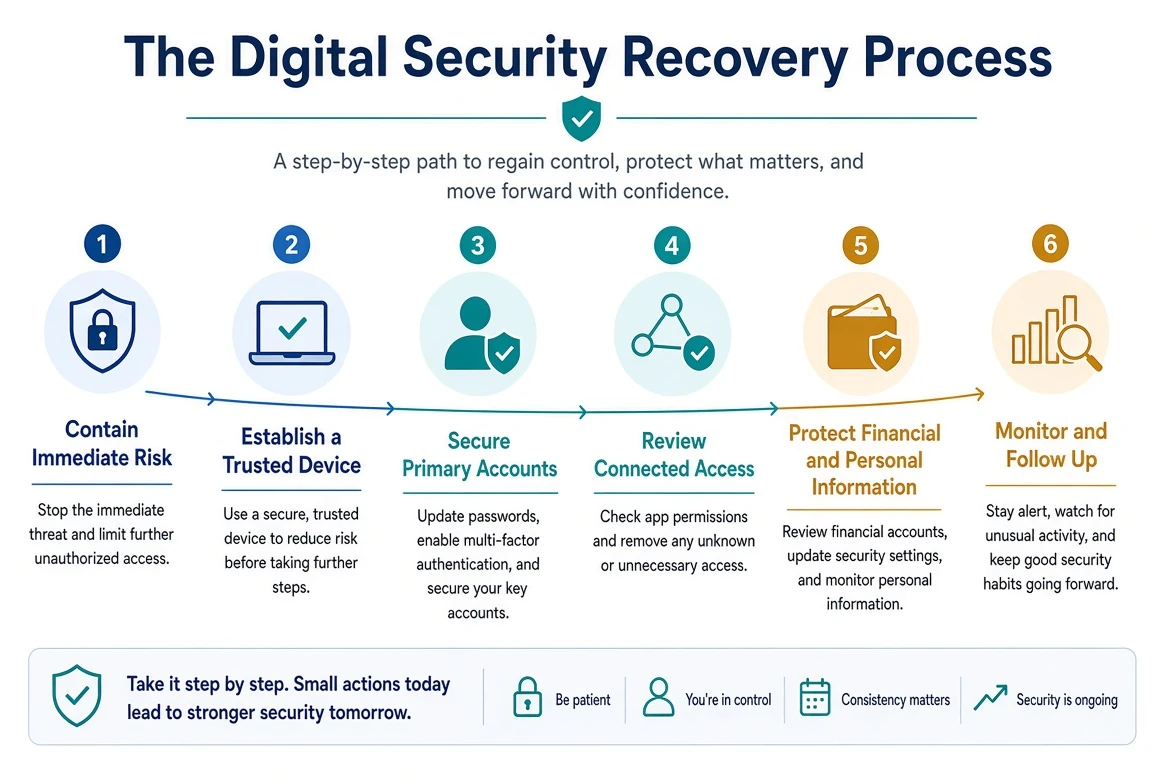
Immediate Steps
The first priority is determining whether harmful activity may still be occurring.
Questions may include:
Is someone currently connected to the device?
Is a remote-access program still running?
Is the customer still communicating with the suspected criminal?
Is money being transferred?
Are unauthorized purchases continuing?
Are password-reset messages arriving?
Is the customer being pressured to take additional action?
Are unfamiliar sign-in approvals appearing?
Is an account sending messages without the customer’s permission?
Is there any threat to the customer’s physical safety?
If a suspected criminal is still communicating with the customer, the customer should generally
stop responding. Continued conversation may provide the criminal with more information or another
opportunity to apply pressure.
If someone appears to be controlling a computer remotely, disconnecting that device from the
internet may interrupt the connection. Depending on the situation, this may involve:
Disconnecting the Ethernet cable
Turning off Wi-Fi
Turning off the modem or router if necessary
Placing a mobile device in airplane mode
Powering off the affected device when immediate disconnection is more important than preserving
its current state
The best action can depend on the incident. For example, abruptly turning off a device may cause
some temporary evidence to be lost. Leaving it connected, however, may allow unauthorized access
to continue.
When possible, contact Bringing Your Tech to Life for guidance before making major changes. If
money is actively being transferred or physical safety is involved, contact the appropriate
financial institution or emergency authority immediately.
Verify Every Contact Method
During recovery, customers may receive calls, emails, text messages, or pop-up warnings claiming
to offer help.
Some of these contacts may be part of the original scam. Others may be follow-up attempts from
criminals who know the customer is worried and may be more likely to respond.
Do not rely on contact information provided in:
A suspicious email
A text message
A pop-up warning
An unsolicited telephone call
A message from an unfamiliar social media account
A search advertisement
A document provided by the suspected criminal
Instead, obtain contact information from a source that can be independently verified, such as:
The telephone number printed on the back of a payment card
A known official website entered directly into the browser
A trusted mobile application already used by the customer
A recent legitimate statement
An established business contact
A government website ending in .gov
A familiar company name, logo, caller ID, or website design does not prove that a communication
is legitimate.
Establishing a Trusted Device
Important recovery actions should be performed from a device reasonably believed to be secure.
If the original computer or smartphone may still contain remote-access software, malware, an
unauthorized browser profile, or a stolen session, using it to change passwords could expose the
new information immediately.
A reasonably trusted device may be:
A different personal device that was not involved in the incident
A trusted family member’s device
A device that has already been assessed
A newly prepared device
A device supplied for the recovery process
Before using the device, we may consider:
Whether it was involved in the incident
Whether remote access occurred
Whether the operating system and browser are current
Whether the device is protected by a passcode or password
Whether unfamiliar software or browser extensions are present
Whether the device belongs to another person
Whether browser synchronization could introduce compromised information
Whether the device is connected through a network the customer trusts
The phrase “trusted device” does not mean that the device has been proven perfectly secure. It
means that, based on the available information, it presents a more reasonable place to begin the
recovery process.
Creating a Recovery Record
Recovery can involve many accounts, telephone calls, confirmation numbers, password changes, and
follow-up dates. It is easy to lose track of what has already been completed.
A recovery record may include:
The name of each affected or potentially affected account
The date and time an action was completed
The device used
Whether the password was changed
Whether active sessions were ended
Whether recovery information was reviewed
Whether two-factor authentication was enabled or updated
Whether connected applications were reviewed
The name of any organization contacted
The verified telephone number used
The representative’s name or identification number
Case, claim, or confirmation numbers
Remaining actions
Scheduled follow-up dates
Passwords should not be written directly into the general incident record. Password documentation
should be handled separately using the method recommended for the customer.
Securing Your Primary Email
For many customers, the primary email account is the most important account to secure first.
Email is commonly used to:
Reset passwords
Receive verification codes
Approve sign-ins
Recover locked accounts
Receive financial alerts
Confirm purchases
Store personal documents
Communicate with friends, relatives, customers, or coworkers
If a criminal still controls the email account, changing passwords elsewhere may have limited
value. The criminal may be able to request another password reset, intercept the recovery
message, or hide the resulting security alert.
Securing email may involve:
Changing the password from a trusted device
Ending unfamiliar sessions
Reviewing connected devices
Confirming recovery email addresses
Confirming recovery telephone numbers
Reviewing two-factor authentication methods
Removing unfamiliar passkeys or security keys
Checking forwarding settings
Reviewing filters and mail rules
Removing unauthorized delegated access
Reviewing app passwords
Reviewing connected applications
Checking sent, deleted, archived, and spam folders
Confirming that security alerts are still reaching the customer
If the customer cannot access the email account, the provider’s official account-recovery process
may be required. Bringing Your Tech to Life can help the customer understand and navigate the
process, but the provider may require the customer to verify their identity personally.
Changing Passwords in the Correct Order
Changing every password at once is not always the best first step.
The recovery order should reflect which accounts can control or recover other accounts.
A typical priority may be:
Primary email account
Apple, Google, or Microsoft account connected to the customer’s devices
Cellular-provider account
Financial and payment accounts
Government, tax, healthcare, or benefit accounts
Shopping accounts with stored payment methods
Social media and communication accounts
Cloud-storage accounts
Other accounts using the same or a similar password
This order may change based on the incident.
For example:
If an unauthorized bank transfer is occurring, the financial institution becomes the immediate
priority.If the customer’s telephone number has suddenly stopped working, the cellular provider may need
to be contacted before text-message verification can be trusted.If the password manager was exposed, every password stored in it may require evaluation.
If the primary email account is inaccessible, account recovery may need to begin before other
passwords can be safely changed.If remote access occurred, device safety may need to be addressed before any new password is
entered.
A new password should be:
Unique to that account
Long enough to resist guessing
Unrelated to the previous password
Different from passwords used on other services
Stored using an appropriate password-management method
Small variations do not make reused passwords unique. Adding a number, changing one letter, or
placing an exclamation point at the end may still leave several accounts exposed if one password
becomes known.
Ending Unknown Sessions
Changing a password does not always disconnect every device, browser, or application.
Some services allow active sessions to remain connected. Other services may retain trusted
devices, app passwords, access tokens, or third-party authorizations until they are removed
separately.
Depending on the service, recovery may include:
Signing out of all devices
Removing unfamiliar devices
Ending individual browser sessions
Revoking trusted-device status
Removing unauthorized applications
Deleting unfamiliar app passwords
Removing unknown passkeys or security keys
Reauthorizing legitimate applications
Reviewing devices that can approve sign-ins
Confirming that the customer still recognizes every recovery method
Legitimate devices may need to be signed in again afterward. This temporary inconvenience is
often worthwhile when the customer cannot confidently identify every active session.
Recovery Information and Authentication Methods
A criminal may try to make access persistent by changing the methods used to recover or approve
access to an account.
We may review:
Recovery email addresses
Recovery telephone numbers
Passkeys
Physical security keys
Trusted devices
Security questions
App-specific passwords
Account delegates
Family or organizational administrators
Any unfamiliar recovery method should be investigated before it is removed. In shared, family,
business, school, or organization-managed accounts, another authorized person or administrator
may have added it legitimately.
After unauthorized methods are removed, the customer should confirm that the remaining recovery
options are current, accessible, and protected.
Contacting Financial Institutions
If financial information was disclosed, remote access occurred while financial accounts were
open, money was transferred, or unauthorized activity appears, the appropriate financial
institutions should be contacted promptly.
This may include:
Banks
Credit unions
Credit-card issuers
Investment companies
Retirement-account providers
Payment applications
Digital-wallet providers
Loan or mortgage companies
Merchants where unauthorized purchases occurred
Check-processing or money-transfer services
Contact each institution using independently verified information.
When speaking with the institution, the customer may need to explain:
What happened
When it happened
What information may have been disclosed
Whether remote access occurred
Whether the customer approved any transactions under false pretenses
Which transactions are disputed
Whether account credentials may have been exposed
Whether payment cards, checks, or account numbers need replacement
The institution may recommend:
Locking or replacing a payment card
Restricting online access
Changing the online-banking username or password
Closing and replacing an account
Adding verbal security measures
Reviewing recent transactions
Filing a fraud claim
Visiting a local branch
Providing written documentation
Monitoring for future activity
The customer should record the date, time, telephone number, representative, case number, and
instructions provided during each contact.
Bringing Your Tech to Life can help the customer organize technical findings and prepare relevant
documentation. However, financial institutions make their own decisions regarding account
restrictions, reimbursement, investigations, and required forms.
Preserving Evidence
Evidence can help explain what happened and may support reports, fraud claims, insurance claims,
or future investigation.
Useful evidence may include:
Emails
Text messages
Social media messages
Website addresses
Screenshots
Pop-up warnings
Telephone numbers
Voicemail messages
Call logs
Remote-access program names
Downloaded files
Receipts
Gift-card information
Cryptocurrency transaction details
Bank or payment records
Shipping information
Password-change notices
Security alerts
Case or confirmation numbers
Notes describing what the customer remembers
Whenever possible, preserve the original message or file rather than relying only on a
screenshot. Original records may contain information that is not visible on the screen.
Evidence should be stored carefully. It may contain personal, financial, or account information
that should not be shared publicly or sent through an unprotected channel.
Do not continue interacting with a suspected criminal merely to collect more evidence. Personal
and financial safety are more important than obtaining an additional screenshot or message.
Reporting the Incident
Depending on the circumstances, the incident may need to be reported to:
A financial institution
A payment provider
An email or online-service provider
A cellular provider
A local law-enforcement agency
A federal or state fraud-reporting agency
An identity-theft reporting service
An insurance company
An employer or business
A school or organization
A legal or financial professional
Not every event must be reported to every organization.
The appropriate reporting path depends on:
The type of incident
The amount and type of loss
Whether personal information was exposed
Whether business or customer information was involved
Whether the customer’s identity is being used
Whether an insurance policy may apply
Whether another person or organization may also be at risk
Whether a financial institution requires a police or fraud report
A report does not guarantee that money will be recovered or that the responsible person will be
identified. It can still create an official record, support a claim, and help organizations
recognize related activity.
Avoiding Recovery Scams
Customers who have already experienced fraud may be targeted again.
A person may claim to be:
A fraud investigator
A government agent
A law-enforcement officer
A bank-security representative
A cryptocurrency-recovery specialist
A computer technician
An attorney
A company that can recover stolen money
The person may know details about the original incident. Those details may have been shared among
criminals, obtained from public reports, or collected during the first scam.
Warning signs of a recovery scam include:
A guarantee that stolen money will be recovered
A demand for an advance fee
A request for gift cards or cryptocurrency
A request for remote access
Instructions to keep the recovery secret
Pressure to act immediately
A request for passwords or verification codes
A claim that additional money must be sent to release existing funds
No legitimate recovery process should require the customer to lie to a financial institution,
conceal the purpose of a transaction, or move money into a so-called safe account.
Monitoring for Additional Activity
Recovery does not always end when passwords are changed.
Some misuse may appear days, weeks, or months later. Personal information may also be retained
and used in future scams.
Monitoring may include:
Reviewing financial transactions
Watching for unfamiliar password-reset messages
Checking email forwarding and mail rules
Reviewing account login activity
Confirming connected devices
Watching for new accounts or subscriptions
Reviewing credit reports when identity exposure is a concern
Watching for changes to mailing addresses or contact information
Confirming that telephone service continues to work normally
Monitoring social media for impersonation
Watching for unexpected tax, benefit, insurance, or healthcare notices
Keeping track of new fraud attempts related to the original event
A new suspicious message does not always mean the criminal still has access. The customer’s
contact information may already be available from public sources, marketing databases, previous
breaches, or the original incident.
Each new event should be evaluated based on what it actually shows.
Returning to Normal Use
Customers often ask when it is safe to use their devices and accounts again.
There is no single answer that applies to every incident.
Before resuming normal use, we may want to confirm that:
The affected device has been assessed or appropriately rebuilt
Unauthorized remote-access software has been removed
Important security updates are installed
Primary accounts are under the customer’s control
Unfamiliar sessions and devices have been removed
Recovery information has been reviewed
Exposed or reused passwords have been replaced
Two-factor authentication has been enabled where appropriate
Financial institutions have been contacted when necessary
Evidence has been preserved
Remaining recommendations are clearly documented
Recovery does not require every uncertainty to disappear. In many incidents, it is impossible to
determine everything a criminal viewed, copied, or attempted.
The objective is to reduce the remaining risk to a reasonable level, document what is known, and
give the customer a practical plan for what comes next.
Recovery Is Also Emotional
A digital security incident can affect more than devices and accounts.
Customers may feel:
Embarrassed
Angry
Frightened
Distrustful
Overwhelmed
Exhausted
Unsure of their own judgment
These reactions are normal.
Modern scams are designed to create fear, urgency, confusion, and trust. Criminals practice their
scripts, imitate legitimate organizations, manipulate caller ID, copy familiar websites, and use
personal information to make their stories believable.
Becoming a victim does not mean the customer is foolish.
A successful recovery should help the customer understand:
What most likely happened
Which risks were confirmed
Which concerns appear unlikely
What could not be determined
What actions were completed
What still needs attention
How to recognize similar warning signs in the future
The purpose of recovery is not merely to restore access.
It is to help the customer regain control, make informed decisions, and use technology with
confidence again.
CHAPTER EIGHT
Chapter 8
Passwords, Passkeys, and Two-Factor Authentication
Protecting the Keys to Your Digital Life
Passwords remain one of the most important—and most frequently misunderstood—parts of digital
security.
A password may protect:
An email account
A computer or smartphone
Online banking
Cloud storage
Social media
Shopping accounts
Medical information
Tax records
Photographs
Business systems
Other accounts connected to the customer’s identity
The password itself, however, is only one part of the security process.
An account may also depend on:
The email address used for recovery
A recovery telephone number
A trusted device
A verification application
A passkey
An already active browser session
Another account used to sign in
The security of the device where the password is stored
This is why changing a password is important, but it may not be enough by itself.
A complete account-security review may also require ending active sessions, reviewing connected
devices, checking recovery information, removing unauthorized applications, and confirming who or
what can approve future access.
Why Passwords Are Stolen
Criminals do not always need to guess a password.
A password may be exposed when someone:
Enters it into a fake website
Reads it to a fraudulent caller
Sends it by email or text message
Stores it in an unprotected document
Reuses it on a service involved in a data breach
Allows a browser or device account to synchronize it
Exports browser passwords into an unprotected file
Enters it while someone has remote access to the device
Uses an infected device that records keystrokes or steals browser information
Shares it with another person whose device or account is later compromised
Criminals may also obtain passwords from previous data breaches and test them on unrelated
services. This is especially effective when the same email address and password have been reused.
The customer’s current computer does not need to contain malware for a stolen password to remain
dangerous. Once the password is known, it may be used from another device anywhere an internet
connection is available.
Unique Passwords
Every important account should have its own password.
A unique password limits how far one exposure can spread.
If the same password protects email, shopping, social media, and a financial account, a criminal
who obtains it from one service may try it on all the others.
This is sometimes called credential stuffing.
Criminals may use automated tools to test large numbers of stolen email-address and password
combinations against popular services. They do not need to know which accounts the customer has.
They can simply test the same credentials in many places.
Small changes do not make reused passwords truly unique.
The following passwords may look different to a person but remain predictable:
Summer2025!
Summer2026!
Summer2027!
AmazonSummer2026!
BankingSummer2026!
Once a criminal recognizes the pattern, related passwords may be easy to guess.
A strong password should generally be:
Unique to the account
Long
Difficult for another person to predict
Unrelated to easily discovered personal information
Stored in a secure and manageable way
Length is usually more valuable than unnecessary complexity. A longer password or passphrase can
be easier to remember and harder to guess than a short password filled with predictable
substitutions.
Information to avoid may include:
Names
Birthdays
Addresses
Telephone numbers
Pet names
Children’s names
Favorite sports teams
Business names
Graduation years
Repeated keyboard patterns
Information visible on social media
A service may require uppercase letters, lowercase letters, numbers, or symbols. Those
requirements should be followed, but meeting the minimum requirements does not make a reused or
predictable password safe.
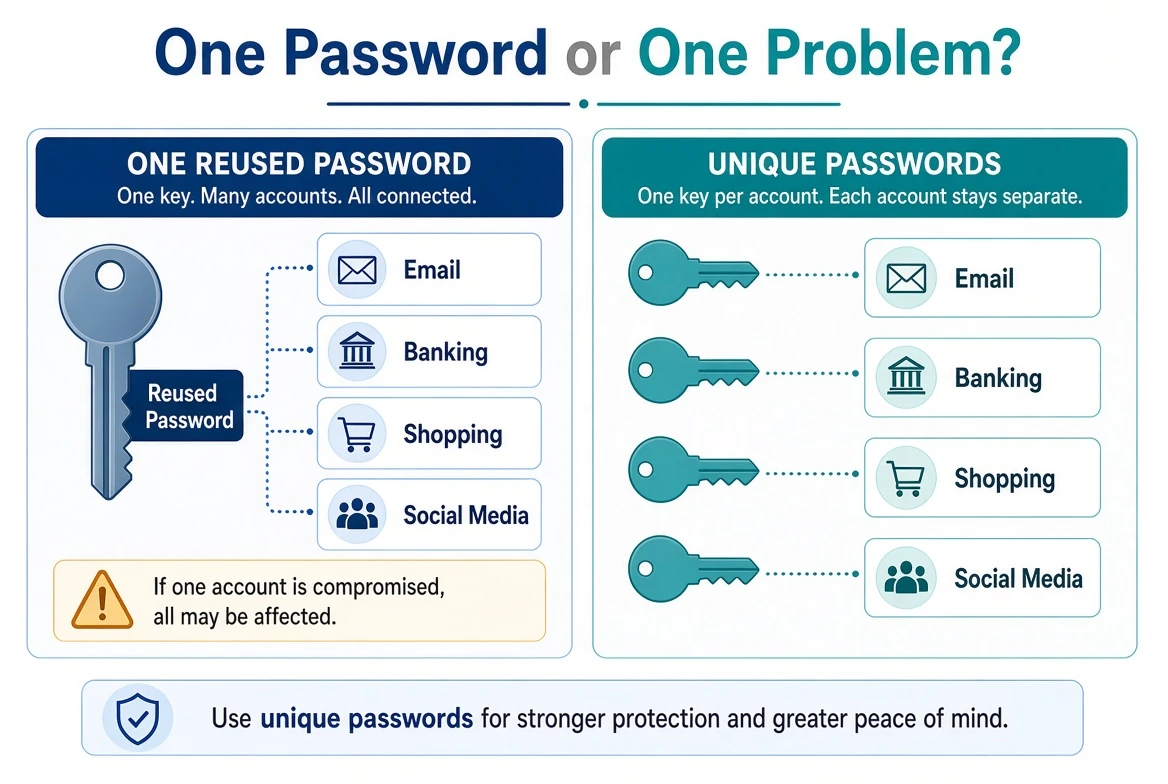
Password Managers
A password manager is designed to create, store, and retrieve passwords.
It allows the customer to use a different password for each account without needing to memorize
every one.
Depending on the product or service, a password manager may:
Generate strong passwords
Store usernames and passwords
Fill login information
Synchronize information across devices
Store passkeys
Store secure notes
Identify reused passwords
Identify weak passwords
Warn about known password exposure
Share selected credentials with trusted people
Help organize account-recovery information
Password managers may be built into:
A web browser
An Apple account
A Google account
A Microsoft account
A dedicated password-management application
A business or organizational security platform
A password manager is not automatically safe simply because it stores passwords in one place.
The account controlling the password manager becomes extremely important. It should be protected
with:
A strong and unique master password when one is required
Accurate recovery information
Secure devices
Carefully stored recovery codes
Regular review of connected devices and sessions
The customer should understand where passwords are being stored and which account controls
synchronization.
For example, passwords saved in a browser may be connected to an Apple, Google, Microsoft,
Mozilla, or other account. Signing that account into another device may make some or all of the
saved information available there.
This can be convenient, but it also expands the security boundary. Protecting the synchronization
account becomes just as important as protecting the passwords stored within it.
Browser Password Storage and Synchronization
Modern browsers frequently offer to save passwords.
Depending on the browser and settings, saved information may include:
Usernames
Passwords
Passkeys
Addresses
Telephone numbers
Payment information
Browsing history
Bookmarks
Open tabs
Extensions
Browser preferences
Some of this information may remain only on the device. Other information may synchronize through
an online account.
Customers may not realize that browser synchronization is enabled. They may also sign into a
browser on a shared, borrowed, work, or replacement device without understanding what information
could be transferred.
During an incident investigation, we may review:
Which browser accounts are signed in
Whether password synchronization is enabled
Which devices are connected
Whether unfamiliar browser profiles exist
Whether a new browser was installed during the incident
Whether data was imported from another browser
Whether passwords were exported
Whether a password file remains in the Downloads folder or elsewhere
Whether the browser can reveal stored passwords after device authentication
Whether browser information may have synchronized to another device
Installing another browser is not automatically suspicious. Many people legitimately use several
browsers.
It deserves closer attention when a browser was installed during a remote-access incident,
particularly if it was used to import passwords, cookies, browsing history, or other information
from the customer’s normal browser.
Exported Password Files
Many browsers and password managers allow saved passwords to be exported.
The exported file is often created as a CSV or similar spreadsheet-style file.
These files may contain readable usernames, website addresses, and passwords. They may not be
encrypted.
An exported password file can become extremely dangerous if it is:
Left in the Downloads folder
Saved on the desktop
Attached to an email
Stored in cloud storage
Copied to a flash drive
Opened during a remote-access session
Imported into an unfamiliar browser
Sent to another person without protection
Left in the Recycle Bin or Trash
After a legitimate password transfer is complete, the customer should confirm that unnecessary
exported files have been securely removed from every location where they may have been stored.
If an unprotected password file may have been viewed or copied during an incident, the passwords
contained in it should be treated as potentially exposed.
Written Password Records
Writing down a password is not automatically the worst possible security practice.
For some customers, a carefully stored paper record may be more practical and safer than:
Reusing one password everywhere
Using short, predictable passwords
Keeping a document named “PASSWORDS” on the desktop
Emailing passwords to themselves
Storing passwords in an unprotected note
Leaving passwords visible near the computer
Depending on memory and repeatedly resetting accounts
The risk depends on where and how the record is stored.
A written password record should not be:
Left beside the computer
Attached to the device
Visible to visitors, customers, or employees
Carried unnecessarily in a wallet or purse
Photographed and stored without protection
Shared with people who do not need access
Discarded without shredding or another secure method
A paper record stored in a secure physical location may be reasonable for some home users. A
business, shared household, caregiver arrangement, or high-risk customer may require a different
approach.
The best system is one the customer can use consistently without creating unnecessary exposure.
Passkeys
A passkey is a modern sign-in method designed to reduce dependence on passwords.
Instead of sending a reusable secret to a website, a passkey uses cryptographic credentials
associated with the customer’s device, password manager, or account ecosystem.
The customer may sign in using:
A fingerprint
Facial recognition
A device passcode
A computer login
A physical security key
Approval from another nearby device
A passkey can provide important advantages:
There may be no password for the customer to remember
The sign-in credential is not typed into the website
A fake website generally cannot use the passkey created for the legitimate service
The passkey cannot be reused as a password on another account
The customer may be less vulnerable to traditional password phishing
Passkeys do not eliminate every security risk.
A criminal may still succeed by:
Taking control of an unlocked device
Convincing the customer to approve another action
Compromising the account that synchronizes passkeys
Abusing an already active session
Taking control of account-recovery methods
Persuading a service to recover the account
Stealing personal information through another method
The security of a passkey therefore depends partly on:
The security of the device
The device passcode
The account used to synchronize passkeys
Recovery information
Screen-lock settings
Whether the customer recognizes approval requests
Whether old or unfamiliar devices remain connected
Passkeys may synchronize between devices through an account or password manager. This can make
them easier to use and recover, but it also means the synchronization account must be protected
carefully.
Some passkeys remain associated with a physical security key or a particular device. Others can
be synchronized or shared using supported methods. The exact behavior depends on the service,
device, and password manager.
Before relying entirely on passkeys, the customer should understand:
Where the passkey is stored
Which devices can use it
Whether it synchronizes
How account recovery works
What happens if a device is lost or replaced
Whether another trusted sign-in method is available
Two-Factor Authentication
Two-factor authentication (2FA) requires two different types of proof when signing in.
For example, a service may require both a password and a verification code generated by an authentication application.
Related terms include 2FA, multi-factor authentication (MFA), two-step verification, and login verification.
MFA is the broader term for requiring two or more different authentication factors.
Some services use these terms interchangeably, although their technical meanings and security protections may differ.
The idea is simple: knowing the password alone should not be enough to access the account.
A service may ask for something the customer:
Knows, such as a password or PIN
Has, such as a smartphone or physical security key
Is, such as a fingerprint or facial scan
Depending on the service, sign-in and verification methods may include:
A code sent by text message
A code sent by email
A telephone call
A code generated by an authentication application
An approval prompt on a trusted device
A physical security key
A passkey
A biometric check performed by the device
These methods do not all work the same way.
A passkey generally replaces a password rather than simply adding another code after it.
A fingerprint or facial scan often verifies the user to their own device, which then completes the sign-in process.
Email verification codes may not provide an independent authentication factor, particularly when the email account is accessible through the same compromised session or device.
Recovery codes are normally backup access methods rather than everyday second factors.
Not all methods provide the same level of protection.
In general, a physical security key, passkey, or properly configured authentication application
may resist common attacks better than a code sent by text message or email.
However, a less-preferred method may still be significantly better than using only a password.
The best available choice depends on:
What the service supports
Which devices the customer owns
The customer’s comfort level
Accessibility needs
Travel and connectivity needs
The availability of backup methods
Whether the account is shared
The consequences of losing access
Text-Message Verification
Text-message verification is widely supported and familiar to many customers.
When the correct password is entered, the service sends a temporary code to the customer’s
telephone number.
This adds protection, but it has limitations.
Text-message codes may be affected by:
A stolen or unlocked phone
A compromised cellular-provider account
Unauthorized number transfers
Message forwarding
Deceptive requests for the code
Loss of cellular service
Travel or poor reception
A changed telephone number
Messages appearing on another synchronized device
A criminal may contact the customer while attempting to sign in and claim that the code is needed
to:
Cancel a fraudulent transaction
Verify the customer’s identity
Secure the account
Stop a computer attack
Confirm a refund
Complete an investigation
The code may actually be authorizing the criminal’s sign-in or password reset.
A verification code should be treated like a temporary password.
Do not read it aloud, forward it, photograph it, or enter it into a website reached through a
suspicious link.
Because text-message codes depend on control of the telephone number, the cellular-provider
account should also be protected against unauthorized SIM changes and number transfers. See
“Mobile Carrier Account Security” in Chapter 6.
Authentication Applications
An authentication application generates temporary codes or approves sign-ins.
Unlike a text message, the code may be generated directly on the device without depending on
cellular service.
Authentication applications can provide strong protection, but they require planning.
The customer should understand:
Which application contains the account
Whether the application is backed up
Whether it synchronizes between devices
How the application is protected
What happens when the phone is replaced
Whether another trusted device can approve access
Where recovery codes are stored
How to remove an old device
A phone should not be erased, traded in, or reset until authentication methods have been
transferred and tested.
Losing the only device containing an authentication application can make account recovery
difficult if no backup method exists.
Approval Prompts
Some services send a notification asking the customer to approve or deny a sign-in.
The prompt may display:
The name of the service
An approximate location
The type of device
A time
A number to compare or enter
Buttons to approve or deny the request
An unexpected prompt should be denied.
Repeated prompts may mean:
Someone knows the password
Someone is attempting account recovery
The customer accidentally triggered a sign-in
Another legitimate device or application is reconnecting
A criminal is hoping the customer will approve out of confusion or frustration
This type of repeated pressure is sometimes called MFA fatigue or prompt bombing.
Never approve a sign-in simply to make the notifications stop.
If unexpected prompts continue, the customer should:
Deny the request
Stop interacting with anyone asking for approval
Use a trusted device
Review recent account activity
Change the password if appropriate
End unfamiliar sessions
Confirm recovery information
Contact the service through an independently verified channel when necessary
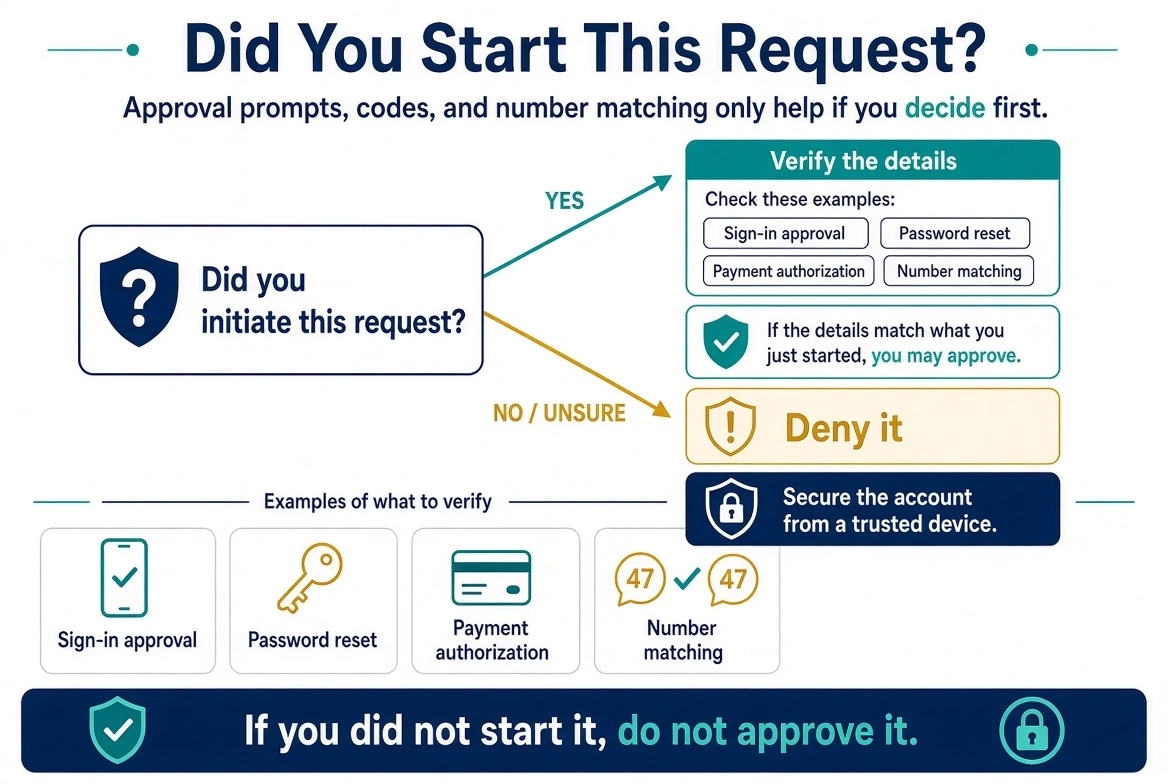
Verification Codes and Number Matching
Some services display a number on the device attempting to sign in and ask the customer to select
or enter the same number on a trusted device.
This can reduce accidental approvals, but it does not protect the customer if a criminal
convinces them to cooperate.
A caller may say:
“Tell me which number you see.”
“Select the number I provide.”
“This confirms that I am helping you.”
“Approve the notification so I can remove the hacker.”
“The code is required to issue your refund.”
The customer should approve a prompt or enter a number only when they personally initiated the
sign-in and recognize the service and device involved.
Physical Security Keys
A physical security key is a small device used to approve access to an account.
Depending on the key and device, it may connect through:
USB
Near-field communication
Bluetooth
Another supported connection
Physical keys can provide strong protection against many phishing attacks because the key
verifies the service before approving access.
They may be especially valuable for:
Primary email accounts
Password managers
Business administrator accounts
Financial professionals
Public figures
Customers facing repeated targeted attacks
Anyone seeking stronger phishing-resistant protection
Physical keys require planning.
The customer should consider:
Keeping more than one registered key
Storing the backup key in a secure location
Labeling keys without revealing unnecessary account information
Removing a lost key from affected accounts
Confirming device compatibility
Maintaining another secure recovery option
Testing the backup key before it is needed
A single security key should not become the customer’s only path into every important account
without an appropriate backup plan.
Recovery Codes
Many services provide backup or recovery codes when two-factor authentication is enabled.
A recovery code may allow access when:
The phone is lost
The authentication application is unavailable
A security key is damaged
Cellular service is unavailable
A trusted device has been replaced
Recovery codes are powerful. Anyone who possesses a valid code may be able to bypass the normal
second-factor method.
They should be:
Stored in a secure location
Kept separate from the everyday device when practical
Protected from unauthorized viewing
Removed from unprotected downloads or screenshots
Replaced if they may have been exposed
Reviewed after an account compromise
Recovery codes should not be stored in a document named “Recovery Codes” or “Passwords” on an
unprotected desktop.
If codes are saved digitally, they should be protected through an appropriate secure-storage
method. A printed copy stored in a secure physical location may be a reasonable backup for some
customers.
Account-Recovery Information
Strong authentication can be undermined by weak recovery information.
A service may allow access to be recovered through:
An email address
A telephone number
A trusted device
Security questions
A family or organizational administrator
Government-issued identification
A recovery contact
A backup code
Another signed-in account
During a security review, we may confirm:
The customer still controls the recovery email address
The recovery telephone number is current
Old telephone numbers have been removed
Unfamiliar recovery methods are not present
Security questions do not use easily discovered answers
Trusted devices are recognized
Recovery contacts are still appropriate
Backup codes have not been exposed
The customer understands the provider’s recovery process
An old email address can remain a hidden weakness. If it is abandoned, poorly protected, or
accessible to someone else, it may provide a path into a newer and more important account.
Shared and Family Accounts
Sharing one username and password among several people can make account security difficult.
When an account is shared, it may be unclear:
Who signed in
Who changed a setting
Which device created a session
Who received a verification code
Whether a password change was authorized
Which person should control recovery
Whether a former employee or household member still has access
When possible, each person should use an individual account with the appropriate level of access.
Many services provide:
Family sharing
Delegated access
Additional household members
Separate employee accounts
Administrator and standard-user roles
Authorized-user access
Emergency-access features
These options are generally preferable to sharing the primary password.
When password sharing cannot be avoided, the customer should clearly document:
Who is authorized
Which devices are used
Who controls recovery information
Where two-factor authentication prompts are sent
How access will be removed when no longer needed
What should happen during an emergency
Security Questions
Security questions are often treated like a second password.
Answers based on real personal information may be guessed or discovered through:
Social media
Public records
Family members
Obituaries
School or employment history
Previous data breaches
Casual conversation
Questions about a mother’s maiden name, first vehicle, childhood street, school, or pet may not
be private.
When a service allows it, an answer does not always need to be factually accurate. It needs to be
consistent, difficult to guess, and stored securely.
Customers should not depend on memory alone if they use invented answers. The answers may need to
be stored with the same care as passwords.
When a Password May Need to Be Changed
A password may need to be changed when:
It was entered into a suspicious website
It was disclosed to another person
It was used during an unauthorized remote-access session
It was stored in an exposed document or exported file
It was reused on a compromised service
An unfamiliar sign-in occurred
Recovery information was changed
The account sent messages or completed actions without permission
A password manager or synchronization account may have been compromised
Bringing Your Tech to Life or the service provider recommends replacement based on the
investigation
A password does not necessarily need to be changed merely because it is old.
Changing a strong, unique, uncompromised password on an arbitrary schedule may encourage
predictable variations or poor recordkeeping. The more important questions are whether the
password is unique, adequately strong, stored safely, and suspected of exposure.
When a password is changed after an incident, the recovery process should also consider:
Active sessions
Connected devices
Authorized applications
Recovery information
Two-factor authentication methods
Passkeys
App passwords
Email forwarding or rules
Other accounts using the same or a related password
Password Documentation During Service
Bringing Your Tech to Life may need the customer’s cooperation when reviewing or securing
accounts.
Depending on the authorized service, the customer may:
Enter the password personally
Approve a sign-in
Provide a temporary password
Create a new password
Record the new password in an approved password record
Configure a password manager
Store recovery codes
Complete identity verification directly with the provider
Passwords should be handled only when necessary for the authorized work.
We do not recommend leaving readable passwords in:
A document on the desktop
An unprotected spreadsheet
An ordinary email
A text message
A browser download
A photograph or screenshot
A general Service Report
An unsecured cloud document
The customer’s Service Report should document what security actions were completed without
unnecessarily displaying the customer’s passwords.
If a separate password record is provided, it should be stored securely and should not be
confused with the general Service Report or customer education guide.
The customer remains responsible for controlling access to their passwords, recovery methods,
devices, and account documentation after service.
Choosing a Practical Security System
The strongest security method is not helpful if the customer cannot use or recover it.
A practical system may combine:
Unique passwords
A trusted password manager
Passkeys where appropriate
Two-factor authentication
Secure recovery codes
Current recovery information
Protected devices
A backup plan
A trusted person who can assist when appropriate
Different customers may need different solutions.
A person managing one computer and a few personal accounts may need a different system than:
A family sharing devices and subscriptions
A caregiver assisting another person
A small business with several employees
A customer who travels frequently
A person with accessibility needs
Someone responsible for financial or organizational accounts
A customer who has experienced repeated targeted attacks
Our goal is not to force every customer into the same product or method.
The goal is to build a security system that is understandable, manageable, recoverable, and
appropriate for the customer’s actual risks.
Passwords Are Only One Layer
A unique password can reduce risk.
Two-factor authentication can add another barrier.
Passkeys and physical security keys can provide stronger protection against many forms of
phishing.
None of these tools can replace careful judgment.
A criminal may still attempt to convince the customer to:
Approve a sign-in
Read a code aloud
Reset a password
Add a new recovery method
Install remote-access software
Move money
Disable a security feature
Share the screen
Ignore a legitimate warning
The most effective protection combines secure technology with informed habits.
Slow down. Verify the request independently. Then act.
CHAPTER NINE
Chapter 9
Data Breaches and Exposed Information
When Your Information Escapes Someone Else’s System
A customer may receive an email, letter, security alert, or telephone call stating that their
information was involved in a data breach.
They may also be told that their information was found:
On the dark web
In a leaked database
In a stolen-password collection
In a criminal marketplace
In a malware or information-stealer record
Through a breach-monitoring service
During a financial institution’s security review
These statements can be frightening, but they do not all mean the same thing.
A breach involving a company does not automatically mean that someone has accessed the customer’s
computer. It also does not prove that every exposed record has been used for fraud.
It means that information held by another organization may have been accessed, copied, disclosed,
or distributed without authorization.
The appropriate response depends on:
Which organization was involved
What information was exposed
Whether passwords were included
Whether those passwords were reused
Whether financial or identity information was involved
Whether suspicious account activity has occurred
How long ago the breach happened
Whether the customer still uses the affected account
Whether the exposed information can still be used
The purpose of reviewing breach information is not to create more fear.
It is to determine what the exposure actually means and what practical steps can reduce the
remaining risk.
Breach Versus Account Compromise
A data breach and an account compromise are related, but they are not the same.
A data breach generally occurs when information held by a company, website, employer, government
agency, healthcare provider, or other organization is accessed or disclosed without
authorization.
An account compromise occurs when someone gains unauthorized access to a specific customer
account.
For example:
A shopping website may experience a breach that exposes customer email addresses and passwords.
A criminal may later use one of those passwords to sign in to a customer’s email account.
The website breach and the email-account compromise are separate events, even though one may
have contributed to the other.
A customer’s information appearing in a breach does not automatically prove that their individual
account was accessed.
Likewise, an account may be compromised even when the customer’s information does not appear in a
known breach.
Unauthorized access may also result from:
A phishing website
Password reuse
An information-stealing program
A stolen browser session
An approved sign-in prompt
A shared password
Remote access to a device
An exposed password document
Weak account-recovery information
Deception involving a service provider
During an investigation, we separate:
Confirmed exposure of information
Confirmed unauthorized account activity
Possible connections between separate events
Unverified claims
Risks that cannot be determined from the available evidence
This distinction matters because a breach notice alone does not tell us whether a criminal
successfully used the information.
What Information May Have Leaked
The term “personal information” can refer to many different types of data.
A breach may expose:
Names
Email addresses
Usernames
Passwords
Password hints
Security questions and answers
Telephone numbers
Home or mailing addresses
Dates of birth
Social Security numbers
Driver’s-license information
Passport information
Account numbers
Payment-card information
Bank-routing information
Purchase histories
Medical or insurance information
Employment information
Tax information
Photographs
Private messages
Device information
Internet Protocol addresses
Location information
Family or household information
Not every breach contains every type of information.
An incident involving only email addresses creates a different risk than one involving passwords,
Social Security numbers, payment information, or medical records.
The same piece of information can also become more useful when combined with other information.
For example, an email address by itself may mainly increase the likelihood of spam or phishing.
An email address combined with a name, telephone number, financial institution, and recent
purchase can help a criminal create a much more convincing scam.
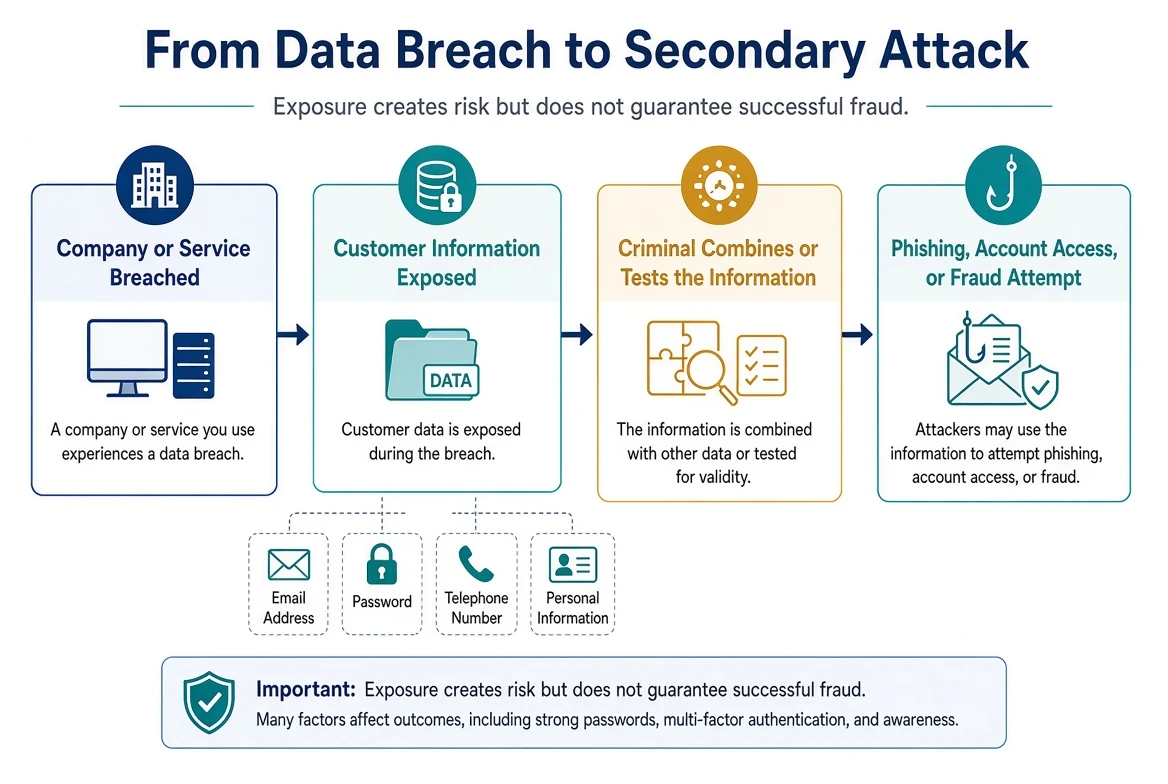
Passwords in Data Breaches
Passwords are not always stored by services in readable form.
A responsible service generally stores a protected mathematical representation of the password
rather than the original password itself. This is commonly called a password hash.
However, the protection provided by a stored password depends on:
How the service processed it
Which hashing method was used
Whether additional protective information was added
How strong the customer’s password was
Whether criminals can test large numbers of guesses
Whether the password was stored or logged somewhere else in readable form
A breach notice may say that passwords were:
Exposed
Encrypted
Hashed
Salted and hashed
Protected
Reset as a precaution
Not affected
These terms should be interpreted carefully.
A statement that passwords were encrypted or hashed does not necessarily mean there is no risk. A
weak or predictable password may still be discovered through automated guessing.
If a service confirms that password information was exposed, the safest response is generally to
replace that password and any identical or closely related passwords used elsewhere.
The customer should not simply add a number or symbol to the old password.
A compromised password should be retired.
Why Old Breaches Still Matter
A customer may discover that their information appeared in a breach from many years ago.
They may wonder why an old event still matters.
Old breach information may continue to circulate because digital information can be:
Copied
Resold
Combined with other records
Added to criminal databases
Reposted
Used in automated account testing
Used to make scams more believable
An old password may no longer provide access to the original account, but it can remain dangerous
if the customer reused it elsewhere.
Older personal information may also remain accurate.
Examples include:
A full name
A date of birth
A Social Security number
A long-term telephone number
A home address
A relative’s name
An email address
Employment history
Changing a password does not remove the historical breach record. It makes the exposed password
less useful.
The goal is not to erase the past. In many cases, that is impossible.
The goal is to reduce what criminals can still accomplish with the information.
Credential Stuffing
Credential stuffing occurs when criminals take stolen usernames and passwords and automatically
test them against other websites.
For example, a criminal may obtain an email address and password from a breached shopping
website.
The same combination may then be tested against:
Email providers
Banks
Payment applications
Social media
Cloud storage
Streaming services
Retailers
Cellular providers
Government accounts
Business systems
The criminal does not need to know where the customer has accounts.
Automated tools can test the same credentials across many popular services.
Credential stuffing is one of the main reasons password reuse is so dangerous.
If every account has a unique password, a breach at one service should not provide the password
for another.
If passwords follow a recognizable pattern, criminals may also try variations.
For example, if one exposed password is:
Mountain2025!
A criminal may try:
Mountain2026!
Mountain2027!
BankMountain2026!
AmazonMountain2026!
A password manager can help create unrelated passwords that do not follow a predictable pattern.
Breach Collections and Combined Records
Criminals and security researchers may encounter large collections containing information from
many different sources.
These collections may be described as:
Combo lists
Credential collections
Data dumps
Leaked databases
Compilations
Stealer logs
Breach collections
A single collection may combine:
Information from several company breaches
Previously published records
Newly stolen information
Duplicate entries
Outdated passwords
Incorrect information
Data gathered by malicious software
Information collected through phishing
Records assembled from public or marketing sources
The appearance of an email address in a large collection does not always identify the exact
source of the exposure.
It may also be difficult to determine:
When the information was first obtained
Whether the password is current
Whether the information came from a service breach or an infected device
Whether the record has been used
How many people possess copies
Whether the collection contains accurate information
These limitations should be explained honestly.
The existence of a record establishes that information may have circulated. It does not
automatically establish when, where, or how a specific customer was targeted.
Information-Stealer Records
Some exposed information comes from malicious software rather than a company breach.
Information-stealing malware may collect data from an infected device, including:
Usernames
Passwords
Browser cookies
Autofill information
Cryptocurrency-wallet information
Browser history
Device information
Files from selected folders
Websites where the customer signed in
Records produced by this type of malware are sometimes called stealer logs.
A stealer-log finding may deserve a different response than an ordinary company breach because it
can suggest that information was collected from a device used by the customer.
The response may need to include:
Assessing the device
Removing or rebuilding the affected system
Securing primary email and identity accounts
Replacing exposed passwords
Ending active sessions
Reviewing browser synchronization
Checking financial and payment accounts
Reviewing accounts accessed from the device
A breach-monitoring result may not provide enough information to prove which device was involved.
It should be considered alongside the customer’s incident timeline and other available evidence.
What “Found on the Dark Web” Means
The phrase “dark web” is often used broadly.
It may refer to:
Criminal marketplaces
Private forums
Messaging groups
File-sharing services
Publicly posted breach collections
Data sold or shared between criminals
Records located by a monitoring company
The phrase does not identify exactly what was found.
Important follow-up questions include:
Which information was found?
Where was it found?
When was it found?
When was it originally exposed?
Was the information verified?
Was a current password included?
Was financial information included?
Was the record associated with a company breach, malware, or another source?
Was any attempted use detected?
A masked screenshot showing part of an email address, account number, or password may be intended
to demonstrate that a record exists. It may not reveal enough information to determine whether
the exposed data is current.
A dark-web alert does not necessarily mean:
Someone is currently inside the customer’s computer
The customer’s bank account has been accessed
The customer’s identity has already been stolen
Every account must be closed
The computer must be replaced
The customer is being personally watched
The monitoring organization can remove every copy
It means the reported information should be evaluated and the appropriate accounts or records
should be protected.
Can Exposed Information Be Removed?
Customers frequently ask whether stolen information can be removed from the internet or dark web.
Unfortunately, there is usually no reliable way to retrieve every copy once information has been
downloaded, copied, or distributed.
A company may remove information from its own system. A website may remove a public posting. A
criminal marketplace may disappear. A monitoring service may allow a customer to hide a public
search result.
None of these actions prove that all copies have been destroyed.
Recovery therefore focuses on making the information less useful.
Depending on what was exposed, this may involve:
Replacing passwords
Changing account-recovery information
Ending active sessions
Replacing payment cards
Replacing financial account numbers when recommended
Adding stronger authentication
Monitoring transactions
Watching for targeted phishing
Reviewing credit information
Placing a credit freeze or fraud alert when appropriate
Documenting identity-theft concerns
Replacing identification documents when directed by the issuing authority
Some information can be changed. Other information, such as a date of birth, cannot.
When permanent information is exposed, long-term awareness and monitoring become more important.
Public Information, Data Brokers, and People-Search Sites
Personal information can appear online even when no company breach has occurred. Data brokers and
people-search sites collect and combine information from public records, commercial sources,
online activity, and other databases.
A listing may include:
Names and aliases
Current and former addresses
Telephone numbers and email addresses
Relatives, household members, and possible associates
Age or date-of-birth information
Property and other public-record information
Possible income, occupation, or household estimates
These details may be inaccurate or outdated, but they can still help a scammer sound convincing.
Publicly available information can support impersonation, targeted phishing, password-recovery
attempts, security-question guessing, SIM-swapping attempts, stalking, doxxing, and financial
fraud.
Why Reducing Public Exposure Matters
The realistic goal is to reduce unnecessary exposure—not to become invisible. Removing
easy-to-find details can make it harder for an ordinary scammer, an abusive acquaintance, or an
opportunistic criminal to build a convincing profile.
Information that remains public may still be used to:
Personalize a fraudulent call, text message, or email
Pretend to be a family member, bank, employer, or government agency
Answer weak account-recovery or security questions
Connect a telephone number or email address to a physical address
Identify relatives, former locations, property, or other useful context
Different Kinds of Removal
Removal can mean different things:
Search-result removal limits whether a page appears in a particular search engine’s results.
Source removal asks the website or data broker that holds the listing to delete or suppress it.
Private-database opt-out asks a broker to stop providing the information through a
subscriber-only or paid database.
Removing a Google Search result does not remove the source page, other search-engine listings, or
information available through a private database. Removing the source is generally stronger, but
the information may be collected again and reappear.
Google Results About You
Google Results about you can monitor eligible Google Search results for certain personal contact
information and help the customer submit removal requests. It is a useful no-separate-fee
starting point.
Google can remove an eligible result from its own search index, but it cannot remove the
information from the website that published it. Eligibility and public-interest exceptions also
apply.
Manual Opt-Outs and Paid Services
Many people-search sites provide a free manual opt-out process. Manual removal can work well, but
it may require repeated searches, email verification, recordkeeping, and periodic rechecking.
Paid removal services can reduce that workload by searching multiple sites, submitting requests,
tracking progress, and checking for reappearance. They are a convenience, not a requirement, and
they do not replace direct security actions.
A commercial service usually needs accurate personal information to locate matching records. The
customer should understand what information will be supplied, review the provider’s privacy and
cancellation terms, and normally create and control the account. A third party should not enroll
the customer without informed consent.
Comparison of Common Personal-Information Removal Options
The options below are not ranked. Inclusion does not constitute an endorsement, and features or
availability may change. Compare the type of service, the evidence it provides, the customer’s
risk level, and the amount of ongoing work the customer is willing to perform.
| Option | Primary purpose | Useful strengths | Important limitations |
|---|---|---|---|
| Google Results about you | Google Search monitoring and result removal |
No separate service fee; monitors eligible contact information; supports notifications and removal requests. |
Applies to eligible Google Search results only; the source page, other search engines, and private databases remain; exceptions apply. |
| Optery | Specialist discovery and removal |
Free Exposure Reports with screenshots; paid removal tracking and before-and-after verification; recurring options. |
Full removal is paid; not an integrated credit-monitoring or identity-recovery suite; screenshots generally cover public profiles. |
| EasyOptOuts | Focused people-search removal |
Simple recurring service; performed well in a limited independent Consumer Reports test. |
Removal only; less visual reporting and concierge support; test results are a snapshot, not a guarantee. |
| Incogni | Automated recurring removal |
Repeated requests to public and private brokers; progress reporting; custom-removal options on applicable plans. |
Removal-focused; less screenshot evidence than Optery; coverage and custom-removal features depend on the plan. |
| DeleteMe | Managed, human-assisted removal |
Recurring scans, privacy reports, advisor support, and custom requests; long operating history. |
Removal-focused; a published coverage list does not equal verified removal; independent results have varied. |
| Aura | All-in-one identity-protection suite |
Combines broker removal with credit, financial-account, dark-web, device-security, VPN, password-manager, recovery, and insurance features. |
Not a removal-only service; features differ by plan; linking sensitive data has privacy tradeoffs; insurance terms and exclusions apply. |
Vendor site counts are not directly comparable. A published number may refer to automatic
removals, custom requests, public people-search pages, private broker databases, monitoring-only
scans, or several categories combined.
No service can guarantee complete or permanent removal. Data may reappear, some records may be
legally public, and some sites may refuse or delay a request.
Other Professional Services
Other specialized services include Privacy Bee, Kanary, and Malwarebytes Personal Data Remover.
Privacy Bee may suit customers who need broader or custom removals. Kanary may be useful for
higher-risk customers concerned about doxxing, impersonation, or exposure on search and social
platforms. Malwarebytes may appeal to customers who prefer data removal within an existing
device-security ecosystem.
Mozilla Monitor remains useful for breach
notifications, but Mozilla Monitor Plus is no longer an active data-broker-removal service.
After a Breach or Security Incident
A public-web and data-broker scrub can be a useful layer of risk reduction after a
breach—especially when exposed information includes a home address, telephone number, date of
birth, relatives, prior locations, or other details that can support social engineering.
Removal does not replace password changes, ending unknown sessions, stronger authentication,
credit freezes or fraud alerts when appropriate, financial monitoring, device security, or the
other recovery actions described in this guide.
Have I Been Pwned
Have I Been Pwned is a breach-notification and search service available at:
The service may allow a customer to check whether an email address has appeared in breaches
included in its database.
A result may identify:
The organization or collection involved
The approximate date of the breach
When the breach became publicly known
A description of the incident
Categories of exposed information
Whether passwords were involved
Whether the breach has special limitations or classifications
A listing is a historical record of exposure.
It does not necessarily mean:
The account is currently compromised
The listed password still works
The customer’s device is infected
The exposed information has been used
The organization was breached recently
The customer failed to change the password
Changing a password does not remove the breach listing because the historical exposure still
occurred.
A “no results” response also does not prove that an email address has never been exposed. Not
every breach is discovered, publicly released, verified, or included in the service.
When using Have I Been Pwned:
Enter the official address directly into the browser
Confirm the spelling of the website
Do not use a link from an unexpected message
Review each listed breach separately
Pay attention to the categories of exposed information
Consider every email address the customer has used
Remember that older or abandoned addresses may still matter
Do not assume that every listed incident requires the same response
Have I Been Pwned also operates a separate Pwned Passwords service that can indicate whether a
password has previously appeared in known breach data.
This does not reveal which person used the password or which email address it belonged to. It
indicates that the password itself has been exposed and should not be used.
Customers should not enter active passwords into unfamiliar “password checker” websites. Use the
official service, a trusted password manager’s integrated security-check feature, or professional
guidance.
Interpreting a Breach Notification
A legitimate breach notification should be read carefully.
Important details may include:
The name of the affected organization
The date or period when unauthorized access occurred
When the organization discovered the incident
When the customer was notified
What information may have been exposed
Whether passwords were reset
Whether payment information was affected
Whether government identification was involved
What investigation was completed
What protective services are being offered
What steps the organization recommends
How to contact the organization
Whether a claim or enrollment deadline applies
The date of the notification may be much later than the date of the actual breach.
This does not necessarily mean that the organization ignored the incident. Investigations may
take time to determine what systems and records were involved. However, the difference between
the breach date, discovery date, and notification date can affect the customer’s understanding of
the risk.
Breach Notifications Can Also Be Faked
Criminals take advantage of news about real breaches.
A fraudulent message may claim:
“Your information was exposed.”
“Click here to protect your account.”
“Confirm your identity immediately.”
“Your account will be suspended.”
“Enroll in protection before the deadline.”
“Call our fraud department.”
“Download the security application.”
“Pay a fee to remove your information.”
Do not assume a breach notice is legitimate simply because it refers to a real event.
Before clicking a link, calling a telephone number, downloading software, or providing
information:
Go directly to the organization’s known official website
Use a trusted mobile application
Call a verified telephone number
Review the organization’s official announcements
Compare the notice with other legitimate records
Ask Bringing Your Tech to Life for assistance when uncertain
A real breach can inspire fake recovery messages.
The criminal may not have any special access. They may simply know that frightened customers are
expecting information.
What You Should Do
The correct response depends on what information was exposed.
If an email address or telephone number was exposed:
Expect more spam, phishing, and impersonation attempts
Verify unexpected communications independently
Be cautious when a caller already knows personal information
Review the security of the related email account
If a password was exposed:
Change the affected password
Change identical or closely related passwords elsewhere
Use unique replacements
Review account activity
End unfamiliar sessions
Enable or review two-factor authentication
Check recovery information
If security questions and answers were exposed:
Replace them where possible
Do not reuse the same answers on other accounts
Store new answers securely
Review accounts that depend on those questions
If payment-card information was exposed:
Contact the card issuer through a verified channel
Review transactions
Follow the issuer’s instructions
Replace the card when recommended
Continue monitoring for unauthorized charges
If bank-account information was exposed:
Contact the financial institution
Explain exactly what information may have been disclosed
Ask what restrictions or replacements are recommended
Monitor transactions and account changes
Document the institution’s instructions
If a Social Security number, driver’s-license number, tax record, medical record, or other
identity information was exposed:
Preserve the breach notice
Review the organization’s recommendations
Consider identity-protection measures
Watch for unfamiliar accounts, claims, notices, or benefits activity
Follow the steps discussed in Chapter 10
If browser sessions, cookies, or authentication information may have been exposed:
Secure the device
Change important passwords from a trusted device
End active sessions
Review connected devices
Remove unauthorized applications
Confirm recovery and authentication methods
Not Every Breach Requires the Same Response
A breach does not automatically mean the customer should:
Replace the computer
Close every account
Change every password
Cancel every payment card
Stop using online banking
Create a new email address
Purchase expensive monitoring services
Pay someone to remove information from the dark web
These actions may occasionally be appropriate, but they should be based on the information
involved and the evidence available.
For example:
An exposed email address may mainly require increased awareness of phishing.
An exposed reused password may require changes across several accounts.
An exposed payment card may require contacting the card issuer.
An exposed Social Security number may justify long-term identity-protection steps.
A stealer-log finding may require device and account investigation.
The response should match the risk.
Monitoring After a Breach
Some consequences may not appear immediately.
After an exposure, the customer may need to watch for:
Unfamiliar sign-in alerts
Password-reset messages
Unexpected verification codes
New account notifications
Unauthorized purchases
Changes to account-recovery information
Unfamiliar financial transactions
Suspicious tax or benefit notices
Medical claims the customer does not recognize
Cellular-service interruptions
New phishing messages using accurate personal details
Messages sent to friends, relatives, customers, or coworkers
Monitoring should be practical and sustainable.
The customer does not need to panic every time a spam message arrives. The important question is
whether the message or activity provides evidence of unauthorized access, fraud, or attempted
recovery.
The Official Record and the Customer’s Service Report
A company’s breach notification describes the organization’s incident.
The customer’s Service Report describes what was examined and discovered in the customer’s
situation.
The two documents serve different purposes.
The customer’s report may record:
Which breach information was reviewed
Which email addresses appeared in known breaches
Which categories of information may have been exposed
Whether password reuse created additional risk
Whether suspicious account activity was identified
Which passwords or accounts were secured
Which financial or identity-protection steps were recommended
What could not be determined
What follow-up remains
A breach search should not be presented as proof of every event the customer fears.
Our responsibility is to explain what the result establishes, what it suggests, what it does not
prove, and what the customer can do next.
Exposure Does Not Mean Defeat
Personal information is collected by many organizations throughout a person’s life.
Even careful customers may be affected by a breach they could not prevent.
The customer did not choose the organization’s security practices, and they may have had no
control over how the information was stored.
What the customer can control is the response.
Unique passwords, stronger authentication, careful account recovery, independent verification,
financial monitoring, and informed decision-making can make exposed information much less useful
to a criminal.
A breach is a warning to evaluate risk.
It is not proof that the customer has lost control of their digital life.
CHAPTER TEN
Chapter 10
Financial Fraud and Identity Protection
Protecting Your Money, Credit, and Personal Identity
A digital security incident may create several different kinds of financial and identity-related
risk.
A criminal may try to:
Use a stolen payment card
Access an existing bank account
Convince the customer to authorize a transfer
Take over a payment application
Open a new account using the customer’s identity
Redirect a tax refund or government benefit
File a fraudulent insurance or medical claim
Obtain a loan
Transfer a telephone number
Use personal information to make another scam more convincing
These risks require different responses.
Replacing a payment card may stop charges against that card, but it does not prevent someone from
opening a new account using stolen identity information.
A credit freeze may help prevent new credit accounts, but it does not stop someone who already
has access to the customer’s bank account.
Changing an email password may protect account recovery, but it does not automatically dispute an
unauthorized transaction.
The recovery process must identify which type of risk exists and match each protective action to
that risk.
Immediate Financial Safety
When money is actively moving or unauthorized transactions are continuing, contacting the
appropriate financial institution becomes an immediate priority.
This may include:
A bank
A credit union
A credit-card issuer
A payment application
An investment or retirement company
A loan provider
A digital-wallet provider
A merchant
A money-transfer service
A cryptocurrency exchange
Use independently verified contact information.
Reliable sources may include:
The telephone number printed on the back of a payment card
A known official website entered directly into the browser
A trusted mobile application already used by the customer
A recent legitimate statement
A local branch
An established financial advisor or account representative
Do not rely on contact information supplied by:
The suspected criminal
A suspicious email
A text message
A pop-up warning
An unsolicited telephone call
A search advertisement
A document displayed during a remote-access session
When contacting the institution, explain clearly:
What happened
When it happened
How the customer was contacted
Whether remote access occurred
Whether a password or verification code was disclosed
Whether the customer approved any transactions
Whether approval occurred because of deception
Which transactions are disputed
Which devices or accounts may have been involved
Whether the criminal is still communicating with the customer
Do not change the story to make the event sound more favorable.
A transaction the customer personally initiated after being deceived may be handled differently
from a transaction completed without the customer’s knowledge. The financial institution must
receive an accurate description to determine which rules, claims, protections, or investigations
apply.
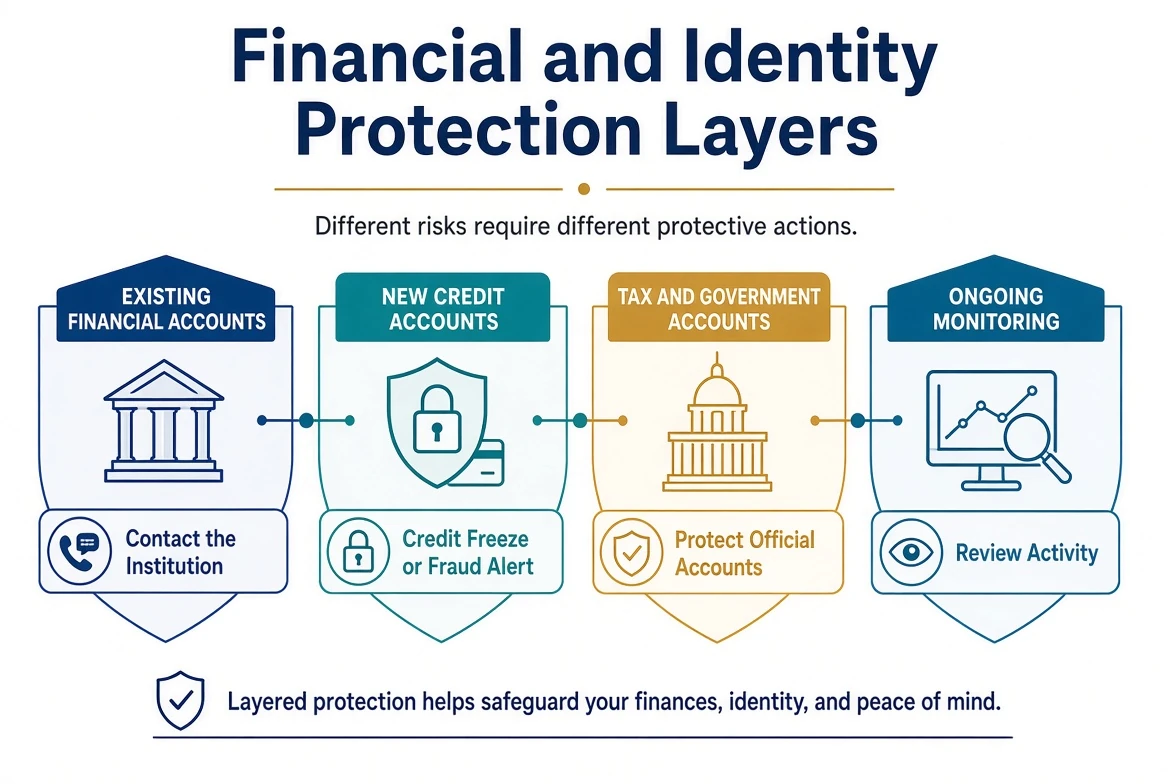
Bank and Credit-Card Fraud
Financial fraud may involve:
Unauthorized debit-card purchases
Unauthorized credit-card purchases
Automated Clearing House transactions
Electronic bank transfers
Wire transfers
Checks
Cash withdrawals
New payment recipients
Changed contact information
Added authorized users
Linked external accounts
Fraudulent loans
Transfers initiated after deception
The institution may recommend:
Locking or replacing a payment card
Changing online-banking credentials
Closing and replacing an account
Restricting electronic transfers
Removing an unfamiliar payment recipient
Removing a linked external account
Changing a telephone or verbal security code
Visiting a branch
Completing a fraud affidavit
Filing a police or identity-theft report
Monitoring the account
Providing supporting documentation
Replacing a payment card does not necessarily replace the underlying bank account.
Closing a bank account can affect:
Direct deposits
Automatic payments
Payroll
Social Security or other benefits
Loan payments
Utility payments
Checks that have not cleared
Tax refunds
Payment applications
Online merchants
The customer should work with the institution to understand what must be updated before the old
account is closed.
Credit-card and bank-account activity should be reviewed carefully. Small unfamiliar transactions
may be test charges that precede larger attempts.
The customer should document:
The transaction date
The posting date
The merchant or recipient
The amount
The account involved
Whether the transaction is pending or completed
When it was reported
The claim or case number
What the institution instructed the customer to do
Pending and completed transactions may be handled differently. The institution should explain
what actions are available at each stage.
Debit Cards and Credit Cards
Debit cards and credit cards may look similar, but they access money differently.
A debit-card transaction may withdraw funds directly from a bank account.
A credit-card transaction generally uses the card issuer’s credit line and appears on a statement
for later payment.
The reporting process, available protections, and effect on the customer’s available money may
differ.
If either card may be compromised:
Lock or restrict the card when the issuer provides that option
Contact the issuer
Review recent activity
Replace the card when recommended
Update legitimate recurring payments
Remove the old card from shopping and payment services
Watch for charges that continue through account-updater services
Confirm whether digital-wallet versions of the card were also replaced
Preserve the claim or confirmation number
A criminal does not always need the physical card.
Card information may be exposed through:
A merchant breach
A phishing website
An unprotected document
Remote access
Browser autofill
A compromised shopping account
A stolen digital-wallet account
A fraudulent telephone call
A skimming device
An insecure payment process
Payment Applications
Payment applications can make sending money fast and convenient.
That speed can also make recovery difficult.
A scammer may convince a customer to send money by claiming to be:
A financial institution
A government agency
A utility company
A family member
A buyer or seller
A technical-support representative
A fraud investigator
A law-enforcement officer
A romantic partner
An employer
A prize or sweepstakes company
Before sending money, verify the recipient through a separate method.
If a payment was sent because of fraud:
Stop communicating with the suspected criminal
Contact the payment service
Contact the linked bank or card issuer
Report the receiving account when possible
Preserve the username, telephone number, email address, and transaction record
Record the date, time, amount, and confirmation number
Follow the provider’s dispute or scam-reporting process
Change the password if account access may have been exposed
Review connected devices and sessions
Confirm the linked financial accounts
The customer should report the transaction even if the payment service warns that transfers are
intended for people they know and trust.
Reporting does not guarantee reimbursement. It may still help the provider identify the receiving
account, preserve records, and recognize related fraud.
Wire Transfers, Gift Cards, and Cryptocurrency
Criminals often request payment methods that are fast, difficult to reverse, or difficult to
trace.
Common examples include:
Wire transfers
Gift cards
Cryptocurrency
Cash deposits
Money-transfer services
Payment applications
Mailed cash
Purchases of valuable merchandise
Transfers to a so-called safe account
A legitimate organization should not require the customer to:
Buy gift cards to protect an account
Read gift-card numbers over the telephone
Deposit cash into a cryptocurrency machine
Transfer money to a government wallet
Move money into a safe account
Lie to a bank employee
Conceal the reason for a transaction
Remain on the telephone while withdrawing money
Ignore warnings from a financial institution
Allow remote access while completing a payment
If one of these payments has occurred, act quickly.
Contact:
The financial institution that funded the payment
The gift-card issuer
The payment or transfer service
The cryptocurrency exchange when identifiable
Law enforcement or fraud-reporting authorities when appropriate
Preserve:
Receipts
Gift-card numbers
Transaction identifiers
Cryptocurrency wallet addresses
QR codes
Email and text messages
Telephone numbers
Shipping information
Names and account identifiers
Screenshots
Instructions provided by the criminal
Do not pay a second person who promises to recover the money for an advance fee. Recovery scams
frequently target people who have already experienced fraud.
Virtual and Merchant-Locked Cards
Some financial institutions and card services provide virtual payment-card numbers.
A virtual card may:
Use a different number from the physical card
Be limited to one merchant
Be replaced without replacing the physical card
Have a spending limit
Have an expiration date
Be temporarily locked
Be created for a single purchase or limited purpose
A merchant-locked card is intended to work only with the merchant where it was first used or
assigned.
These tools can reduce the value of exposed card information because the number may not work:
At another merchant
After it expires
After it is deleted
Above its spending limit
Outside its permitted use
Virtual cards do not prevent every form of fraud.
They do not protect against:
A criminal controlling the financial account
A stolen active session
A fraudulent purchase approved by the customer
Identity theft involving new accounts
Transactions using another stored payment method
A merchant account that remains under unauthorized control
They are useful as one layer of protection, not as a replacement for secure accounts and careful
verification.
Stored Payment Methods
Payment information may be stored in more places than the customer realizes.
It may be saved in:
Web browsers
Shopping accounts
Mobile wallets
Payment applications
Subscription services
Delivery applications
Streaming services
Gaming accounts
Utility accounts
Travel services
Cloud accounts
Family-sharing accounts
After financial fraud, we may review:
Which payment methods are stored
Whether the account itself is secure
Whether unfamiliar purchases exist
Whether shipping addresses were changed
Whether a new recipient or authorized user was added
Whether the payment method should be removed
Whether an old or replaced card remains listed
Whether recurring payments need to be updated
Replacing a card does not secure a compromised shopping or payment account. The account password,
sessions, recovery information, and connected devices may also require attention.
Understanding Identity Theft
Identity theft occurs when someone uses another person’s information without permission, often to
obtain money, credit, services, benefits, or other advantages.
Identity information may include:
A Social Security number
A date of birth
A driver’s-license number
A passport number
A tax identification number
A health-insurance number
A financial-account number
A telephone number
An email address
A mailing address
Government-account credentials
Biographical information
Answers to identity-verification questions
Exposure of identity information creates risk, but exposure alone does not prove that identity
theft has occurred.
There is an important difference between:
Identity information being exposed
An attempted use of the information
Confirmed creation of a fraudulent account
Confirmed financial loss
Confirmed tax, benefit, employment, or medical identity theft
The customer’s response should reflect the evidence available.
Warning Signs of Identity Theft
Possible warning signs include:
Accounts the customer does not recognize
Credit inquiries the customer did not authorize
Bills for unfamiliar services
Collection notices for unknown debts
A rejected tax return because one was already filed
Government-benefit changes the customer did not request
Medical bills or insurance claims for unfamiliar treatment
Missing mail
An unexpected change of address
A cellular account or telephone-number transfer
Loan or credit denials based on unfamiliar information
Employment records from an unknown employer
Authentication messages from services the customer does not use
Notices that a new account was opened
A financial institution reporting identity inconsistencies
One unfamiliar message does not always prove identity theft.
The customer should verify the communication independently and determine whether an actual
account, claim, or application exists.
Identity-Theft Recovery
The Federal Trade Commission provides an official identity-theft reporting and recovery service
at:
The service can help a customer:
Report identity theft
Create an FTC Identity Theft Report
Build a personalized recovery plan
Track recovery steps
Prepare forms and letters
Dispute fraudulent accounts
Communicate with credit bureaus and businesses
The customer should enter the address directly into the browser rather than following a link in
an unexpected message.
An IdentityTheft.gov report should be accurate.
The customer should distinguish between:
Information that was exposed
Activity they suspect
Accounts or transactions they confirmed
Financial loss
Actions already completed
Information that remains unknown
Filing an identity-theft report does not automatically resolve every account or remove every
fraudulent record. It creates documentation that may support the customer’s recovery process.
Depending on the situation, the customer may also need to contact:
Financial institutions
Credit bureaus
Creditors
Debt collectors
Government agencies
Insurance companies
Healthcare providers
Employers
Cellular providers
Local law enforcement
An attorney, accountant, or other qualified professional
Bringing Your Tech to Life can help organize technical findings and supporting records. We do not
make decisions for financial institutions, credit bureaus, government agencies, insurers, or
courts.
Credit Reports
A credit report contains information about credit accounts, payment history, inquiries, and
identifying information associated with the consumer.
Reviewing credit reports may help identify:
Unfamiliar credit cards
Unknown loans
Unauthorized credit inquiries
Incorrect addresses
Incorrect names
Collection accounts
Accounts that do not belong to the customer
Changes that require investigation
The federally authorized source for free credit reports is:
https://www.AnnualCreditReport.com
Consumers can currently obtain a free report from each nationwide credit bureau every week.
Customers should type the address directly into the browser.
Websites with similar names may:
Charge a fee
Enroll the customer in a subscription
Advertise monitoring services
Collect personal information
Impersonate a legitimate credit-reporting service
A credit report and a credit score are not the same thing.
The purpose of reviewing the report after an identity concern is to identify unfamiliar or
inaccurate activity—not merely to view the score.
Credit Freezes
A credit freeze, also called a security freeze, limits access to a consumer’s credit report.
This can make it more difficult for an identity thief to open a new credit account in the
customer’s name.
A credit freeze:
Is free
Does not have to be limited to confirmed identity-theft victims
Remains in place until the customer lifts or removes it
Can be temporarily lifted when the customer needs to apply for credit
Does not prevent the customer from using existing credit accounts
Does not erase existing credit-report information
Does not stop fraud against an existing bank or credit-card account
Does not prevent every type of identity theft
To freeze credit effectively, the customer must contact each of the three nationwide credit
bureaus separately:
Equifax
Experian
TransUnion
Placing a freeze with one bureau does not automatically freeze the other two.
The customer should begin from trusted official contact information. Current credit-bureau
information is available through:
The customer should securely preserve:
Account credentials
Confirmation numbers
Personal identification numbers when issued
The date each freeze was placed
Instructions for lifting or removing the freeze
When applying for a legitimate loan, credit card, apartment, utility service, employment
screening, or other service, the customer may need to temporarily lift one or more freezes.
The organization processing the application may be able to identify which credit bureau it plans
to use.
Child Credit Freezes
A child’s Social Security number can be valuable to an identity thief because fraudulent activity
may remain undiscovered for years.
A parent, guardian, or authorized representative may be able to request a credit freeze for a
minor.
If the child does not already have a credit file, the credit bureau may create a limited record
for the purpose of freezing it.
Parents or guardians should follow each bureau’s official requirements. Documentation may be
needed to establish:
The child’s identity
The adult’s identity
The adult’s authority to act for the child
The mailing address
A child credit freeze should be documented carefully so the family knows it exists when the child
later needs credit, housing, financial aid, utilities, or another service.
Fraud Alerts
A fraud alert tells businesses reviewing a credit report that they should take additional steps
to verify the consumer’s identity before opening new credit.
Unlike a credit freeze, a fraud alert does not block access to the credit report.
An initial fraud alert:
Is free
Lasts one year
Can be renewed
May be placed by someone who believes they are or may become a victim of identity theft
To place an initial fraud alert, the customer contacts one of the three nationwide credit
bureaus. That bureau is required to notify the other two.
An extended fraud alert:
Is available to confirmed identity-theft victims who provide the required identity-theft report
Lasts seven years
Provides additional protections
May require the customer to submit an FTC Identity Theft Report or police report
A fraud alert and a credit freeze are not identical.
A fraud alert requests additional identity verification.
A credit freeze restricts access to the credit report until the customer lifts or removes it.
The appropriate choice depends on the customer’s circumstances. Some customers may use both.
Credit Monitoring and Identity-Protection Services
Credit monitoring may notify a customer when certain changes appear in a credit file.
Identity-protection services may also offer:
Credit-report monitoring
Alerts about new accounts
Dark-web monitoring
Identity-restoration assistance
Insurance benefits
Lost-wallet assistance
Public-record monitoring
Social Security number monitoring
Address-change alerts
These services can be helpful, but their limitations should be understood.
Monitoring usually alerts the customer after information or activity is detected. It may not
prevent the event.
A monitoring service may not detect:
Fraud against an existing bank account
Tax identity theft
Medical identity theft
Government-benefit fraud
Every payday or specialty loan
Account takeover that does not create a credit inquiry
Fraud that has not yet been reported
Activity outside the service’s data sources
Before enrolling, determine:
What is monitored
Which credit bureaus are included
How long the service remains free
Whether it automatically becomes a paid subscription
What restoration assistance is provided
Whether insurance is included
What exclusions or limits apply
How alerts are delivered
How the account itself is protected
A company affected by a breach may offer free monitoring or identity-protection services. The
customer should verify the offer directly with the company before enrolling.
Government and Tax Accounts
Identity information may be used to target:
Federal or state tax accounts
Social Security records
Unemployment benefits
Medicare or Medicaid
Veterans’ benefits
Government assistance
Professional licenses
Business registrations
Other public services
Customers should create or secure important government accounts using official websites.
The existence of an online government account in the customer’s control may help prevent someone
else from creating one first.
Security measures may include:
A unique password
Current recovery information
Secure identity-verification records
Review of account activity
Protection of mailed notices
Prompt investigation of unexpected changes
Government agencies generally do not demand immediate payment through gift cards, cryptocurrency,
payment applications, or transfers to a safe account.
Unexpected government communications should be verified through an independently located official
contact method.
IRS Identity Protection PIN
The Internal Revenue Service offers an Identity Protection Personal Identification Number,
commonly called an IP PIN.
An IP PIN is a six-digit number known to the taxpayer and the IRS. It helps prevent someone else
from filing a federal tax return using the taxpayer’s Social Security number or Individual
Taxpayer Identification Number.
Current official information is available at:
An IP PIN:
Is available to eligible taxpayers who can complete identity verification
May be obtained even when the person has not already experienced tax identity theft
Is valid for one calendar year
Is replaced with a new IP PIN for each filing season
Must be provided when filing the applicable federal tax return
Should be shared only with the IRS and a trusted tax preparer when needed
Spouses and dependents may also be eligible for their own IP PINs.
The customer should store the current IP PIN securely. An incorrect or missing IP PIN can delay
or prevent processing of a return that requires it.
If the customer receives an unexpected tax notice or learns that another return was filed using
their information, they should contact the IRS through official channels and consult a qualified
tax professional when appropriate.
Social Security and Benefit Accounts
A criminal may use stolen identity information to attempt to:
Change direct-deposit information
Redirect benefits
create an online account
Obtain replacement documents
Change contact information
Submit a fraudulent application
Use another person’s Social Security number for employment
Customers should independently verify unfamiliar notices from the Social Security Administration
or another benefits agency.
Important accounts should be protected with:
Unique passwords
Strong authentication
Current contact information
Secure email
Secure devices
Regular review of official notices
A credit freeze may not prevent misuse involving taxes, employment, government benefits, or
existing accounts. These systems may require their own protective steps.
Medical Identity Theft
Medical identity theft occurs when someone uses another person’s information to obtain:
Medical treatment
Prescriptions
Insurance benefits
Medical equipment
Claims payments
Other healthcare services
Warning signs may include:
Bills for unfamiliar treatment
Insurance explanations of benefits for unknown services
Prescription records the customer does not recognize
Denied coverage because benefits were used
Incorrect medical information
Collection notices for unknown medical debt
Notices from an unfamiliar healthcare provider
Medical identity theft can affect both finances and medical records.
Incorrect information in a medical record could potentially influence future care.
The customer may need to contact:
The healthcare provider
The insurance company
The pharmacy
The billing department
The credit bureaus
IdentityTheft.gov
A qualified legal or healthcare professional
The customer should request corrections through the provider’s or insurer’s official process and
preserve copies of disputed records and correspondence.
Cellular-Account and Telephone-Number Fraud
A customer’s telephone number may be used for:
Password recovery
Verification codes
Financial alerts
Email recovery
Government accounts
Payment applications
Social media
If a criminal takes control of the number, they may receive calls or messages intended for the
customer.
Warning signs may include:
The phone suddenly losing service
An unexpected message about a SIM or device change
A notice that the number was transferred
Changes to the cellular account
An unfamiliar authorized user
Verification codes the customer did not request
If telephone service unexpectedly stops, contact the cellular provider from another device using
verified contact information.
The provider may need to:
Restore the number
Remove an unauthorized device
Secure the account
Replace the account PIN
Add stronger transfer protections
Review account activity
Document an unauthorized transfer
Changing the email and financial passwords may also be necessary if the telephone number was used
for account recovery.
Identity Information Belonging to a Business
Identity theft can also affect a business.
A criminal may misuse:
An Employer Identification Number
Business-bank information
Tax accounts
Vendor accounts
Business credit
Merchant-processing accounts
Payroll information
Customer records
Administrator accounts
A business owner’s personal identity
Business identity incidents may require coordination with:
Financial institutions
Payment processors
Accountants
Payroll companies
Tax authorities
Insurers
Vendors
Customers
Attorneys
Law enforcement
Cybersecurity or information-technology professionals
A business should not assume that the owner’s personal credit freeze protects the business
itself.
Financial-Institution Verification Documentation
A financial institution may ask the customer to provide documentation showing that a device was
examined or that certain technical actions were completed.
Bringing Your Tech to Life may provide a verification letter or Service Report describing:
The device examined
The scope of the authorized service
Relevant software or remote-access findings
Security actions completed
Whether known malicious or unwanted software was removed
Account-security recommendations
Limitations of the examination
The date of service
This documentation does not guarantee that the institution will restore access, approve a claim,
reimburse funds, or reach a particular conclusion.
The financial institution remains responsible for its own investigation and account decisions.
A technical assessment also cannot always prove everything a criminal viewed, copied, or did
while access was available.
Preserving Financial and Identity Evidence
Useful evidence may include:
Statements
Transaction records
Receipts
Checks
Wire instructions
Gift-card information
Cryptocurrency transaction identifiers
Emails
Text messages
Voicemail messages
Call logs
Screenshots
Account alerts
Credit reports
Collection letters
Tax notices
Insurance records
Police reports
FTC Identity Theft Reports
Claim and case numbers
Names of representatives
Dates and times of contacts
Written instructions from institutions
Do not send sensitive evidence through an unprotected channel unless the receiving organization
specifically requires it and the method has been verified.
Keep original documents when possible and provide copies when appropriate.
Create a Recovery Log
Identity and financial recovery may involve several organizations over an extended period.
A recovery log can record:
The organization contacted
The verified contact method
The date and time
The representative’s name or identification number
The issue reported
The case or confirmation number
Documents submitted
Actions promised
Deadlines
Follow-up dates
The final resolution
This record can help the customer avoid repeating the entire story and can show what actions were
completed.
Ongoing Monitoring
Financial and identity-related activity may appear long after the original incident.
Ongoing monitoring may include:
Reviewing bank and credit-card transactions
Reviewing credit reports
Watching for unfamiliar inquiries
Monitoring account alerts
Reviewing tax and government notices
Checking medical and insurance records
Watching cellular-account activity
Reviewing email security
Confirming mailing and contact information
Watching for collection notices
Reviewing business accounts when applicable
Keeping credit freezes active when appropriate
Monitoring does not require the customer to live in constant fear.
The purpose is to notice meaningful changes early.
An unfamiliar advertisement or ordinary spam message is not proof of identity theft. An
unfamiliar credit account, tax filing, financial transaction, benefit change, or medical claim
deserves prompt investigation.
Protecting What Can Be Protected
Some exposed information can be changed:
Passwords
Payment-card numbers
Bank-account numbers
Email addresses
Account PINs
Recovery methods
Security questions
Telephone numbers in some circumstances
Other information may remain connected to the customer permanently:
A date of birth
A legal name
Historical addresses
Family relationships
Portions of employment history
A Social Security number in most circumstances
When permanent information is exposed, the goal is not to make it secret again.
The goal is to make that information insufficient by itself.
Credit freezes, fraud alerts, stronger authentication, protected government accounts, secure
email, financial monitoring, and careful verification can make stolen information much harder to
use.
Recovery Is a Process
Financial fraud and identity theft rarely disappear through one action.
The customer may need to:
Stop immediate loss
Secure devices and accounts
Replace exposed credentials
Contact financial institutions
Preserve evidence
Review credit information
Freeze credit
Place a fraud alert
File identity-theft reports
Protect tax and government accounts
Correct fraudulent records
Monitor for additional activity
Follow up until each issue is resolved
Bringing Your Tech to Life can help the customer understand the technical portion of the
incident, organize the available evidence, secure relevant devices and accounts, and document
recommended next steps.
The customer, financial institutions, credit bureaus, government agencies, insurers, and other
organizations each have their own role in the recovery process.
The situation may feel overwhelming when viewed as one large problem.
It becomes more manageable when divided into specific risks, specific organizations, and specific
actions.
CHAPTER ELEVEN
Chapter 11
The BYT2L Security Habits
Becoming a Harder Target
No device, application, or security product can prevent every digital security incident. The goal
is not to become impossible to target. The goal is to become a harder target by reducing the
number of opportunities a criminal can exploit and increasing the likelihood that suspicious
activity will be noticed before serious harm occurs. Good security habits do not require the
customer to understand every technical detail. They require a repeatable way to respond when
something unexpected happens.
The habits in this chapter are designed to protect:
People
Devices
Email and other online accounts
Passwords
Financial information and personal identity
Family members
Business relationships
These habits are most effective when they are practiced before an emergency.
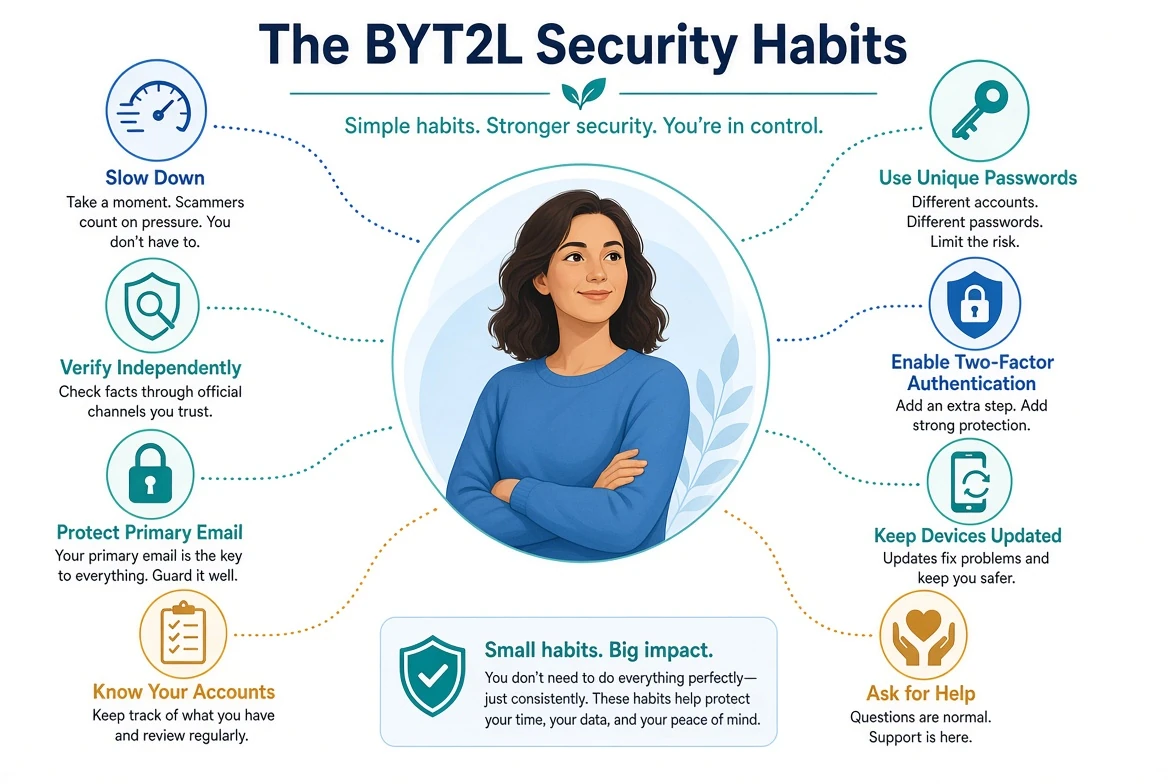
Slow Down, Verify, Then Act
Many scams succeed because the customer is pressured to act before they have time to think.
The message may create:
Fear
Urgency
Authority
Secrecy
Confusion
Excitement
Sympathy
A desire to help
The customer may be told:
“Your account is being drained.”
“Your computer is infected.”
“Your service will be disconnected.”
“A family member is in trouble.”
“The police are on the way.”
“Do not hang up.”
“Do not tell the bank.”
“You must act today.”
“This is your last opportunity.”
“You have won a prize.”
The safest first response is often to pause.
Do not allow the caller, sender, website, or pop-up to control the pace of the decision.
Before acting:
Stop the conversation
Do not click the link
Do not install software
Do not send money
Do not provide a password
Do not share a verification code
Do not approve a sign-in
Do not move money into a safe account
Do not follow instructions to keep the situation secret
Then verify the claim independently.
A legitimate organization should allow the customer to end the contact and reach the organization
through a trusted method.
Verify Independently
Independent verification means using a source that did not come from the questionable
communication.
Examples include:
Calling the number printed on the back of a payment card
Entering a known official website directly
Opening a trusted mobile application
Calling a saved business contact
Speaking with a local branch
Contacting a family member through a known number
Asking a trusted person for help
Contacting Bringing Your Tech to Life through established information
Do not use:
A telephone number in a suspicious email
A link sent by an unknown person
A number displayed in a pop-up
A search advertisement
A contact method supplied by the suspected criminal
A website reached through an unsolicited message
Caller ID, logos, names, email addresses, and websites can be imitated.
Accurate personal information does not prove that the contact is legitimate.
Use Unique Passwords
Every important account should have a unique password.
Password reuse allows one breach or phishing incident to affect several unrelated accounts.
Priority accounts include:
Primary email
Apple, Google, or Microsoft accounts
Financial accounts
Cellular-provider accounts
Government accounts
Healthcare portals
Shopping accounts with stored payments
Social media
Business administrator accounts
A password manager can make unique passwords practical.
The customer should understand:
Which password manager is being used
Which account controls it
Whether it synchronizes
Which devices can access it
How it is recovered
Where recovery codes are stored
What happens if the primary device is lost
A predictable password pattern is not the same as using unique passwords.
Protect Your Primary Email
The primary email account may control recovery for much of the customer’s digital life.
It should be protected with:
A unique password
Current recovery information
Recognized trusted devices
Regular review of forwarding and mail rules
Review of connected applications
Secure devices
A recovery plan
Customers should know which email address is used to recover:
Financial accounts
Shopping accounts
Social media
Cloud storage
Government accounts
Cellular service
Business systems
An old email address should not remain attached to important accounts unless the customer still
controls and protects it.
Enable Two-Factor Authentication
Two-factor authentication can prevent a stolen password from being enough by itself.
It should be considered for:
Email
Password managers
Financial services
Apple, Google, and Microsoft accounts
Social media
Cloud storage
Cellular-provider accounts
Government services
Business accounts
The customer should also protect:
The phone receiving verification messages
Trusted devices
Recovery codes
Recovery email addresses
The cellular-provider account
Never approve a sign-in the customer did not initiate.
Never share a verification code with an unexpected caller.
Keep Devices and Software Updated
Security updates repair known weaknesses.
Important updates may apply to:
Windows
macOS
Android
iPhone and iPad
Web browsers
Email applications
Office software
Password managers
Security software
Routers
Printers
Smart-home devices
Business applications
Automatic updates should be enabled when practical.
A device that no longer receives security updates may eventually need to be replaced or limited
to a less-sensitive purpose.
Install applications only from official app stores or verified vendor pages. Do not install an
application at the direction of an unexpected caller. Review screen-sharing, accessibility,
device-administrator, notification-access, VPN, and other high-risk permissions.
Home routers and Wi-Fi equipment also need attention. Use WPA2-AES or WPA3 when supported, change
the router administrator password, install supported firmware updates, and disable remote
management and WPS when they are not needed. A separate guest network can be useful for visitors
and less-trusted smart-home devices.
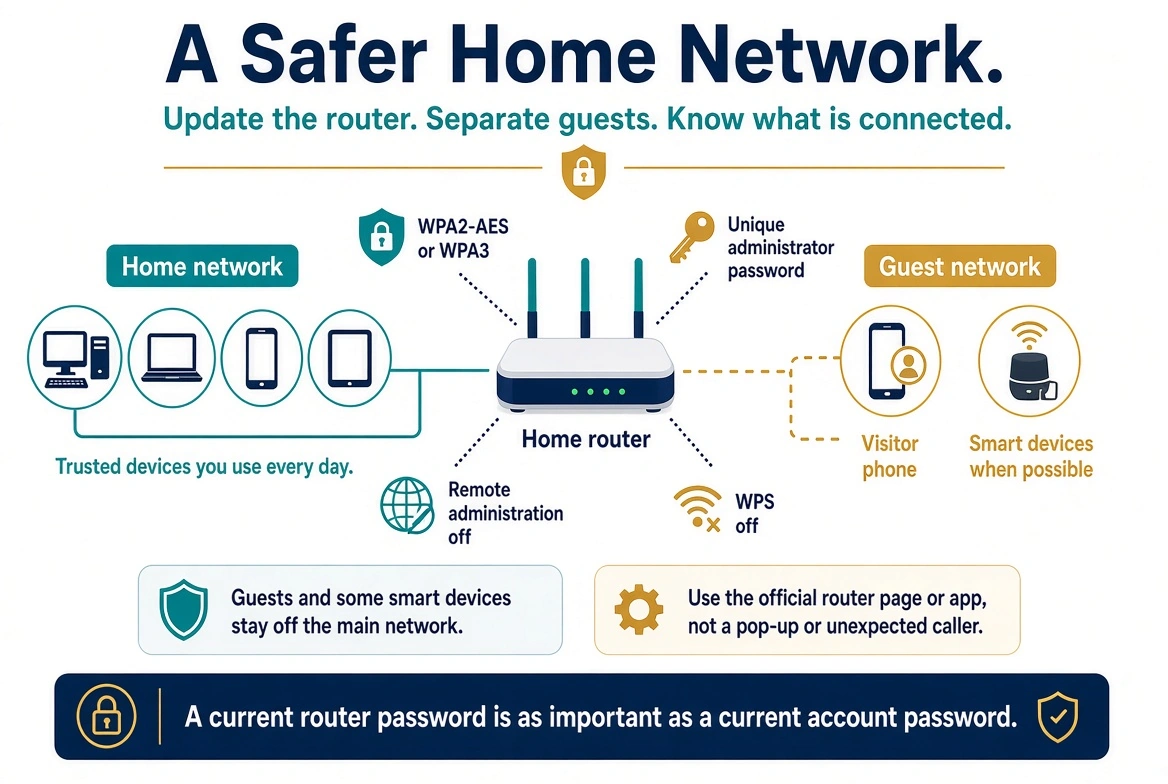
When using public Wi-Fi, verify the network name and avoid sensitive account changes unless
necessary. A VPN may protect traffic between the device and the VPN provider, but it does not
make fraudulent websites, phishing messages, or unsafe downloads trustworthy.
For phones and tablets, enable Apple Find My or Android Find Hub before the device is lost.
Enable Apple Stolen Device Protection or supported Android theft-protection features when
available. If a device is lost or stolen, mark it lost or lock it remotely, contact the cellular
provider, and follow the platform’s official recovery process.
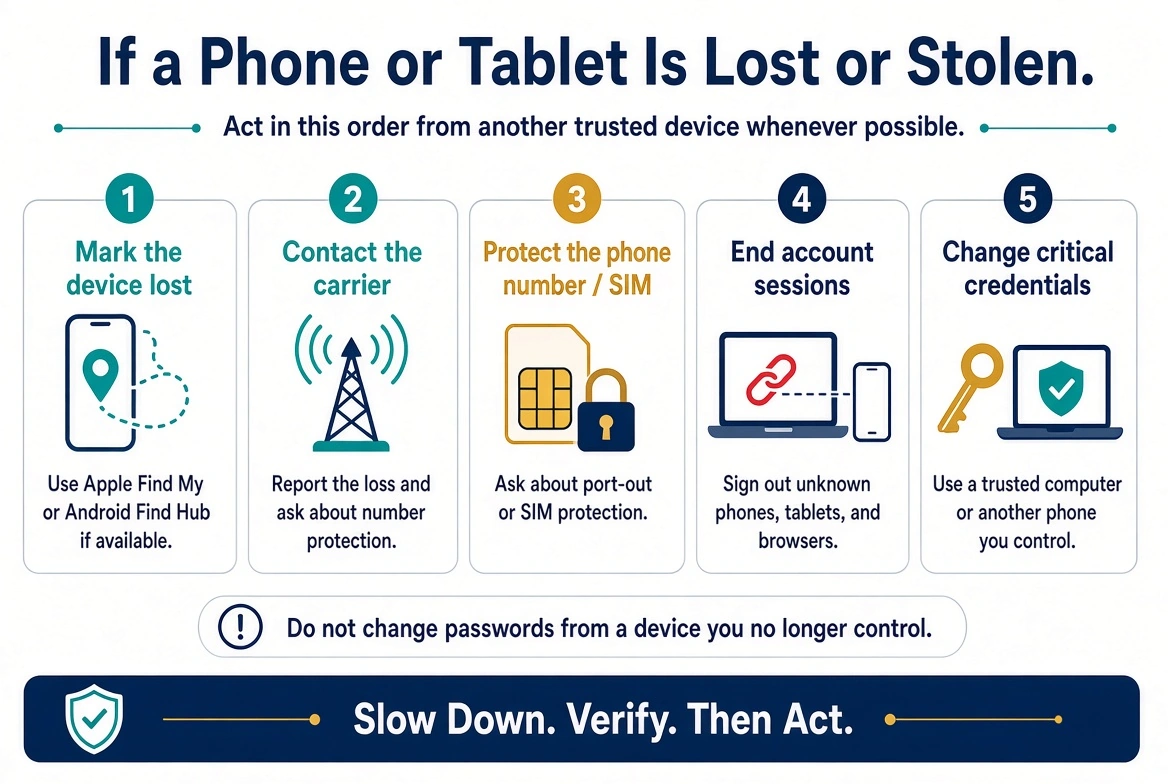
Updates do not prevent every scam. They reduce the number of known technical weaknesses available
to criminals.
Know Your Trusted Contacts
A frightened customer should not have to search for help while a scammer controls the
conversation.
Save verified contact information for:
Financial institutions
Credit-card issuers
Cellular providers
Insurance companies
A trusted family member
A trusted neighbor or friend
An accountant or tax professional
A legal professional when applicable
Bringing Your Tech to Life
A saved contact can help the customer avoid calling a fraudulent number found in a message,
pop-up, or search result.
Family members should discuss who can be contacted when something feels wrong.
Name Your Devices Clearly
Generic device names can make account investigations difficult.
An account may show several devices named:
iPhone
Android
Windows
Mac
Unknown Device
Specific names are easier to recognize.
Examples include:
John’s iPhone 16
JS iPhone 16
Jane’s Office iMac
Smith Family iPad
BYT2L-Front-Desk
Customers who want more privacy when using AirDrop, hotspots, Bluetooth, or similar services may
prefer initials rather than a full name.
A device name should help the customer identify it without revealing unnecessary information
publicly.
Understand Your Main Accounts
Customers should know which accounts control their devices and synchronized information.
This may include:
A Microsoft account used with Windows or Edge
An Apple Account used with an iPhone, iPad, or Mac
A Google Account used with Android or Chrome
A Mozilla account used with Firefox
A password-manager account
A business or school account
These accounts may synchronize:
Passwords
Passkeys
Browser history
Bookmarks
Photographs
Contacts
Files
Device backups
Payment information
Application settings
Synchronization can be useful. It also means that the controlling account deserves strong
protection.
Review Financial Activity
Do not wait for a suspected incident to review financial accounts.
Regularly examine:
Bank transactions
Credit-card transactions
Payment applications
Investment accounts
Automatic payments
Shopping accounts
Stored payment methods
Credit reports
Government and tax notices
Account alerts may be configured for:
Purchases
Transfers
Password changes
New recipients
Contact-information changes
Sign-ins
Large transactions
Low balances
Alerts should supplement regular review, not replace it.
Back Up Important Information
A backup can protect against:
Device failure
Theft
Accidental deletion
Fire
Water damage
Lost devices
Software corruption
Important information may include:
Documents
Photographs
Business records
Financial records
Tax information
Contact lists
Recovery information
A good backup plan may include:
A local backup
A cloud backup
An offline or disconnected copy
Periodic testing
Clear knowledge of which information is protected
Synchronization and backup are not always the same.
If a synchronized file is deleted or corrupted, the change may synchronize to other devices.
Customers should understand whether older versions or deleted files can be recovered.
Be Careful With Remote Access
Remote-access software can be useful when the customer intentionally requests help from a trusted
provider.
It becomes dangerous when installed because of:
An unsolicited telephone call
A pop-up warning
A suspicious email
A refund offer
A supposed bank investigation
A fake government contact
A search result leading to an unknown support company
Before allowing remote access:
Confirm who requested the session
Contact the provider through established information
Understand what software will be used
Stay present during the session
Do not open financial accounts unnecessarily
Do not reveal passwords
Do not approve unexplained changes
End the session if instructions become suspicious
Confirm whether the software should remain afterward
A legitimate technician should be willing to explain what is being done.
Talk About Scams Before They Happen
Families, caregivers, and businesses should discuss common scams before an emergency.
Conversations may include:
Who to call for help
Which financial institutions are used
How legitimate support is requested
Whether remote access is ever permitted
Who controls recovery information
How to verify a family emergency
Which accounts are shared
Where important records are stored
How to report suspicious activity
A family verification phrase may help confirm that an unexpected caller or message actually came
from a relative.
The phrase should not be posted online or based on information easily discovered through social
media.
Ask for Help
Criminals benefit when a customer feels isolated.
Asking another person to review the situation can interrupt the emotional pressure that makes a
scam effective.
Before sending money, installing software, or providing sensitive information, contact:
A trusted family member
A trusted friend
The institution involved
Bringing Your Tech to Life
Another appropriate professional
There is no embarrassment in asking for help.
The short delay may prevent a much larger problem.
Security Is a Habit, Not a Product
Antivirus, password managers, passkeys, two-factor authentication, credit freezes, and monitoring
services are valuable tools.
They work best when combined with habits that help the customer recognize unusual requests and
verify them independently.
Security is not achieved through one purchase or one repair.
It is maintained through small decisions made consistently.
CHAPTER TWELVE
Chapter 12
Common Security Myths
What Security Tools Can—and Cannot—Do
Security myths can create either false confidence or unnecessary fear.
A customer may believe one product makes them completely safe. Another customer may believe that
one incident means they can never safely use technology again.
Neither belief is accurate.
Understanding the limits of common security tools helps customers make better decisions.
“My Antivirus Protects Me”
Antivirus software is important.
It may detect:
Known malicious software
Suspicious files
Dangerous websites
Some harmful behaviors
Some attempts to change protected settings
Antivirus cannot reliably prevent a customer from:
Reading a verification code to a criminal
Approving a fraudulent sign-in
Sending money
Entering a password into a convincing fake website
Installing legitimate remote-access software
Giving someone permission to control the device
Reusing an exposed password
Sharing personal information
Falling for an impersonation scam
A device may have fully functioning antivirus software and still be involved in a serious
security incident.
Antivirus is one layer of protection—not a substitute for verification and judgment.
“I Have a Mac”
Mac computers include valuable security protections.
They can still be affected by:
Password theft
Remote-access software
Potentially unwanted applications
Malicious configuration profiles
Account compromise
Stolen browser sessions
Financial fraud
A criminal does not need to defeat macOS if the customer willingly provides access, approves
installation, or discloses account information.
Mac users should still:
Install updates
Review applications
Protect the Apple Account
Use unique passwords
Enable two-factor authentication
Review browser synchronization
Confirm FileVault and firewall settings as appropriate
Verify unexpected communications
“I Use a VPN”
A virtual private network can protect certain network traffic between the device and the VPN
provider.
A VPN may be useful for privacy, remote business access, or protection on untrusted networks.
It does not automatically prevent:
Phishing
Password reuse
Remote-access scams
Fake websites
Account takeover
Fraudulent payments
A criminal controlling the device
A customer approving a sign-in
A VPN also requires trust in the VPN provider.
It is a network tool—not a complete security system.
“I Don’t Bank Online”
A customer may believe avoiding online banking eliminates financial risk.
Financial institutions still maintain electronic records and online systems.
A criminal may attempt to:
Create online access using the customer’s identity
Change contact information
Redirect statements
Use stolen payment information
Deposit fraudulent checks
Transfer a telephone number
Apply for credit
Impersonate the customer
Convince the customer to send money
Not having an online account may sometimes leave an unused registration opportunity that someone
else could attempt to claim.
Customers should discuss available account protections with their financial institutions and
monitor their records even if they do not regularly bank online.
“I Don’t Have Anything Worth Stealing”
Criminals may value information that seems ordinary to the customer.
This may include:
An email address
A telephone number
A Social Security number
A date of birth
A mailing address
A payment card
An account with good standing
A social media profile
A contact list
A trusted relationship
A business identity
A device with an active session
An account can be valuable because it allows the criminal to impersonate the owner or target
other people.
A social media account with no financial information may still be used to ask friends for money.
An email account may be used to reset passwords.
A telephone number may receive verification codes.
The customer does not need to be wealthy or famous to be useful to a criminal.
“I Changed My Password, So I’m Safe”
Changing an exposed password is important.
It may not remove:
Active sessions
Trusted devices
Forwarding rules
Connected applications
App passwords
Changed recovery information
Browser cookies
Account delegates
Access to another account using the same password
After an incident, the password change should be combined with a review of the account’s other
access methods.
“I Have Two-Factor Authentication, So I Can’t Be Hacked”
Two-factor authentication provides strong additional protection.
It can still be defeated or bypassed when:
The customer shares the verification code
The customer approves an unexpected prompt
A trusted device is under unauthorized control
An active session is stolen
Account recovery is abused
A new authentication method is added
The email or telephone account is compromised
The service has a security failure
Two-factor authentication is highly recommended.
It is not permission to ignore unexpected prompts or suspicious activity.
“They Knew My Information, So They Must Be Legitimate”
Criminals may know:
The customer’s name
Telephone number
Email address
Home address
Financial institution
Employer
Relatives
Recent purchases
Account type
Portions of an account number
This information may come from:
Public records
Social media
Marketing databases
Stolen accounts
Previous scams
Mail
Business websites
Accurate information makes a story more convincing. It does not prove that the caller or sender
represents the organization they claim.
“My Caller ID Said It Was the Bank”
Caller ID can be manipulated.
A call may display:
A financial institution
A local police department
A government agency
A technology company
A local telephone number
The customer’s own number
Do not use caller ID as the only verification.
End the call and contact the organization through a known number.
“The Website Had a Lock, So It Was Safe”
The lock symbol in a browser generally means the connection to the website is encrypted.
It does not prove that the person operating the website is honest.
A fake banking or shopping website can also use encryption.
Customers should verify:
The complete website address
Spelling
Unexpected words or characters
How they reached the website
Whether the request makes sense
Encryption protects the connection. It does not guarantee the legitimacy of the destination.
“I Would Know if Someone Accessed My Device”
Unauthorized activity may not create obvious symptoms.
A device may appear normal while:
A remote-access program remains installed
A browser extension collects information
A session remains connected
A startup item runs silently
An account synchronizes data
Email rules redirect messages
A criminal uses stolen information from another device
The absence of pop-ups, slowness, or error messages does not prove that every device and account
is secure.
“My Computer Was Clean, So Nothing Happened”
A clean malware scan is useful information.
It does not rule out:
Phishing
Password theft
Account takeover
Stolen sessions
Remote access using legitimate software
Financial deception
A breach at another company
Identity exposure
Activity that left no available record
Malicious software that was removed before the examination
A security investigation must consider people, devices, accounts, and services together.
“I Should Replace Every Device”
Device replacement may be appropriate when:
A device cannot be supported securely
The operating system no longer receives updates
The system cannot be restored with reasonable confidence
Hardware problems make recovery unreliable
The cost of repair exceeds the practical value
The incident created special circumstances requiring replacement
Most incidents do not automatically require every device to be discarded.
Account security problems will not be fixed merely by buying a new computer.
The response should match the evidence.
Security Without False Confidence
The purpose of correcting security myths is not to make customers distrust every tool.
It is to help them understand what each tool contributes.
Strong security comes from combining:
Protected devices
Secure accounts
Unique passwords
Strong authentication
Independent verification
Financial awareness
Reliable recovery methods
Informed habits
CHAPTER THIRTEEN
Chapter 13
Frequently Asked Questions
Clear Answers After a Confusing Incident
Customers often leave a security incident with more questions than they expected.
Some questions can be answered through evidence. Others require a careful explanation of what can
and cannot be determined.
The answers in this chapter are general. The customer’s Service Report should explain how these
questions apply to their specific situation.
Can They Still Access My Device?
The answer depends on:
Whether remote access occurred
Which software was installed
Whether the software remains present
Whether unattended access was enabled
Whether another user account was created
Whether malware was found
Whether startup items or scheduled tasks were added
Whether the device was reset or rebuilt
Whether the customer changed relevant credentials
Whether the device has been assessed
Removing one visible program may not address every access method.
A device assessment may include reviewing:
Installed applications
User accounts
Startup items
Scheduled tasks
Security exclusions
System settings
Malware scan results
When reasonable steps have been completed, the remaining risk may be reduced to an acceptable
level.
No examination can guarantee that a device will remain secure forever.
Did They Steal My Identity?
Exposure of personal information is not automatically the same as confirmed identity theft.
We consider:
What information was disclosed
Whether a Social Security number or identification document was involved
Whether unfamiliar accounts were opened
Whether credit inquiries appeared
Whether tax, medical, employment, or benefit activity occurred
Whether financial transactions were completed
Whether the information appeared in a breach
Whether the customer received legitimate notices
The Service Report may classify the concern as:
Information exposure
Possible attempted identity theft
Confirmed identity misuse
No evidence identified
Unable to determine
Customers should continue monitoring when permanent identity information may have been exposed.
Should I Replace My Computer?
Not necessarily.
Replacement may be recommended when:
The operating system is no longer supported
The device cannot receive security updates
The device cannot be restored reliably
Hardware failure is likely
The cost of repair is unreasonable
The customer needs stronger security capabilities
The investigation reveals circumstances that make replacement appropriate
A properly assessed, cleaned, updated, or rebuilt device may be safe to continue using.
Buying a new computer does not secure compromised email, financial, or online accounts.
Should I Change All My Passwords?
Not every incident requires every password to be changed.
Priority should be given to:
Passwords entered during the incident
Passwords visible during remote access
Passwords stored in an exposed file
Passwords imported into an unfamiliar browser
Passwords found in breach records
Reused or closely related passwords
Primary email credentials
Apple, Google, or Microsoft accounts
Financial accounts
Accounts showing suspicious activity
Password changes should be completed from a reasonably trusted device and in an order that
protects account recovery.
Can You Determine What They Accessed?
Sometimes account logs, device records, messages, or transaction histories provide clear
evidence.
In other situations, the available records may be incomplete.
A criminal may have been able to view:
The screen
Open websites
Files
Saved passwords
Browser information
Email
Financial accounts
Personal records
Ability does not prove that every available item was actually viewed or copied.
The Service Report should distinguish:
Confirmed access
Likely exposure
Possible exposure
Activity that appears unlikely
Information that cannot be determined
Why Didn’t My Antivirus Stop It?
The incident may not have involved traditional malware.
A criminal may have used:
Legitimate remote-access software
A fake website
A stolen password
A verification code
An approved sign-in
A stolen session
A financial transfer authorized under deception
Antivirus cannot stop every action a customer is persuaded to complete.
Can I Safely Use Online Banking Again?
Online banking can generally be used safely after the relevant device and account risks have been
addressed.
Before resuming use, we may want to confirm:
The device is reasonably trusted
The email account is secure
Banking credentials have been reviewed
Unfamiliar sessions are ended
Recovery information is correct
Two-factor authentication is configured
The financial institution has completed its required steps
The customer understands remaining recommendations
The financial institution may impose its own requirements before restoring online access.
Should I Close My Email Account?
Usually, securing an existing email account is more practical than abandoning it.
Closing an email account can affect:
Password recovery
Financial alerts
Shopping accounts
Government services
Contacts
Business records
Subscriptions
Cloud storage
A replacement address may be appropriate if:
The customer cannot recover the account
The provider cannot secure it
The address receives unmanageable abuse
The account no longer meets the customer’s needs
The incident created a special risk
Before closing an address, connected accounts and recovery methods must be updated carefully.
Why Am I Still Receiving Scam Messages?
Contact information may continue circulating after:
A data breach
A phishing attempt
A previous scam
A public posting
Marketing activity
An exposed contact list
A stolen account
Receiving another scam message does not necessarily mean the criminal still controls the device
or account.
It may mean the customer’s telephone number or email address remains on a list.
Evaluate the new message based on what it actually requests and whether it contains evidence of
account access.
Can They Access My Account After I Change the Password?
Possibly.
Some services retain:
Trusted devices
Connected applications
App passwords
Delegated access
Recovery methods
Changing the password should be combined with a review of these access paths.
Could Two-Factor Authentication Have Prevented the Incident?
It depends on how access occurred.
Two-factor authentication may help when a criminal has only the password.
It may not prevent access when:
The customer shares the code
The customer approves the prompt
An active session is stolen
A trusted device is controlled
Account recovery is abused
The criminal adds another authentication method
It remains an important protection even though it does not prevent every incident.
Should I Stop Shopping or Banking Online?
Avoiding all online activity is usually unnecessary and may not eliminate the risk.
Organizations still maintain electronic records even when the customer does not personally use
their websites.
A more practical approach is to:
Use trusted devices
Visit official websites
Use unique passwords
Enable strong authentication
Monitor transactions
Verify unexpected messages
Use safer payment options
Ask for help when uncertain
The goal is confident use—not fear-driven avoidance.
Can Stolen Information Be Removed From the Dark Web?
There is usually no reliable method to retrieve every copy after information has been
distributed.
A posting may be removed, but copies may remain elsewhere.
Recovery focuses on making the information less useful through:
Password changes
Stronger authentication
Financial protection
Protected government accounts
Monitoring
Independent verification
Should I Pay Someone Who Says They Can Recover My Money?
Be extremely cautious. Recovery scammers may contact previous victims and promise to:
Recover stolen funds
Trace cryptocurrency
Arrest the criminal
Remove information from the dark web
Unlock a frozen account
Obtain reimbursement
Warning signs include:
Advance fees
Gift-card or cryptocurrency payments
Guaranteed recovery
Remote-access requests
Secrecy
Requests for passwords or codes
Verify any recovery organization independently before providing information or money.
Why Can’t You Guarantee That Everything Is Safe?
Digital systems do not record every action.
Records may be:
Deleted or overwritten
Incomplete
Retained for a limited period
Unavailable to the customer
Stored by another organization
Missing entirely
A responsible investigation explains these limitations.
The purpose is to reduce risk based on the available evidence—not to provide certainty that the
evidence cannot support.
What Should I Do if Something New Happens?
Do not assume every new event is connected, but do not ignore meaningful warning signs.
Document:
What happened and when it happened
Which device or account was involved
What message appeared
What actions were taken
Whether money or information was involved
Preserve relevant evidence and contact the appropriate institution or Bringing Your Tech to Life.
Confidence Comes From Understanding
Customers do not need to become security experts.
They need to understand:
What happened
What was protected
What remains uncertain
What warning signs matter
Who to contact
What actions to avoid
Clear information replaces fear with practical awareness.
CHAPTER FOURTEEN
Chapter 14
Understanding Your Service Report
Turning the Investigation Into Clear Next Steps
This guide provides general security and recovery information. A Service Report is
customer-specific and may document:
What the customer reported
Which devices and accounts were examined
What evidence was available
What was discovered
What actions were completed
What risks remain
What could not be determined
What the customer should do next
The report should be read together with any account-security worksheet, password record,
financial-institution verification letter, or follow-up checklist provided with the service.
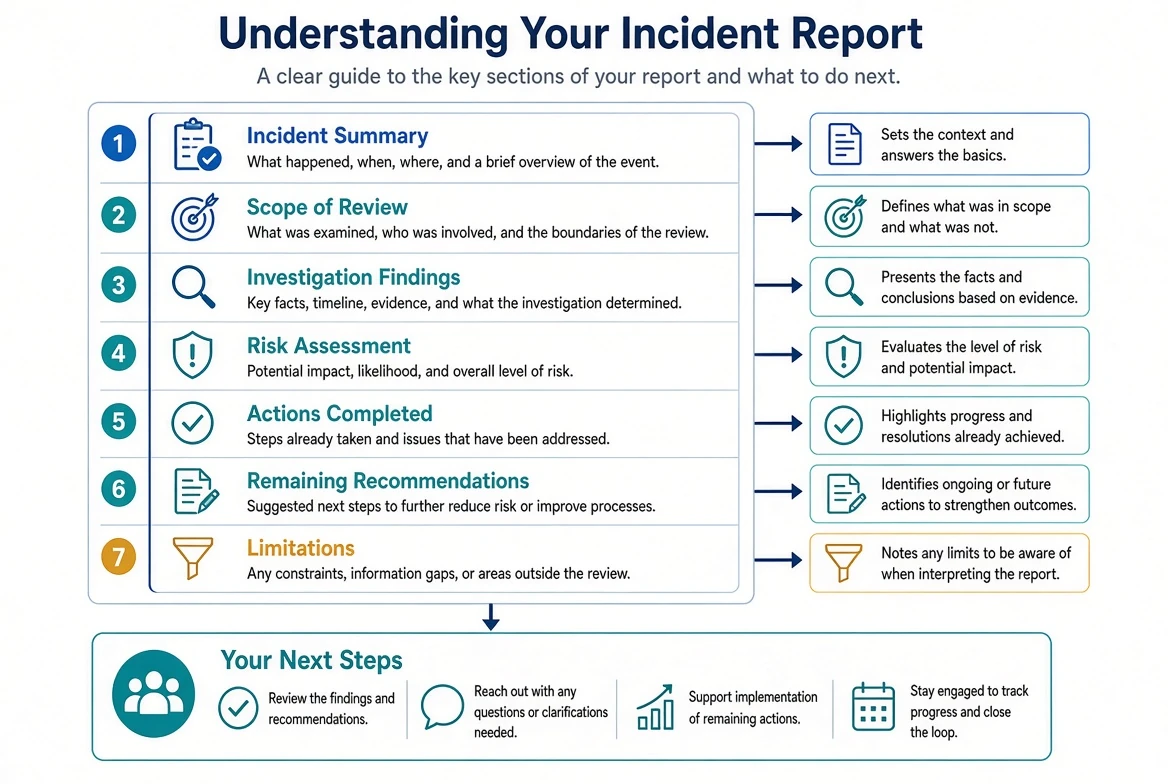
Incident Summary
The incident summary provides a plain-language description of what brought the customer to
Bringing Your Tech to Life.
It may include:
The type of suspected incident
When the event occurred
How contact began
What the customer was told
Which actions the customer completed
Whether remote access occurred
Whether passwords or codes were disclosed
Whether money was transferred
Which devices or accounts were involved
What actions were taken before service
The summary is based on the customer’s recollection, available records, and information gathered
during intake.
It may be updated if later evidence changes the understanding of the event.
Scope of Review
The scope explains what Bringing Your Tech to Life was authorized to examine.
This may include:
Specific computers
Smartphones or tablets
External storage devices
Email accounts
Apple, Google, or Microsoft accounts
Browsers
Social media
Shopping accounts
Cloud services
Financial-account security settings
Available breach information
Evidence supplied by the customer
The scope is important because the absence of a finding in one area does not prove that an
unexamined device or account is secure.
Not every service includes every possible investigation step.
Investigation Findings
The findings section records what was identified during the authorized examination.
Findings may include:
Malware or unwanted software
Security exclusions
Unfamiliar applications
Startup items
Scheduled tasks
Account sessions
Connected devices
Email forwarding or mail rules
Recovery-information changes
Reused passwords
Breach exposure
Unfamiliar transactions
No relevant evidence identified
A finding should explain why it matters.
For example, identifying remote-access software does not automatically prove how long it was used
or every action performed through it.
The report should separate the observed fact from the conclusion that can reasonably be drawn
from it.
How Findings May Be Classified
The report may use wording such as:
Confirmed
The available evidence directly supports the finding.
Examples may include:
A remote-access application was installed
An unfamiliar forwarding rule existed
An unauthorized transaction appeared
A known password was reused
An unfamiliar session remained active
Likely
The available evidence supports the explanation, but complete proof is unavailable.
Possible
The event could have occurred, but the evidence does not establish that it did.
Unlikely
The available information does not support the concern, although absolute certainty may not be
possible.
Not Identified
The examination did not locate relevant evidence within the reviewed area.
Unable to Determine
Available records are insufficient to reach a reliable conclusion.
These classifications help prevent assumptions from being presented as facts.
Risk Assessment
The risk assessment explains the practical importance of the findings.
Risk may be affected by:
The sensitivity of the information
The length of possible access
Whether remote control occurred
Whether passwords were exposed
Whether passwords were reused
Whether email was involved
Whether financial information was visible
Whether identity information was available
Whether suspicious account activity occurred
Whether the customer still controls recovery methods
Whether protective actions were completed
The report may describe risks as requiring:
Immediate action
Prompt follow-up
Routine monitoring
Long-term awareness
No additional action beyond the completed service
A risk rating is not a prediction that harm will occur.
It helps organize priorities.
Actions Completed
This section documents steps completed during the authorized service.
Examples may include:
Preserving evidence
Assessing a device offline
Removing unwanted software
Removing remote-access software
Installing security updates
Reviewing browsers and extensions
Securing email
Changing selected passwords
Ending sessions
Removing unfamiliar devices
Correcting recovery information
Enabling two-factor authentication
Reviewing financial-account security
Contacting an institution with the customer
Preparing documentation
The report should distinguish between actions completed by Bringing Your Tech to Life and actions
completed by the customer or another organization.
Remaining Recommendations
Some actions may need to be completed after the device is returned.
Recommendations may include:
Changing additional passwords
Contacting a financial institution
Replacing a payment card
Reviewing credit reports
Placing a credit freeze
Filing an identity-theft report
Securing another device
Reviewing additional accounts
Updating device names
Configuring backups
Monitoring transactions
Scheduling follow-up service
The recommendations should be prioritized when possible.
A customer may see:
Immediate
Within the next few days
During the first month
Ongoing
Optional improvement
The customer should not assume that an unchecked recommendation was completed during service.
Account and Password Documentation
A separate account-security worksheet may document:
The account or service
The username or email address
Whether the password was changed
Whether two-factor authentication was reviewed
Whether recovery information was confirmed
Whether sessions were ended
Whether connected applications were reviewed
What follow-up remains
A password record may be provided separately when authorized.
The general Service Report should not unnecessarily display readable passwords.
Digital copies may redact passwords while a printed record or customer-managed password system
contains the information the customer needs.
Any password documentation should be stored securely.
Financial-Institution Verification Letter
When requested and appropriate, a separate letter may summarize technical work for a financial
institution.
It may identify:
The customer
The device examined
The authorized scope
Relevant findings
Security actions completed
Recommendations
Limitations
The letter does not:
Guarantee reimbursement
Determine liability
Prove every action taken by a criminal
Replace the institution’s investigation
Certify future security
Provide legal or financial advice
The financial institution decides how the information affects its account-access or claim
process.
Limitations of the Investigation
Every investigation has limitations.
The report may explain that:
Some services retain limited history
Records may have expired
Logs may have been deleted
A device may have been changed after the incident
A criminal may have used another device
The customer may not remember every detail
Some accounts were not reviewed
Encrypted or provider-controlled records were unavailable
The ability to access information does not prove it was viewed
A clean scan does not rule out account compromise
The absence of evidence is not proof that an event never occurred
Limitations are not an excuse for incomplete work.
They are an honest explanation of what the available evidence can support.
Reading the Report
When reviewing the report, ask:
What was confirmed?
What appears likely?
What was not identified?
What remains unknown?
Which risks require immediate action?
Which actions were completed?
Which actions remain?
Who is responsible for each remaining step?
When should follow-up occur?
What evidence should be preserved?
Contact Bringing Your Tech to Life if a finding or recommendation is unclear.
The report should help the customer understand the situation—not create additional confusion.
Keep the Report Secure
The Service Report may contain:
Contact information
Device information
Account names
Email addresses
Security findings
Financial information
Identity-related concerns
Store it securely.
Do not post it publicly or send it to an unverified person.
Provide only the relevant portions when an organization requests documentation.
The Report Is a Starting Point
The Service Report records the investigation at a particular time.
It cannot predict every future event.
New information may require:
An updated recommendation
Additional account review
Further device assessment
Contact with another organization
A follow-up report
The most valuable report is one the customer understands and uses.
CHAPTER FIFTEEN
Chapter 15
Your Post-Service Checklist
Turning Recommendations Into Completed Actions
The return of a device does not always mean every recovery step is finished.
Some actions must be completed by the customer because they require:
Personal identity verification
Direct communication with a financial institution
Approval of account changes
Access to another device
Decisions about credit or identity protection
Ongoing monitoring
Coordination with family members, employees, or advisors
Use the Service Report as the primary source for the customer’s specific recommendations.
The checklist in this chapter is general. Complete only the items that apply.
Before Resuming Normal Use
Confirm that:
The affected device was assessed, cleaned, rebuilt, or otherwise addressed as recommended
Unauthorized remote-access software was removed
Important security updates were installed
Antivirus or security protections are functioning
Browser extensions were reviewed
Unfamiliar user accounts were removed
Important files are available
The customer understands any remaining device limitations
The customer knows which device should be used for important account changes
Do not reconnect or resume use of a device that Bringing Your Tech to Life specifically
instructed the customer to keep offline.
Immediate Post-Service Checklist
Devices
Review the device names listed in the Service Report
Confirm that every device is recognized
Rename generic devices when helpful
Protect smartphones and tablets with strong passcodes
Confirm screen-lock settings
Enable device encryption when recommended
Securely store encryption recovery keys
Remove software no longer needed
Install pending updates
Confirm backups
Primary Email
Confirm the password is unique
Confirm two-factor authentication
Review recovery email addresses
Review recovery telephone numbers
Review connected devices
End unfamiliar sessions
Review forwarding settings
Review filters and mail rules
Review delegated access
Review app passwords
Review connected applications
Confirm that security alerts are being received
Important Identity Accounts
Review applicable Apple, Google, Microsoft, password-manager, and cellular-provider accounts.
Confirm unique passwords
Review connected devices
End unfamiliar sessions
Confirm recovery information
Review passkeys and security keys
Review authentication methods
Remove unfamiliar applications
Confirm synchronization settings
Securely store recovery codes
Remove old devices no longer owned
Passwords
Replace passwords known or suspected to be exposed
Replace reused passwords
Avoid predictable variations
Configure a password manager when appropriate
Remove unprotected password documents
Remove unnecessary password-export files
Confirm passwords are not stored in ordinary email
Store the separate password record securely
Shred outdated printed password records when no longer needed
Financial Accounts
Contact every institution identified in the Service Report
Review recent transactions
Report disputed activity
Replace payment cards when directed
Replace bank accounts when directed
Review payment recipients
Review connected external accounts
Review authorized users
Change online-access credentials when required
Save case and confirmation numbers
Update legitimate automatic payments after account replacement
Continue monitoring transactions
Identity Protection
Review the information that may have been exposed
Obtain credit reports when recommended
Place credit freezes when appropriate
Place a fraud alert when appropriate
Create an IdentityTheft.gov report when identity theft occurred
Secure tax and government accounts
Consider an IRS Identity Protection PIN
Review medical or insurance records when applicable
Protect a child’s credit file when appropriate
Preserve identity-theft documentation
Evidence and Documentation
Store the Service Report securely
Preserve original emails and messages
Preserve screenshots
Preserve call logs
Preserve financial records
Preserve receipts
Preserve claim and case numbers
Preserve breach notifications
Maintain a recovery log
Provide documents only through verified channels
Trusted Contacts
Save verified financial-institution numbers
Save the cellular provider’s number
Save Bringing Your Tech to Life’s contact information
Identify a trusted family member or friend
Discuss the incident with anyone whose account may also be affected
Notify business partners, employees, or customers when appropriate
Establish a family verification phrase when helpful
What Not to Do
Do not continue communicating with the suspected criminal
Do not send additional money
Do not pay an advance fee for recovery
Do not allow unexpected remote access
Do not share verification codes
Do not approve unfamiliar sign-ins
Do not move money into a safe account
Do not lie to a financial institution
Do not delete evidence before it is preserved
Do not assume every new message is connected without evaluating it
Do not ignore meaningful new account activity
30-Day Follow-Up
During the first month:
Review bank and credit-card activity regularly
Review email security settings again
Confirm unfamiliar sessions have not returned
Confirm recovery information remains correct
Review security alerts
Complete remaining password changes
Follow up on financial claims
Review credit information when recommended
Confirm credit freezes or fraud alerts
Review cellular-account activity
Confirm backups are working
Complete any recommendations marked pending
Contact Bringing Your Tech to Life if new evidence appears
A follow-up review may be appropriate when:
Several accounts were involved
Identity information was exposed
Financial fraud occurred
Business accounts were affected
The customer needs help completing recommendations
New activity appears
90-Day Recommendations
After approximately three months:
Review the Service Report
Confirm all priority recommendations were completed
Review financial transactions
Review credit information when applicable
Confirm important accounts remain secure
Remove old devices and sessions
Review connected applications
Confirm recovery codes are stored securely
Test backups
Review subscription and payment accounts
Update the recovery log
Resolve remaining claims or disputes
Schedule additional assistance if needed
Annual Security Review
Security settings change over time.
New devices, telephone numbers, email addresses, payment cards, employees, family arrangements,
and services may create new access paths.
An annual review may include:
Updating device inventories
Reviewing device names
Removing old devices
Reviewing primary email security
Reviewing Apple, Google, and Microsoft accounts
Reviewing password-manager security
Identifying reused passwords
Reviewing two-factor authentication
Confirming recovery information
Reviewing passkeys and security keys
Reviewing connected applications
Reviewing financial-account alerts
Reviewing credit reports
Confirming credit freezes
Reviewing government accounts
Testing backups
Updating trusted contacts
Reviewing business access when applicable
The annual review is intended to find small problems before they become emergencies.
When to Contact Us Again
Contact Bringing Your Tech to Life when:
An unfamiliar device or session appears
A remote-access program returns
The customer receives repeated sign-in prompts
Recovery information changes unexpectedly
An account sends messages without permission
A financial institution requests technical documentation
New malware or unwanted software is detected
The customer receives another suspicious support request
A device behaves unusually after service
The customer cannot complete a recommended security step
Another household or business account may be involved
New evidence changes the incident timeline
The customer wants an annual security review
If money is actively being transferred, contact the financial institution immediately through a
verified channel.
If physical safety is threatened, contact the appropriate emergency authority.
If identity theft is confirmed, use IdentityTheft.gov and contact the affected organizations.
Keep What You Have Learned
The purpose of this guide is not to make the customer afraid of technology.
It is to help the customer recognize how modern incidents happen, understand the recovery
process, and make safer decisions in the future.
The most important habits are simple:
Slow down
Verify independently
Protect primary email
Use unique passwords
Enable strong authentication
Keep devices updated
Review financial activity
Ask for help
A security incident may temporarily damage the customer’s confidence.
Knowledge, documentation, and consistent habits can help restore it.
The goal is not only to recover from this incident.
The goal is to become a harder target for the next one.
APPENDICES
Reference Materials, Reporting Information, and Support Resources
The following appendices provide definitions, trusted resources, reporting information and support references.
They are intended to support the guidance in this document and are not a substitute for instructions provided by a financial institution, government agency, attorney, insurance provider, or law-enforcement agency.
Web addresses, telephone numbers, and procedures can change. When possible, begin at the
organization’s official website rather than relying on a search advertisement, unsolicited
message, pop-up warning, or telephone number supplied by an unknown person.