
King, NC · Danbury · Pinnacle · Tobaccoville · Germanton · Walnut Cove
Email setup in King, NC
Outlook, Thunderbird, webmail, and the phone that will not send. ISP mail after a rename, Microsoft 365, Gmail, and the mailbox that is simply full. We set it up so it still works next year.
Monday–Friday 9:00 AM–7:00 PM by appointment. Drop-off is scheduled when your ticket is near the top of the queue.

Mail that sends, on every device
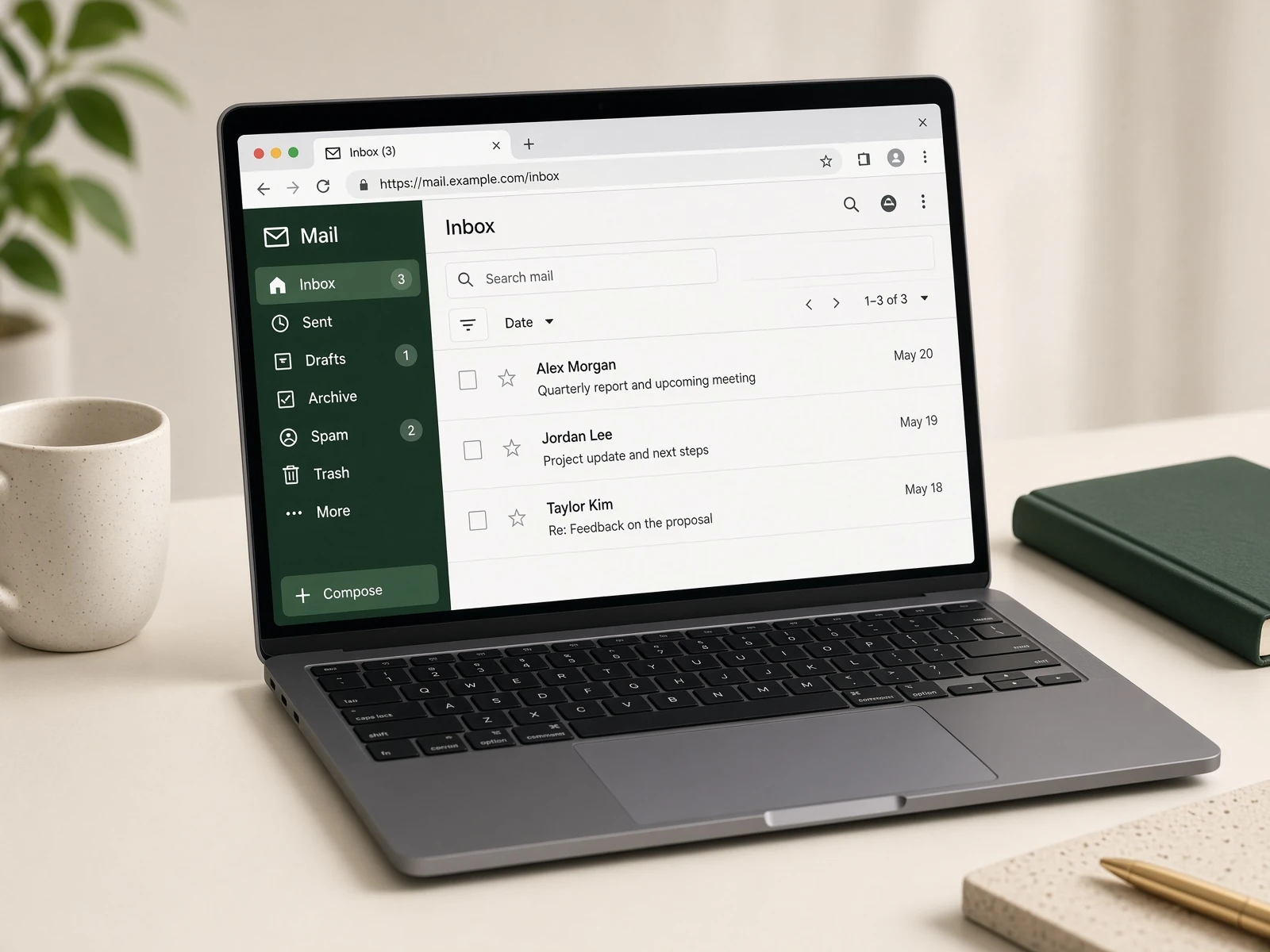
A lot of people in Stokes County still live in their ISP’s webmail. That works until the box fills up, an attachment is too big, or the phone and the PC show two different inboxes. We set a real mail client when it helps, we keep webmail when that is all you want, and we write down the servers and ports.
We do not publish an email address on this site for a reason. Repair requests belong on a ticket, not a contact form. Passwords do not go in the work order — passwords. If a scammer is already in the mailbox, that is security, not just a setup job.
What we actually work on
 Webmail |  Outlook |
 Thunderbird | 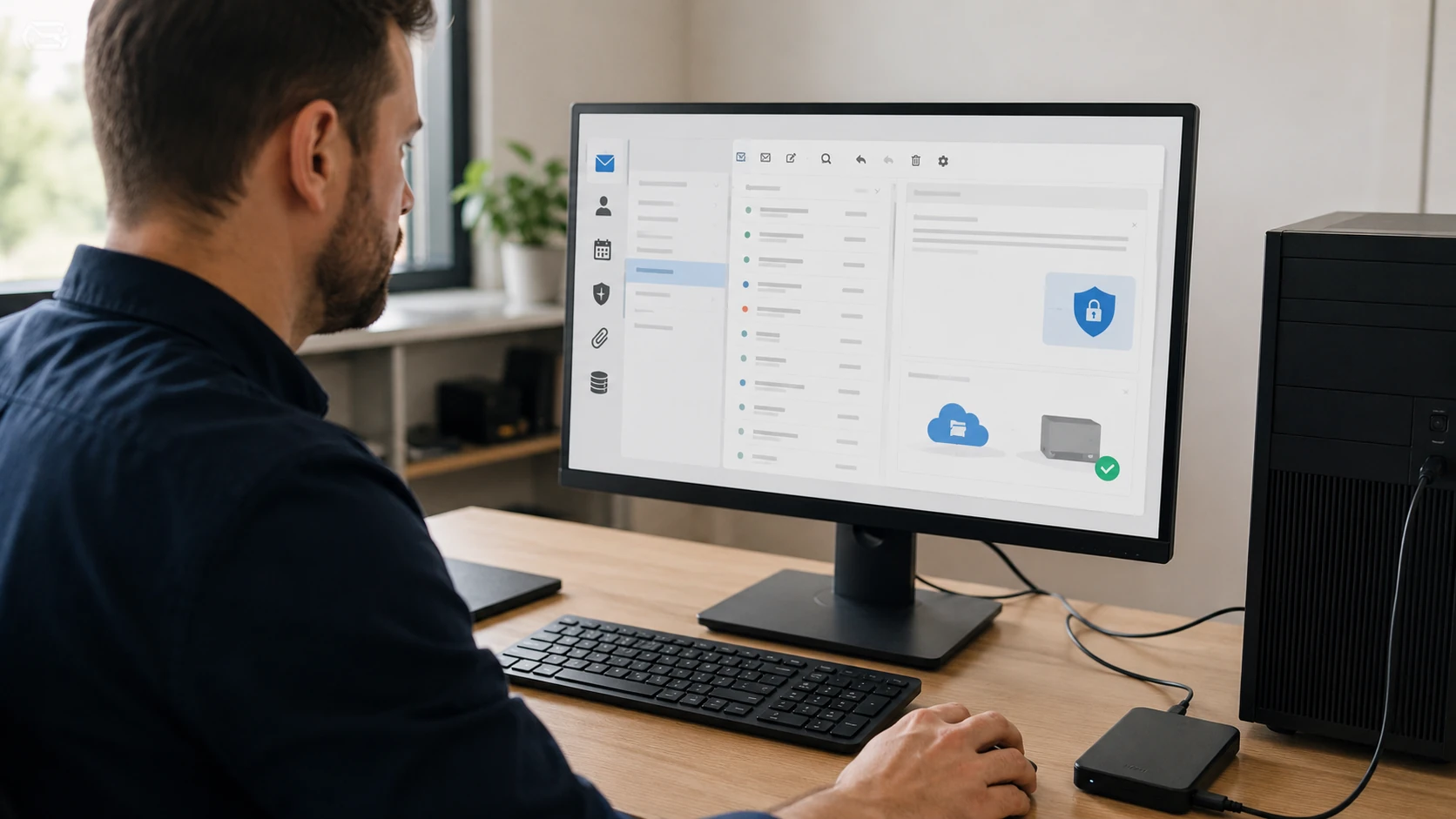 Email client setup |
 Servers & ports |  Phone mail |
 Calendar sync |  Contacts sync |
 Spam filtering |  Mail antivirus |
 Safe attachments | 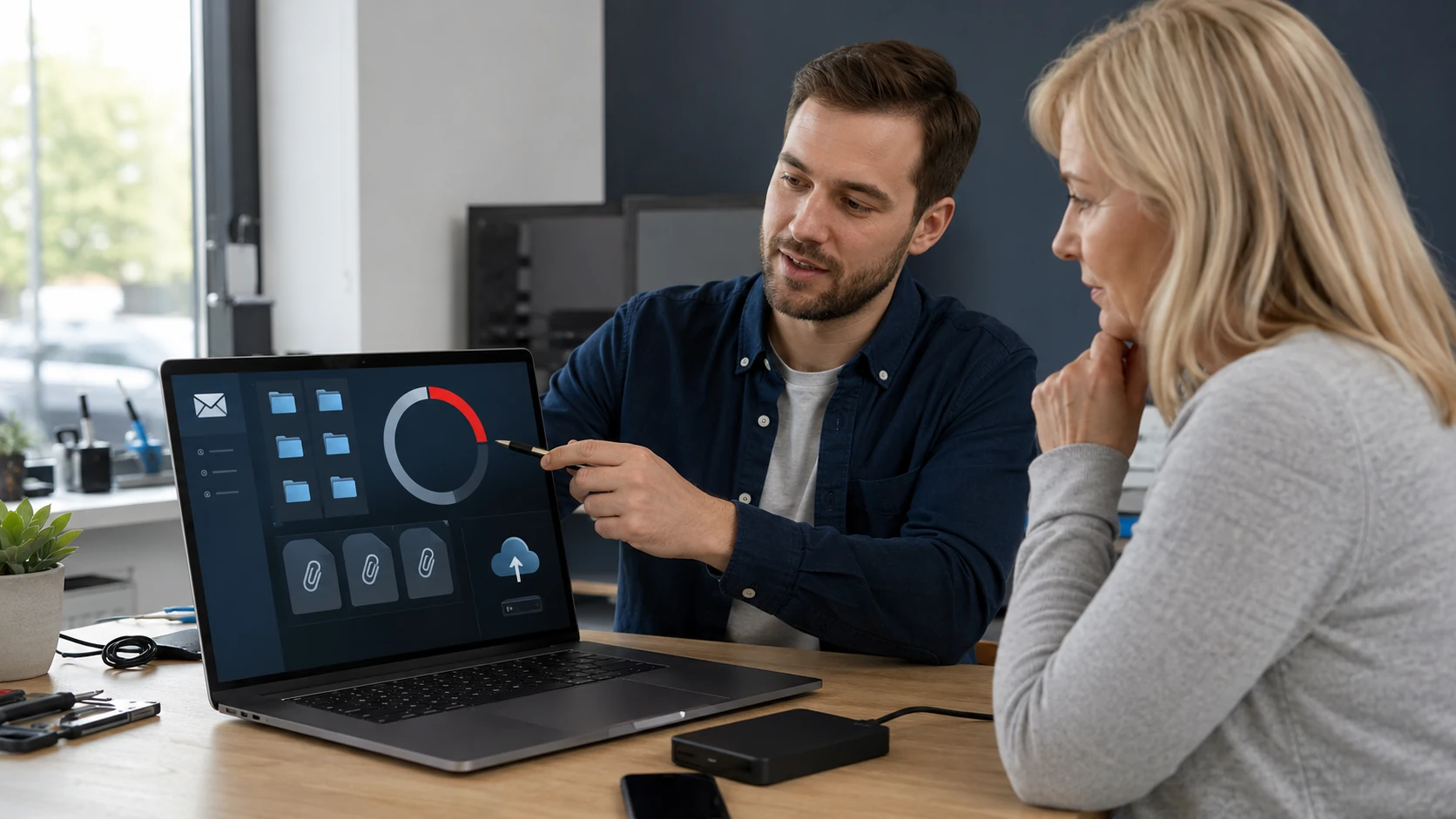 Mailbox cleanup |
How the work actually goes
Webmail is not the whole mailbox
Spectrum, Brightspeed, AT&T, Gmail, Yahoo — the browser login works until the mailbox fills up. ISP webmail often has a small quota. One vacation’s photos as attachments and you cannot send. We show you what is actually stored on the server versus what only lives in Outlook on that one PC.
Microsoft Outlook
Outlook is still what a lot of King offices live in. We set the account the right way — IMAP or Microsoft 365, not a leftover POP3 profile from 2012 that deletes mail off the phone. Profiles, data files, and “Outlook cannot find the server” after an ISP rename are ordinary tickets.
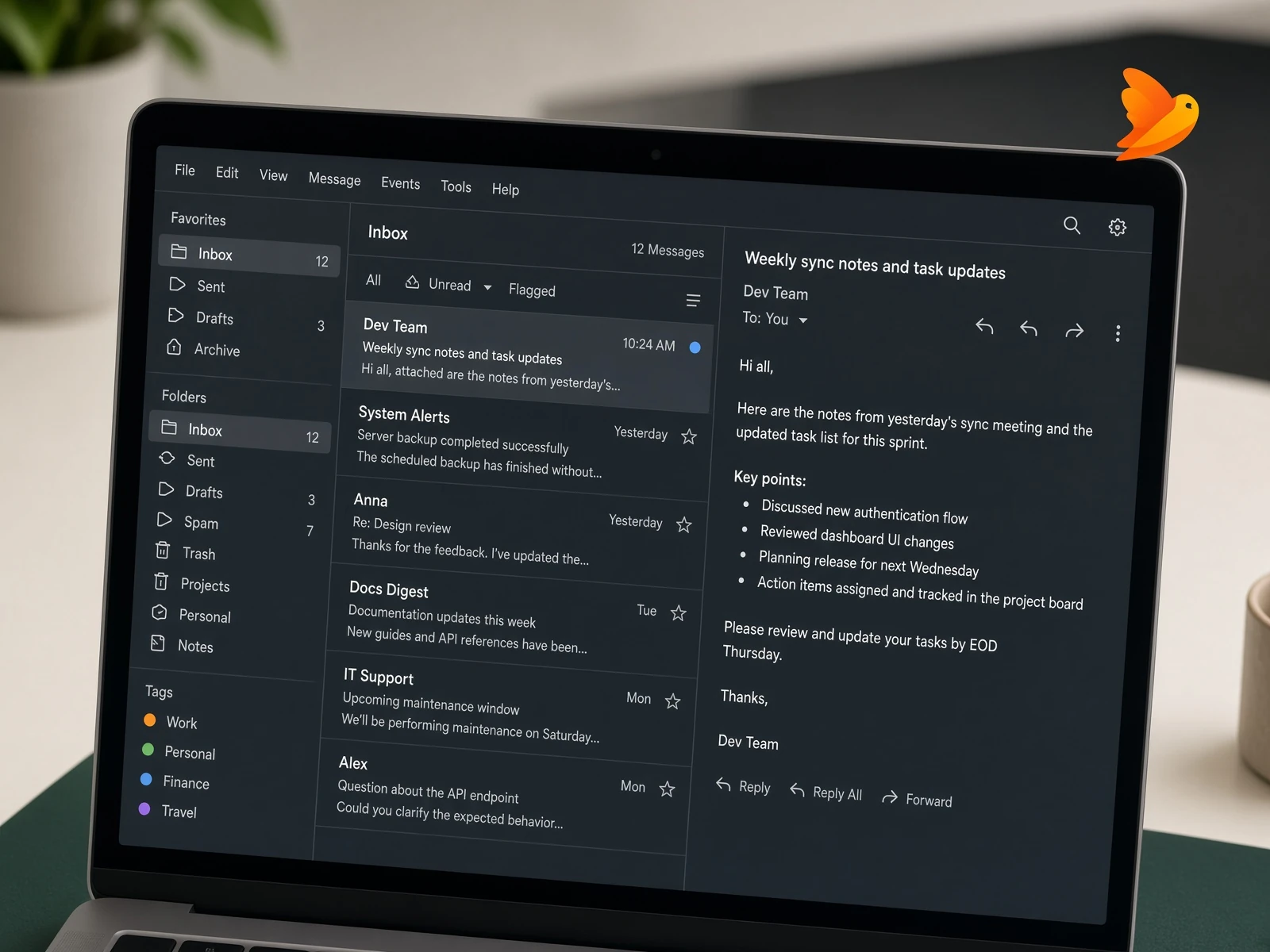
Mozilla Thunderbird
Yes, we set up Thunderbird. Same mail, no Microsoft tax. Useful when a household wants a real client without buying Office. We still set IMAP, encryption, and a local backup of the profile so the next PC upgrade does not eat ten years of folders.
A real mail client on the computer
Webmail is fine for a quick check. A client on the PC is what you want when you send attachments, keep folders, and work offline. We configure Outlook, Thunderbird, Apple Mail, or the mail app you already have — and we write down the settings so you are not guessing next year.
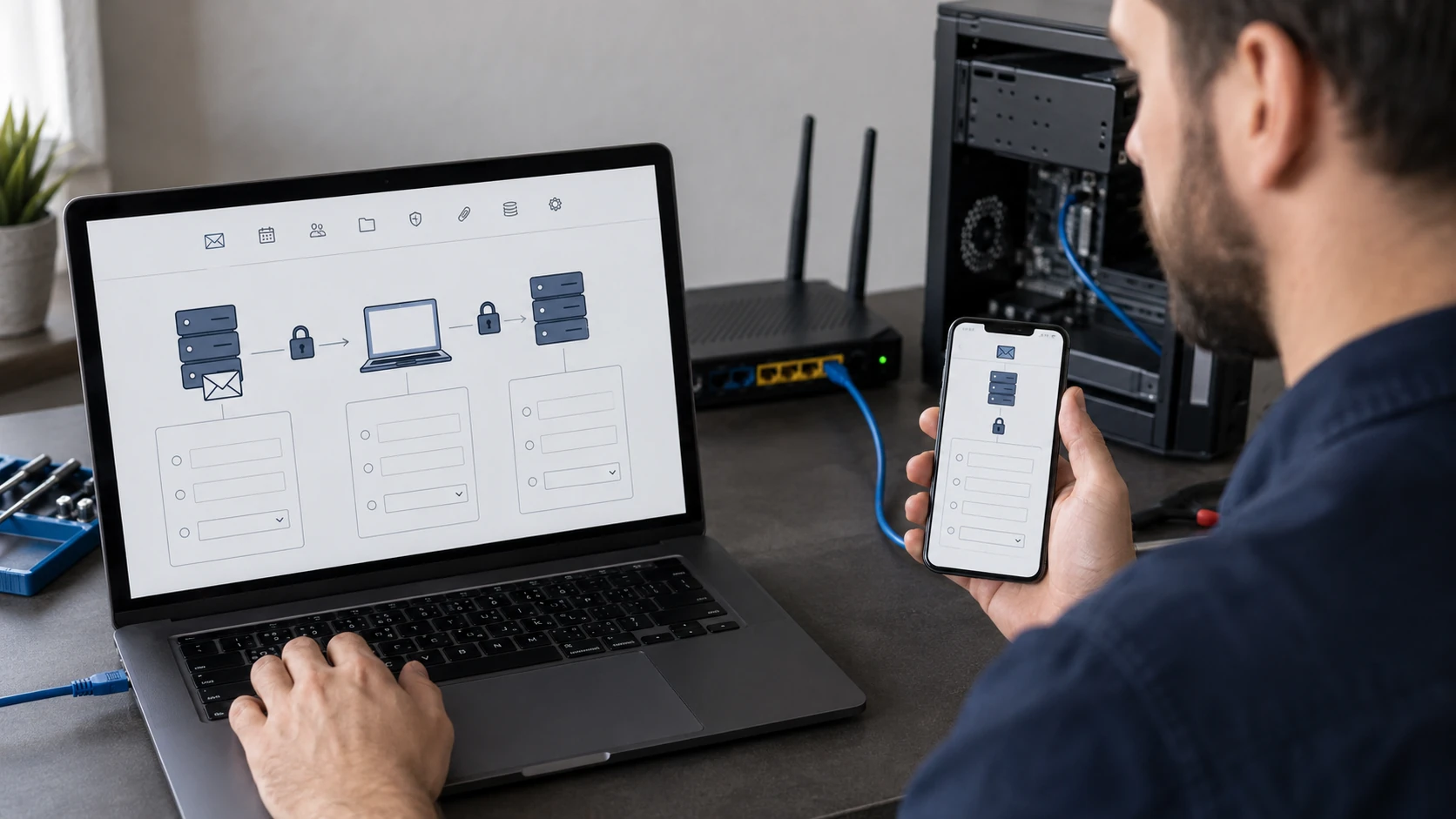
IMAP, POP, SMTP, and the ports that actually encrypt
Most apps guess Gmail correctly. ISP mail and older domain mail often guess wrong. The “right” auto-setup is sometimes the less-secure option. We set the servers, ports, and encryption that match how you actually use mail — not whatever the wizard filled in.
Mail on the phone, without wrecking the PC
Add the same account to iPhone or Android so a message you delete in one place is gone in both — that is IMAP. POP on the phone is how people “lose” mail. We set the phone after the computer, not instead of it, and we check that sent mail is going through the same account.
Calendar on every device
A paper calendar plus three phones that disagree is how you miss the appointment. We sync Google, Microsoft 365, or iCloud calendars to the PC and the phone so one change shows up everywhere. Shared family calendars included when the accounts allow it.
Contacts that follow you
The address book that only lives in Outlook on the tower is gone when that tower dies. We move contacts into the same account as the mail — Google, Microsoft, or Apple — and sync phone and PC. Duplicates get cleaned when we can see them.
Spam you can actually control
A junk folder that eats the electric bill is as bad as a mailbox full of pills. We set filtering at the account and, when you use a client, on the PC. We also look for rules you did not create — a filter forwarding bank mail is a security ticket, not a spam ticket.
Scanning mail, not just the disk
Most ISP webmail has little or no real antivirus. Gmail, Microsoft, and Yahoo do more. A mail client on the PC can let your antivirus inspect attachments going in and out. We turn that on. Opening a “invoice” from a stranger in webmail is still a bad idea.
Attachments without the nasty surprise
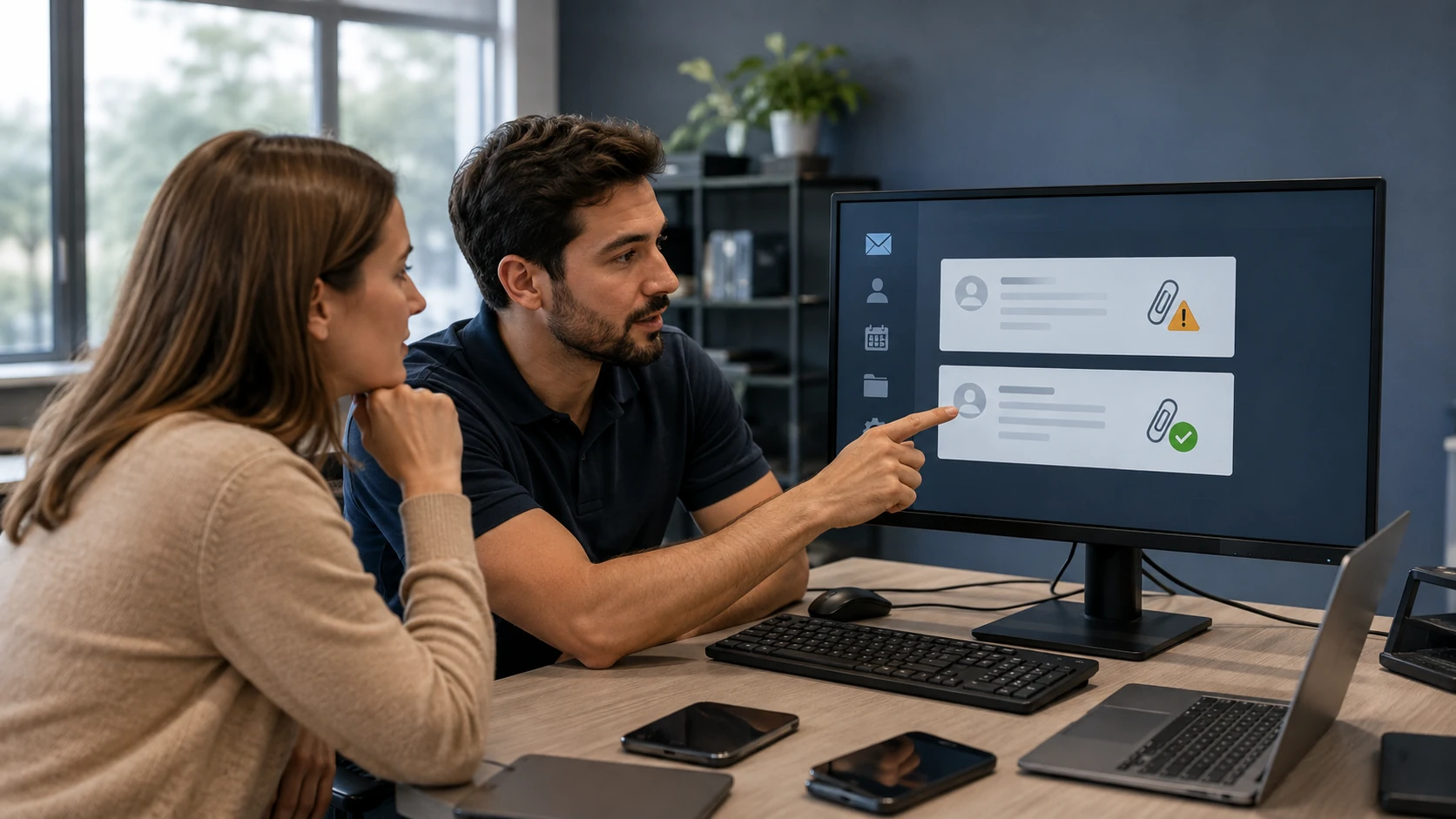
Photos and PDFs are how work gets done. They are also how malware arrives. We show you what a real file looks like versus a .html pretending to be a PDF, and we set the client so it does not auto-open junk. Large videos belong in cloud storage, not in a 25 MB mailbox.
When the mailbox is full
Cannot send, cannot receive, and the phone keeps asking for a password. Often the mailbox is simply full. We archive what you want to keep, delete the obvious junk, and set a size you can live with. If ten years of mail only lives on one PC, we talk backup before that disk dies.
What customers said
Public Google reviews. Names as published. Dates omitted. Google Business Profile · all reviews
“He made everything work again, got me more memory, Helped my Apple phone talk to my PC.”
Renee A. Labrenz
“Paul is a pleasure to work with. Highly attentive to detail and professional. He was able to pinpoint and fix network issues I was experiencing at my office. It’s rare to find someone near King experienced with Mac based systems.”
Derrick Carroll
“Paul is awesome!! He’s one of the only people I trust with my computer. His prices are awesome and he is very thorough. He explains everything so I always know what’s going on.”
Shannon Middleton
Email FAQ
1. Can you set up my email?
Yes. Supported personal and business accounts on desktop and mobile: Outlook, Thunderbird, Apple Mail, webmail, iPhone, and Android. Complex account recovery or large mailbox migrations take more time and we will say so up front.
2. Do you set up Thunderbird as well as Outlook?
Yes. Thunderbird is a first-class option, not an afterthought. It is often the right client when you do not want a Microsoft 365 subscription, or when an Outlook profile is too damaged to keep repairing.
3. Microsoft 365?
Yes. Sign-in, Outlook desktop, Outlook on the web, and the usual modern-authentication loop. Have the account recovery options available. We will not store the password.
4. Phones?
Yes. iOS and Android mail, including leftover old passwords and accounts that receive but will not send.
5. Can you sync my calendar and contacts?
Usually. The hard part is deciding which account is the source of truth so you do not end up with three copies of every appointment. We sort that before we flip switches.
6. Can you reduce spam?
We can tighten provider filters, client junk settings, and antivirus mail scanning. We cannot make the internet polite. If the account is forwarding mail to a stranger, that is a compromise — different ticket, often same visit.
7. Why don’t you list an email address?
Spam. Use the ticket or the partner contact form. Repair requests submitted on the contact form are ignored on purpose. They belong on /ticket.
8. Can this be done remotely?
Often. If the computer cannot get online, or the account is locked and you cannot complete the provider’s recovery steps, it has to come in or we walk through recovery on a call first.
9. Will you migrate years of old mail?
Yes when the source is readable and the destination will accept it. Giant PST files, dead ISP accounts, and “I have six Gmail addresses and I want them to be one” are billed as the project they are, not as a 20-minute setup.
10. IMAP or POP3?
IMAP for almost everyone who uses more than one device. POP3 only when there is a specific reason. We will explain the tradeoff instead of leaving the wizard on its default.
11. IMAP, POP, or Exchange — which should I use?
IMAP (or Microsoft 365 / Google) if you use more than one device. POP if you want mail downloaded to one PC and removed from the server — which is how people lose mail. We will not set POP just because an old wizard did.
12. Can a scammer forward my mail?
Yes. Filters and forwarding you did not create are a security job, not just an email-setup job. Tell us if money already moved.
13. Do you keep my email password?
No. See passwords.
Mail that will not send?
Submit a ticket. Bring the device. Do not show up unannounced.